1. What is InsightFlow?
InsightFlow is a core module of GoInsight.AI. It enables enterprises to visually design and automate business processes by using a drag-and-drop interface to orchestrate cross-system operations, data transfer rules, conditional logic, and other business workflows.
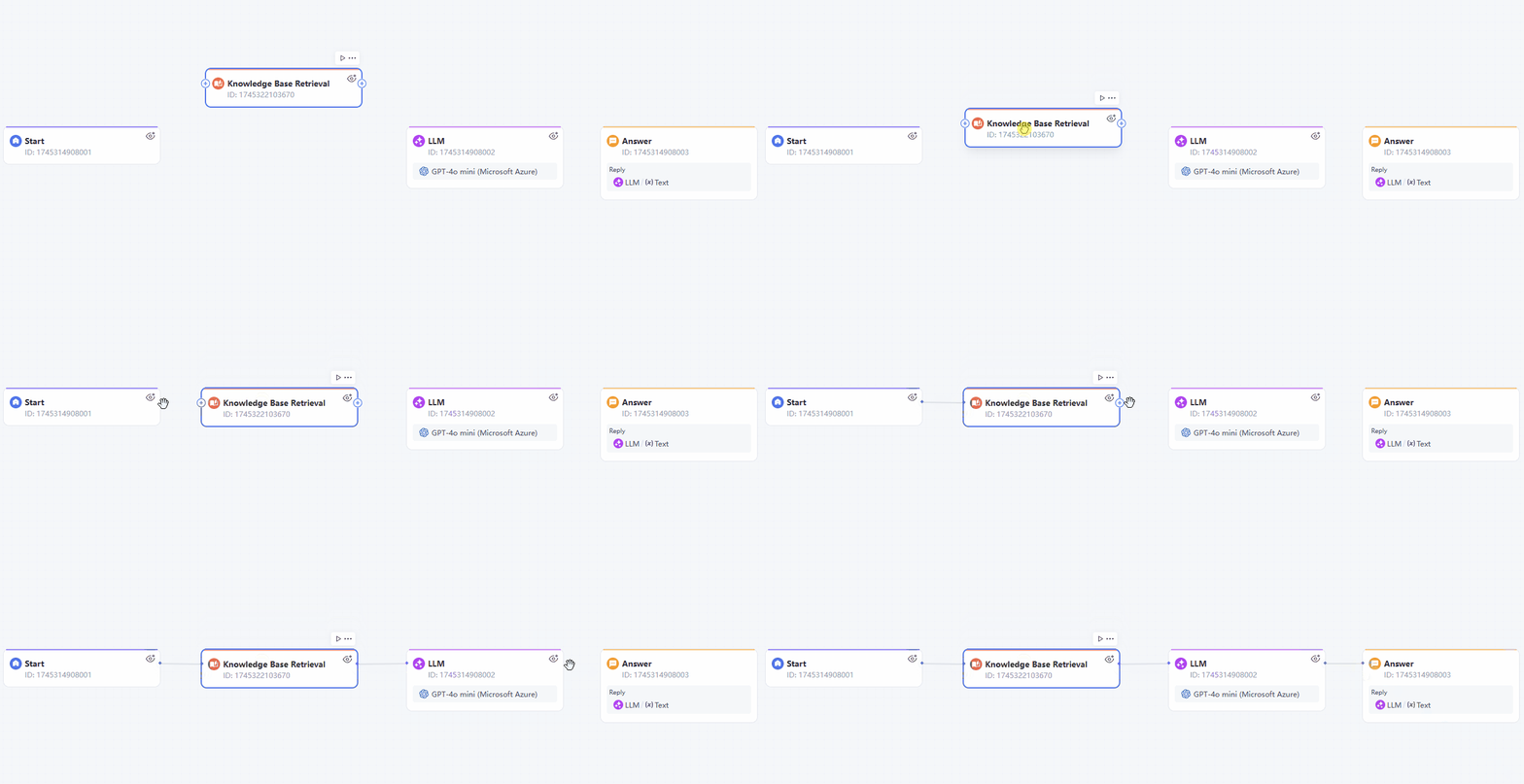
Each workflow consists of multiple nodes, such as Knowledge Retrieval, LLM, and HTTP Request nodes, connected through logical links. With dynamic data transfer between nodes, non-technical users can easily configure complex business processes and build enterprise-grade automation without coding.
Key concept
- Nodes: Nodes are the key components in the workflow, each node is responsible for performing a specific task.
- Variables: Variables are used in workflow to store and transfer data, allowing workflow to share information between different nodes.
Quick Guide:
- Get started: Start with a built-in template.
- Basic configuration: Including create, connect, and configure nodes.
- Test workflow: Debugging workflow, using the checklist to ensure all key configurations are properly set, and viewing debug history.
- Run: Save, publish, and share your workflow.
2. Nodes
A node is an independent operation unit in a workflow that represents a specific task, event, or decision point. Each node performs a specific function and determines the next execution path based on its configuration and input conditions.
Nodes are connected through links to form a complete workflow structure, allowing data and operations to flow smoothly throughout the workflow.
2.1 Basic Nodes
GoInsight.ai provides the following basic nodes. Each node has its own unique capabilities, so you can mix and match them flexibly when designing a workflow to meet a wide range of business needs
-

 Start NodeThe Start node is the entry point of a workflow. It’s mainly used to initialize the workflow and provide required input information for subsequent nodes. You can add different types of variables here so later nodes can process and use the data correctly.
  End NodeThis node is available only in a Service Flow. The End node is the termination point of a workflow and allows you to select output variables from upstream nodes. Each workflow needs at least one End node to ensure completeness. It supports multi-branch designs to build more complex workflow logic.
 ProgressThis node is available only in an Interactive Flow. When the workflow reaches this node, it outputs the workflow execution progress.
 AnswerThis node is available only in an Interactive Flow. It’s used to output processed data or messages.
 AgentThis node features “smart decision-making + tool call”. It allows the LLM to autonomously choose and call tools at runtime based on the agent strategy, completing multi-step reasoning or operations.
 LLMUses an LLM to process input data and generate advanced natural-language outputs. This node flexibly supports multiple role settings and prompt formats, helping you precisely configure the model’s behavior.
 Knowledge Base RetrievalRetrieves information relevant to the input question from workspace documents and returns results. The returned results can also be used by other nodes (such as the LLM node) for further processing. You can set a relevance threshold and TopK to obtain the most relevant knowledge content, supporting downstream decisions and information acquisition.
 Document ReadThe Document Read node reads document content from the workspace and stores it into a variable for use by subsequent nodes in the workflow.
 Document DeleteDeletes the specified workspace document.
- Document WriteThe Document Write node writes information into Knowledge Base documents, making it easy to create or update Knowledge Base document content within a workflow.
 HTTP RequestInteracts with external APIs/Services by sending HTTP requests and handling the response data. With this node, you can flexibly access and operate remote resources. You can choose different HTTP methods and configure the request URL, headers, params, and body to interact with external APIs/Services.
 KnowledgeFocus LLMThis node is available only in an Interactive Flow. GoInsight.AI’s LLM designed for secure, document-specific Q&A. It will not answer questions beyond your data, and it is protected against unauthorized instructions.
 IF/ELSEUsed to select branches based on different conditions. It supports combining multiple conditions with AND/OR. With specific condition checks, you can control the workflow execution path and build more flexible control logic.
 Question ClassifierClassifies the input text into predefined categories. This node uses LLM reasoning to identify the category the text belongs to, helping you quickly route and handle relevant questions.
 Branch AggregatorMerges results from different branches in a workflow. It aggregates variable values from each branch into a unified output for easier downstream processing. This node is typically used after IF/ELSE or Multi-branch Selector.
 Multi-branch SelectorSelects a branch based on the value of an input variable. You can define multiple cases (conditions). The node decides which branch to execute by comparing the input value with each case.
 IterationRuns a sub-process multiple times based on a count or a collection, passing specified data into the sub-process round by round and aggregating outputs. This is useful for batch processing, bulk calls, or generating data lists.
- Interactive FormDefines a structured form for data collection within a workflow. When the workflow runs to this node, it generates a form instance in the backend based on your configuration—this node does not send the form to the user. It only defines the form’s structure/content and generates the form access link. This node is typically used together with the “Pause & Resume” node to pause the workflow first, then continue along the specified branch after the form is submitted, canceled, timed out, or revoked.
- Pause and ResumePauses (hangs) the current workflow and waits for an external action result. After a submit/cancel/timeout/revoke event occurs, it resumes execution based on the preset resume conditions and branches.
- DelayDelays the workflow for a specified duration before continuing.
 Auto-ContinueUse the “Auto-Continue” node to decide: if no human intervention is needed, the Agent continues automatically; if needed, it leaves the decision to a human.
 TemplateLets you dynamically generate text output by defining a template and input variables. Supports Jinja2 and Go Text Template syntax.
 CodeRuns custom code to perform specific computations or data-processing tasks.
 JSON Variable ExtractorExtracts specific variables or values from JSON-formatted data.
 Variable AssignerSet or update the values of variables used in the workflow so that subsequent nodes can use them.
 Variable ExtractorCalls an LLM to recognize and analyze natural-language input, and then extracts and outputs structured variable/parameter values you predefined.
 Tool CallInvoke existing tools under the account dynamically.
2.2 Tools
Tools are core components in GoInsight.AI that extend the capabilities of enterprise workflows. GoInsight.AI provides a rich collection of built-in tools and also offers a workflow engine that allows enterprises to create custom tools based on their specific needs.
2.3 Services
Services allow users to publish complex workflows as reusable services that can be called by other workflows.
3. Variables
Variables are used to store and transfer data within workflows, enabling different nodes to share information. Based on their scope and usage, variables can be categorized into different types.
3.1 System Variables
System variables are predefined system-level parameters within a workflow. They can be accessed globally by other nodes.
Interactive Flow provides the following system variables:
| Variables | Data Type | Description |
|---|---|---|
| Query | String | The user’s input question/content. |
| Date | String | The date when the current workflow starts running, using UTC time, formatted as yyyy-MM-dd |
| Time | String | The time when the current workflow starts running, using UTC time, formatted as HH:mm:ss |
| TimeOffset | Number | The user’s (browser) timezone offset in minutes relative to UTC. For example, UTC+8 is 480. If it can’t be collected, it is 0 (corresponding to UTC time). |
| $LastAnswer | String | Stores the previous turn’s output. |
| $LastAnswerRole | String | Stores the role name used in the previous Answer. |
| $Round | Number | In an Auto-Continue conversation, indicates which turn it is. |
| $IsAutoContinue | Bool | Whether the current conversation is in Auto-Continue mode. |
| $ChatHistory | Array[Object] | Chat history, including historical Q&A and token counts. |
| $UserFiles | Array[File] | Files uploaded by the user. After the button is turned off, the file upload entry will be hidden in the chat UI. |
| $TargetWorkflowID | String | In the collaboration workbench, the workflow ID specified via @.In the collaboration workbench, the workflow ID specified via @. |
| $IsCollaboration | String | “True” means a group chat; otherwise it’s a normal single-user chat in the collaboration workbench. |
| $BrowserIP | String | The user browser’s IP address. |
| $BrowserUserAgent | String | The user browser’s UserAgent. |
| $WorkflowID | String | A unique identifier for the current workflow being executed. |
| $BatchID | String | The batch ID of this workflow execution. |
| $UserID | String | A unique ID for identifying the user; can be used to track the same user across multiple sessions. |
| $UserDisplayName | String | The user’s display name. |
| $UserInfo | String | The user’s information. |
| BrowserLang | String | The user’s browser language, e.g., zh-CN/en-US. |
| $SessionID | String | The current Q&A session. |
| $PersonalDataPath | String | The “Personal Data” directory path in the current workflow executor’s documents. |
Service Flow provides the following system variables:
| Variables | Data Type | Description |
|---|---|---|
| UTCDate | String | The date when the current workflow starts running, using UTC time, formatted as yyyy-MM-dd |
| UTCTime | String | The time when the current workflow starts running, using UTC time, formatted as HH:mm:ss |
| $BrowserIP | String | The user browser’s IP address. |
| $BrowserUserAgent | String | The user browser’s UserAgent. |
| $ABEvent | Object | Contains device details, trigger reasons, and automation execution results when an AirDroid Business alert is Triggered. You can use this information for further AI analysis and to run more complex automated processes. |
| $WorkflowID | String | workflow ID. |
| $BatchID | String | The batch ID of this workflow execution. |
| $UserID | String | A unique ID for identifying the user; can be used to track the same user across multiple sessions. |
| $UserDisplayName | String | The user’s display name. |
| $UserInfo | String | The user’s information. |
| BrowserLang | String | The user browser’s language, e.g., zh-CN/en-US. |
| $SessionID | String | The current Q&A session. |
| $PersonalDataPath | String | The “Personal Data” directory path in the current workflow executor’s documents. |
3.2 Conversation Variables
Conversation variables store and transfer data during each workflow execution. Each workflow session has its own independent session variables, meaning variables from different sessions do not affect each other.
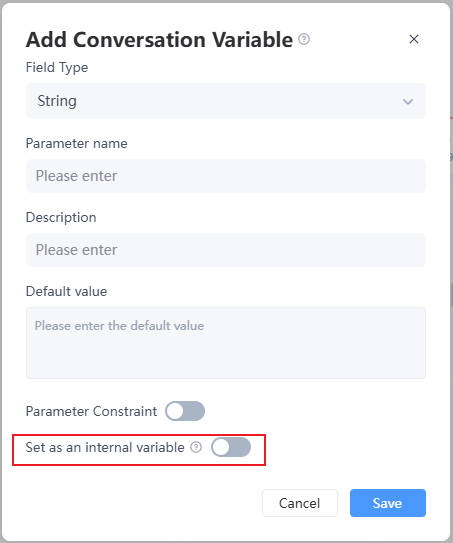
3.3 Internal Variables
Internal Variables are only accessible and visible within a workflow. They cannot be accessed or called externally.
They are mainly used to store temporary data, intermediate states, or configuration information required during workflow execution, such as:
- Counters used in workflow loops or temporary caches from tool calls.
- Intermediate calculation results passed between nodes without external exposure.
- Default workflow configurations, such as timeout settings or internal status flags.
Internal variables are designed to remain internal for the following reasons:
- Encapsulation: Hide workflow implementation details and prevent external users from affecting workflow logic through unintended modifications.
- Security: Prevent sensitive intermediate data or configuration information from being accessed externally.
- Simplicity: Reduce the complexity of external calls by allowing users to focus only on inputs and outputs without understanding internal execution logic.
When a workflow is called externally, access to internal variables (Protected) is restricted. They will not be exposed or passed externally.


Leave a Reply.