Workspace Documents is a unified space in GoInsight.AI for creating, uploading, managing, and calling documents and materials. Use it to maintain company materials, business guidelines, FAQs, process documentation, Prompts, code snippets, Workflow read/write data, global configurations, and more—choosing different document types based on your use case.
Workspace Documents can provide context for AI, enabling it to understand, retrieve, and answer based on document content. It can also serve as a text storage space within Workflows, letting you read, write, and share key data across Workflows and sessions.
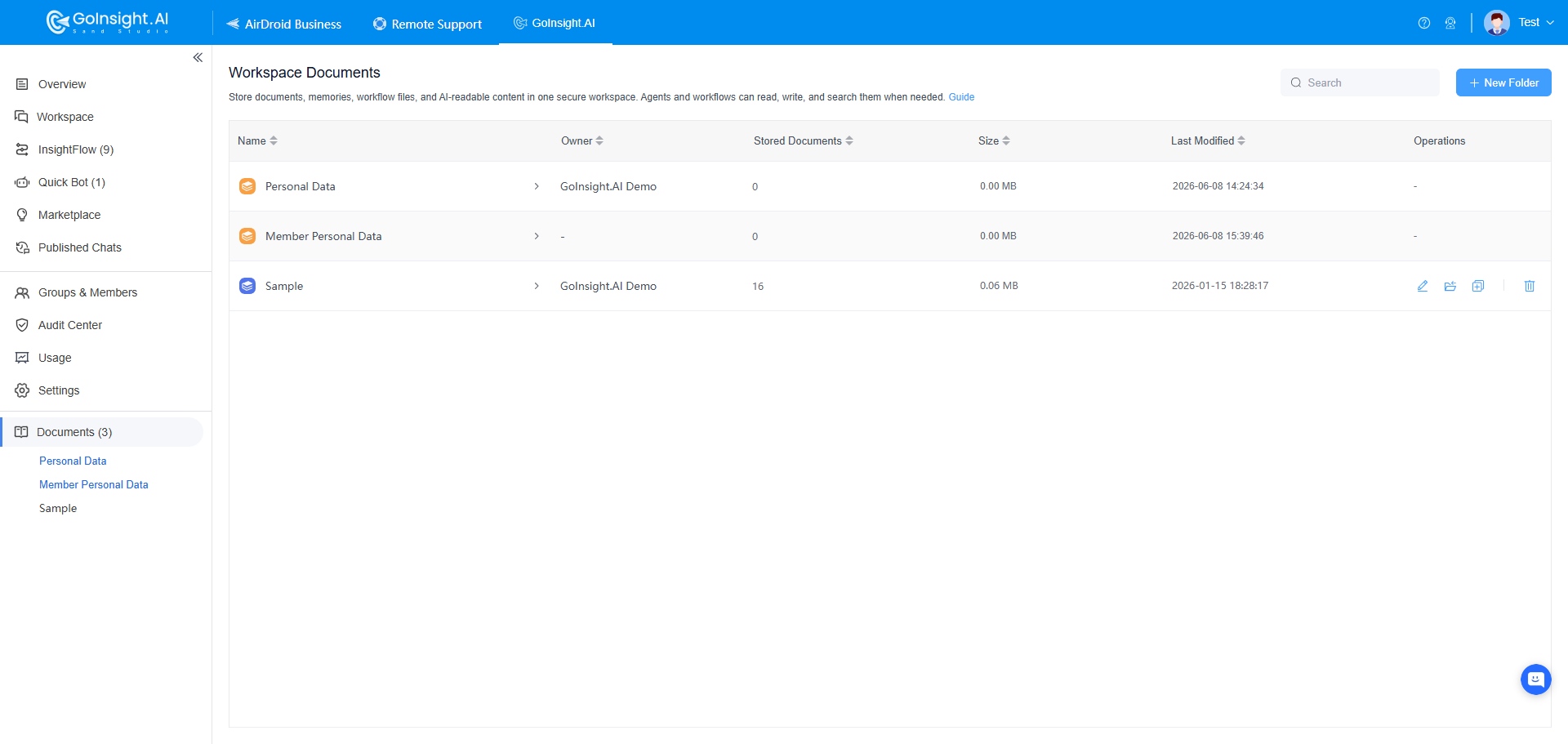
What Workspace Documents Is Used For
The core value of Workspace Documents is turning scattered materials, code, Prompts, and configuration content into manageable, reusable, and callable work assets. You can use Workspace Documents in the following scenarios.
1. Providing Context for AI
Workspace Documents can serve as a context source for AI. After maintaining product descriptions, FAQs, operation manuals, business policies, training materials, and similar content in Workspace Documents, AI can call on these materials when answering questions, executing tasks, or generating content—reducing bias that comes from relying solely on the model's general knowledge.
Suitable for:
- AI Q&A
- RAG retrieval
- Agent access to reference materials
- Generating summaries, replies, reports, or explanations based on company materials
2. Storing Plain Text for Use in Workflows
Workspace Documents can also store unformatted text for reading and writing within Workflows. Beyond holding general materials, it can function as a code repository, a Prompt library, or a global configuration file.
You can use it as:
- A code repository: Store scripts, code snippets, or reusable logic, and read them in Code nodes
- A Prompt library: Store commonly used Prompt templates for use in LLM nodes or Agents
- A global configuration file: Store configuration and key data shared across processes and sessions—similar to an .ini file or registry on a PC—so different Workflows and sessions can pass and reuse information through Workspace Documents
- A Workflow data file: Save text data that needs to be read, updated, or retained long-term while Workflows are running
3. Version Management
Version management is essential for content such as code, Prompts, and configuration files.
For example, after adjusting a Prompt, you might find the new version performs worse than before. Without a history, it can be difficult to restore the original version. With the history and content comparison capabilities of Workspace Documents, you can view a document's change history and reference or restore previous content when needed.
Version management is suitable for:
- Prompt iteration and rollback
- Tracking changes to code snippets
- Tracking changes to configuration files
- Comparing historical versions of important business documents
Feature Modules
1. Workspace Document Library
The personal document library generally refers to the Personal Data library; all other knowledge bases are considered company document libraries.
Company Document Library
The company document library is suited for storing team- or organization-level materials, such as company policies, product documentation, customer service FAQs, training materials, project delivery documents, team-shared Prompts, and public configuration files.
Personal Document Library (Personal Data)
Personal Data is a member's individual storage space within the organization, isolated from other members. It is suited for storing personal long-term memory, process materials, and other information for individual use. Personal documents are intended primarily for individual use and are suitable for managing content that doesn't need to be shared with the team.
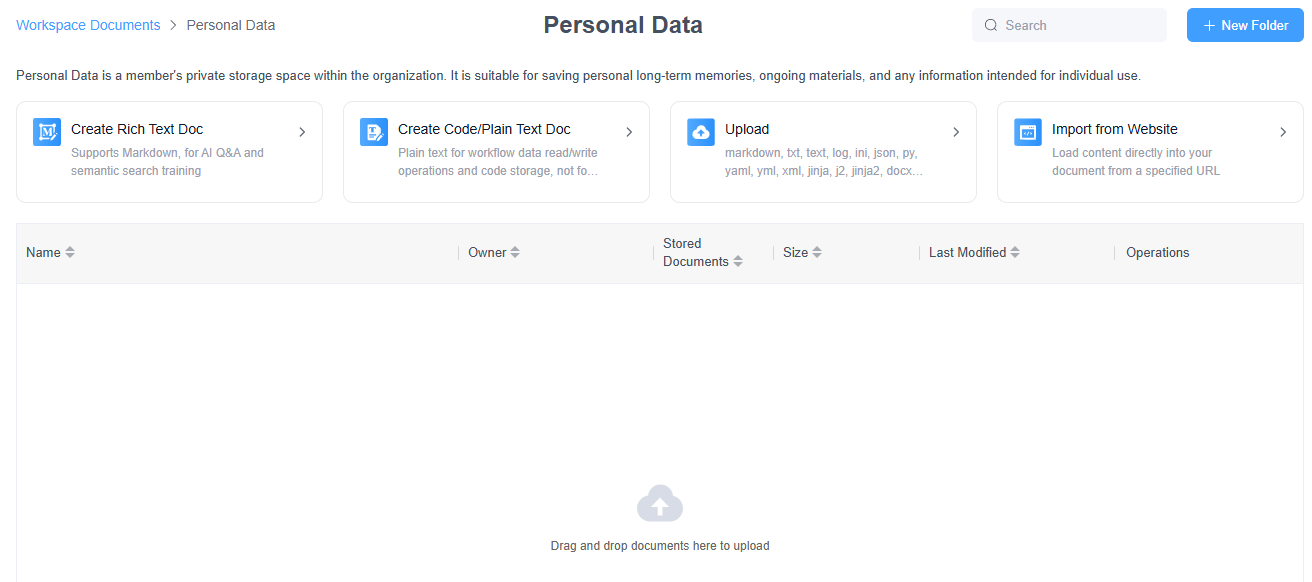
2. Workspace Documents
Creating a Rich Text Document
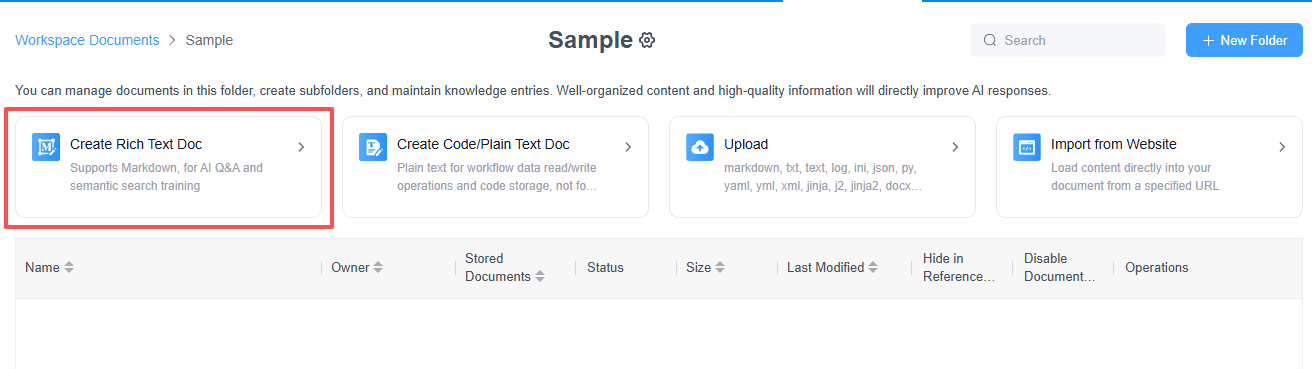
Rich text documents support Markdown formatting and are suited for maintaining well-structured, readable knowledge content that AI can easily retrieve—such as product descriptions, FAQs, operating guides, policy documents, and training materials. We also provide writing tips, which you can view anytime under Writing Tips.
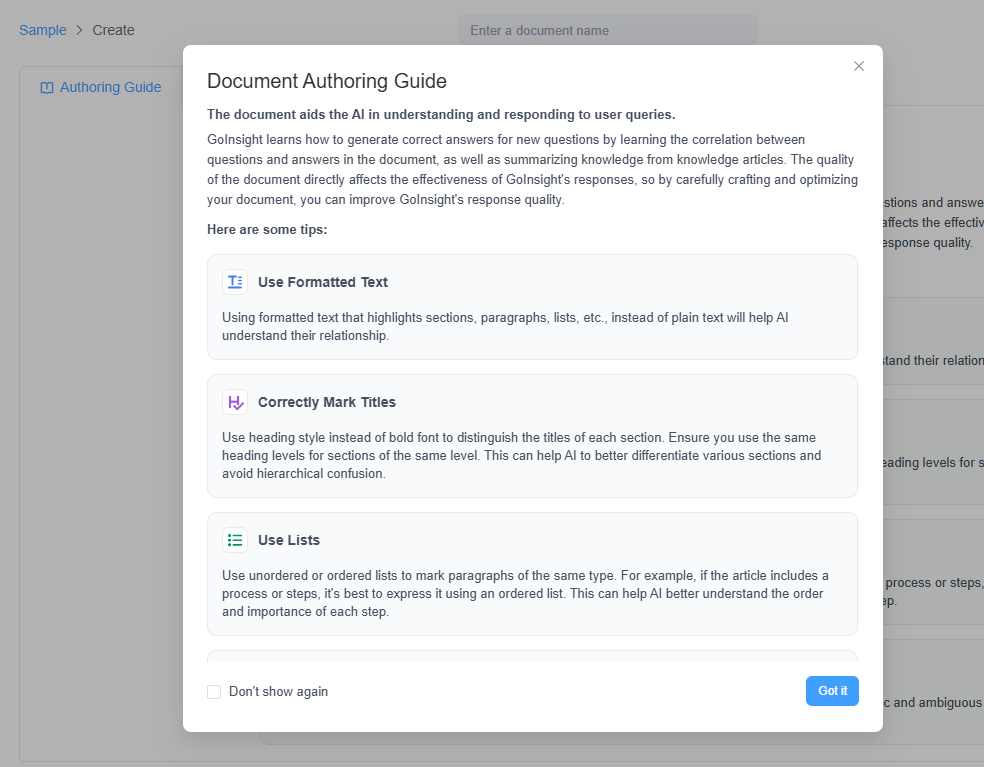
Creating a Code or Plain Text Document
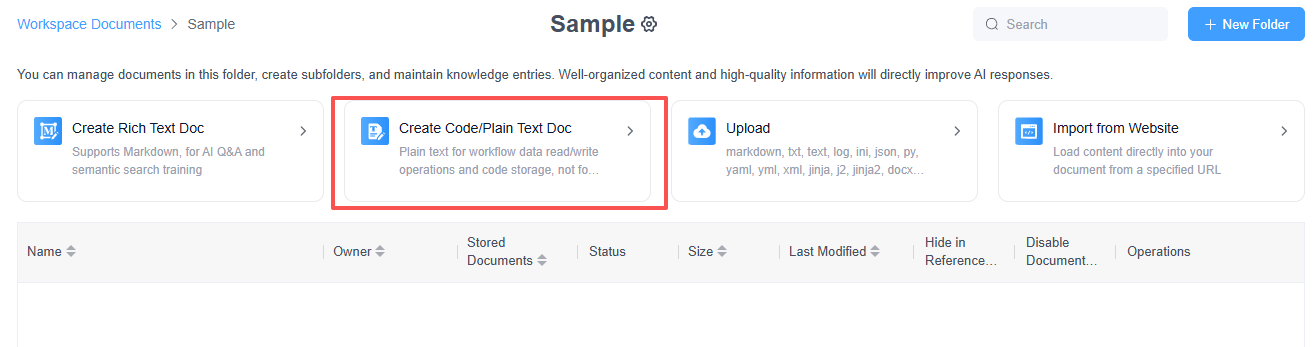
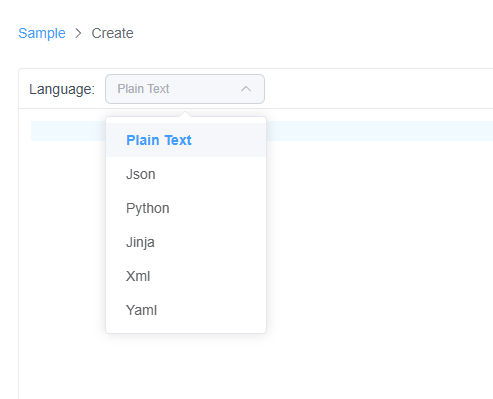
Code or plain text documents are suited for storing unformatted text content, primarily for Workflow data read/write, code storage, Prompt management, and configuration maintenance. These documents are not used for AI training and are better suited as data that Workflows read, write, or maintain during execution. When creating this type of document, you can select the programming language, including Plain Text, JSON, Python, and others.
Uploading Documents
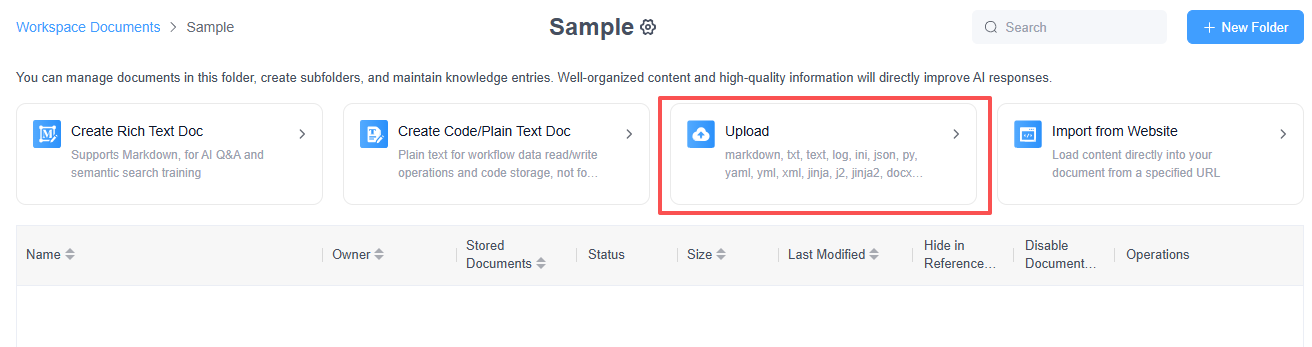
If you already have local files, you can upload them directly to Workspace Documents. Once uploaded, files are added to the current folder, where you can view, organize, and manage them. Supported file types include Markdown, TXT, JSON, YAML, XML, Python, JavaScript, DOCX, and others—refer to the page for the current supported range.
Importing a Webpage
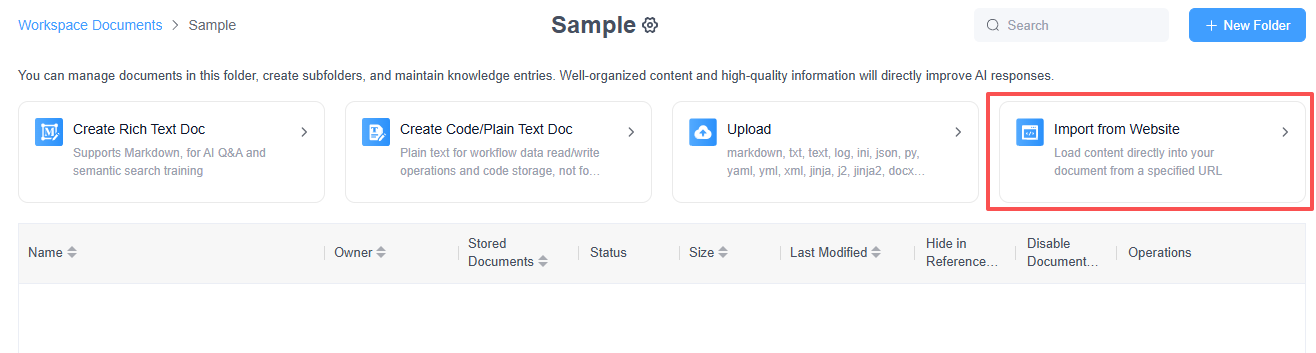
Importing a webpage converts its content into a document within Workspace Documents, making it easy to bring online help documentation, product description pages, and other public materials into your workspace. After importing a webpage, we strongly recommend reviewing and cleaning up the content—removing irrelevant elements such as navigation bars, footers, ads, recommended content, duplicate links, and copyright notices. Keeping the content clean, accurate, and relevant to your business improves subsequent reading, retrieval, and AI Q&A performance.
3. History and Document Comparison
Workspace Documents supports version management for document content. After a document is modified, you can view previous content through its history and compare differences between versions. For Prompts, code, and configuration files, version management also helps you iterate more safely. For example, if a new Prompt performs worse than the previous version, you can use the history to locate the earlier content, quickly compare the differences, and restore the version that worked.
4. Workspace Document Permissions
In the company document library, you can set different permissions for different folders to control whether members can manage that folder's members, edit documents, view documents, or only call document content in Bots and Workflows.
The following permission levels are currently supported:
- Manage: Manage members, and edit/delete documents.
- Edit: View/edit documents.
- View only: View documents only.
- Execute only: Documents can only be called in Bots and Workflows—the content itself cannot be viewed. This is suited for scenarios where document content needs to be protected but still made available for automated processes to call.
The "Execute only" permission is useful for protecting Prompts, configuration files, business rules, or internal materials. For example, a company can allow Bots or Workflows to call this content at runtime without letting members view the document's original text directly.
Note that permissions are not automatically inherited across nested folders. In other words, permissions configured on a parent folder are not applied to its subfolders by default; if you want to grant access to the same members or set different permissions on a subfolder, you need to configure it separately.
Recommended Practices
To make Workspace Documents easier to maintain and call, we recommend:
- Prioritizing company documents for materials shared across the team
- Using personal documents for temporary materials or individual Workflow data
- Using rich text documents to maintain knowledge content suited for reading, retrieval, and AI Q&A
- Using plain text documents to store code, Prompts, configurations, logs, and other plain text content such as Workflow read/write data
- Centralizing commonly used Prompt templates for reuse across LLM nodes and Agents
- Organizing information that needs to be shared across processes and sessions into configuration files
- Preserving history before modifying Prompts, code, or configuration files, so you can compare and roll back changes when needed
- Sorting uploaded files into appropriate folders promptly
- Cleaning up irrelevant elements after importing a webpage before using it as an official reference
- Managing documents with clear file names and folder structures to make them easier to search and call later
Summary
Workspace Documents is the space in GoInsight.AI for centrally managing and calling document content. Beyond supporting company material archiving, personal material organization, and AI Q&A, it can also function as a code repository, Prompt library, Workflow data file, and global configuration file.
By choosing the right document type and leveraging version history capabilities, Workspace Documents helps individuals and teams maintain materials, iterate on Prompts and code, and share configurations more efficiently—ensuring this content can be reliably called by AI and automated processes.


Leave a Reply.