• Tools
  • Tools
loading...
No Results
  • Get Started
    • Welcome to GoInsight.AI
    • GoInsight.AI Overview
    • LLM Selection Guide
  • InsightFlow
    • InsightFlow Introduction
    • Types of InsightFlow
    • Interactive Flow
      • Editing and Debugging Interactive Flow
      • Publishing an Interactive Flow
      • Security Settings for Interactive Flow
    • Service Flow
      • Editing and Debugging Service Flow
      • Publishing a Service Flow
    • Services & Tools
      • Tool
      • Service
      • Agent Strategy
    • Node
      • Start
      • Answer
      • LLM
      • Knowledge Retrieval
      • Document Read
      • Document Write
      • Document Delete
      • HTTP Request
      • KnowledgeFocus LLM
      • Agent
      • Progress
      • Tool Call
      • IF/ELSE
      • Question Classifier
      • Branch Aggregator
      • Multi branch Selector
      • Iteration
      • Interactive Form
      • Pause & Resume
      • Delay
      • Auto-Continue
      • Template
      • Code
      • JSON Variable Extractor
      • Variable Assigner
      • Variable Extractor
      • End
    • Node Error Handling Strategy
    • Create Your First Workflow
  • Marketplace
    • Marketplace
  • Documents
    • Workspace Documents
    • Personal Data
  • Workspace
    • GoInsight Workspace Introduction
    • Collaboration Workspace
  • Quick Chatbot
    • Build a Quick Bot
  • Team Management
    • Access Control
    • Usage
    • Audit Center
    • Credential Management
    • Model Management
  • Knowledge 101
    • Key Concepts
    • Data Security
    • ABEvent
    • Interactive Form: JSON Configuration
    • Context Is the Foundation of AI Collaboration
    • Build Collaborative Context with Say It for Me
    • Use Expressions with Variables
Home > Documentation > InsightFlow > Node

Answer Node

Definition:

The Answer node delivers preset information directly to the user when the Interactive Flow reaches a specific stage.

How to Configure:

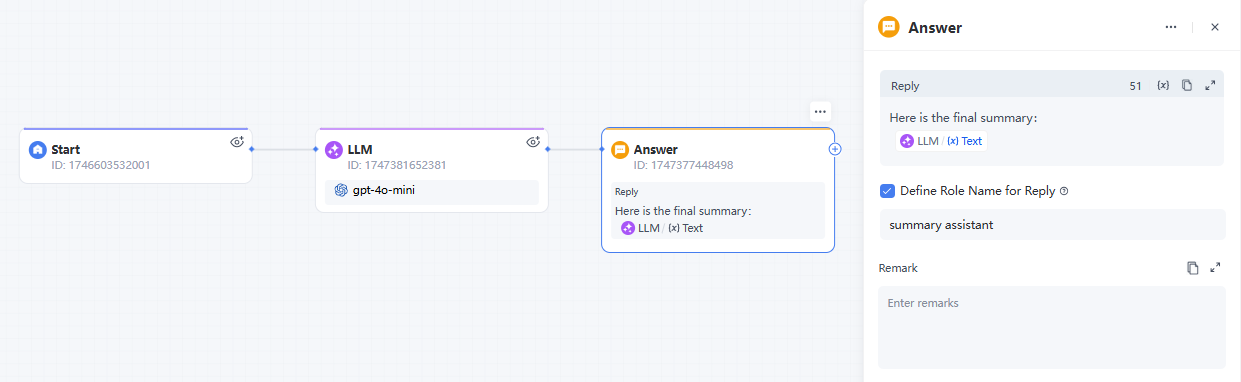
A new Interactive Flow comes with a Answer node.. You can also click the "+" button on the panel to add more Answer nodes to the canvas.

Multiple Answer nodes can be added at the same time, with one Answer node assignable to each branch.

Reply
reply-output

In the text editing box, you can configure the content output format as needed:

Preset Message Type Description Example
Fixed Text Directly enter the fixed text content to be sent in the reply. "Hello, the user's order amount is 9.9$"
Variable References Select an output variable from the previous step and insert it into the reply. Customer service scenario: The previous step calculates the user's order amount and stores it in the variable "order_amount". The reply applies the variable {{order_amount}}.
Combination Configuration Combine fixed text and variables for more flexible reply content. "Hello, the user's order amount is: {{order_amount}} yuan

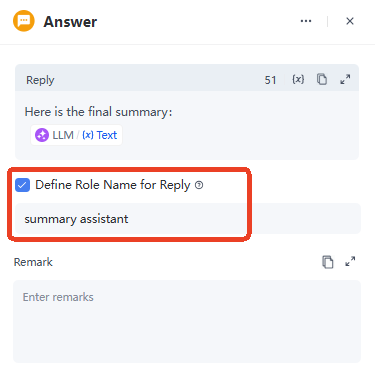
Define a Role for Reply

Set a role name for this reply.
role name for reply

Simple Case Display:

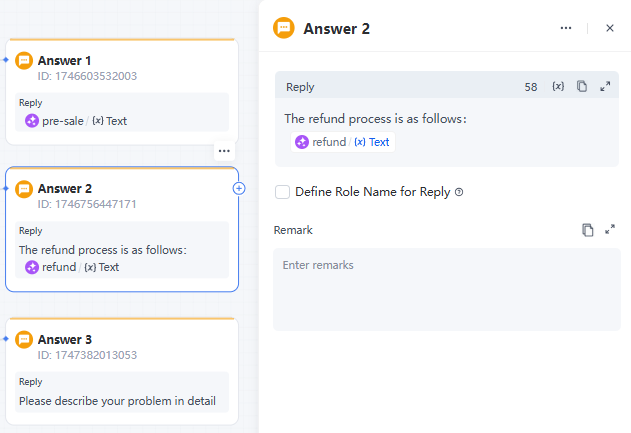
There are three types of canned responses:

  • Answer 1: Insert variables directly
  • Answer 2: Combine fixed text and variables
  • Answer 3: Use fixed text only
Answer case

Note:

  • To reference a variable output from a previous step in the Answer node, you must ensure that the previous node where the variable is located has established a correct connection with the Answer node.
  • Additionally, when defining a role name for a reply, choose a name that clearly indicates the source or identity of the reply to help users better understand its context.
Updated on: Jul 30, 2025
Was This Page Helpful?
Prev Start
Next LLM
Discussion

Leave a Reply. Cancel reply

Your email address will not be published. Required fields are marked*

Product-related questions?Contact Our Support Team to Get a Quick Solution>
On this page
  • Definition
  • How to Configure
    • Reply
    • Define a Role for Reply
  • Simple Case Display
  • Note
loading...
No Results