About "Human-in-the-Loop"
GoInsight.AI's Human-in-the-Loop design helps you build controllable human-machine collaborative workflows.
In automated workflows, not every step is suitable for being fully automated by AI.
For example:
- The process requires human decisions such as approval, confirmation, or rejection.
- The workflow needs to wait for a certain period of time before continuing.
- Forms need to be sent to others via external channels such as email or Slack for processing.
These scenarios require introducing human intervention into automated workflows.
In GoInsight.AI, Human-in-the-loop workflows can be implemented using the Interactive Form node and the Pause & Resume node.
Simply put:
| Nodes | Main Function |
|---|---|
| Interactive Form | Defines form content, fields, buttons, layout, and access methods |
| Pause & Resume | Pauses the workflow to wait for the user to submit the form, cancel, or time out, or to resume execution after a specified period |
The Interactive Form node is responsible for "generating the form," while the Pause & Resume node is responsible for "waiting for results and continuing the process."
Interactive Form Node
The Interactive Form node is used to create interactive forms within a workflow.
It allows you to define the form title, description, fields, buttons, layout, and access verification methods. The form can be displayed as a pop-up in the chat or sent to external users via a form link for completion.
Editing Methods
The Interactive Form node supports two configuration modes:
| Modes | Description |
|---|---|
| Visual Editing | Configure forms through a graphical interface by adding fields, setting buttons, and adjusting layout. Suitable for most use cases |
| JSON Editing | Define form titles, descriptions, fields, buttons, and layouts using JSON Schema. Suitable for advanced configurations or dynamic form scenarios |
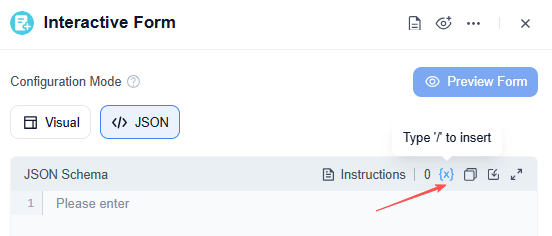
In JSON editing mode, you can fully define the form structure, including:
- Fields: Form fields
- FormTitle: Form title
- FormDescription: Form description
- ConfirmButtonText: Primary action button text
- CancelButtonText: Secondary action button text
- Design: Form Layout
JSON content can also be generated or passed in via an upstream node to dynamically create different forms. For example, an upstream node can generate different fields based on business type, and then pass the form JSON to the Interactive Form node.
Form Fields
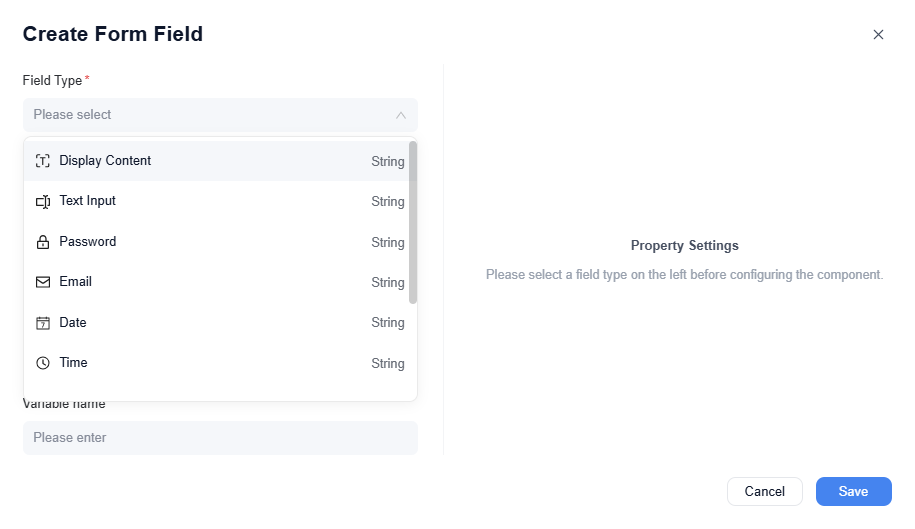
Form fields are used to collect user input. Common field types include:
| Field Types | Purpose |
|---|---|
| Display Content | Display instructions, context, or formatted content that does not require user input |
| Text Input | Collect single-line or multi-line text |
| Password | Collect input displayed it as masked text |
| Collect email addresses | |
| Date | Select a date |
| Time | Select a time |
| Number | Enter a number |
| Boolean | Toggle or checkbox |
| Single Choice | Select one option from multiple choices |
| Multiple Choice | Select multiple options from a list |
Fields can be configured with display names, placeholder text, default values, required status, and other settings. Available options may vary depending on field type.
Form Layout
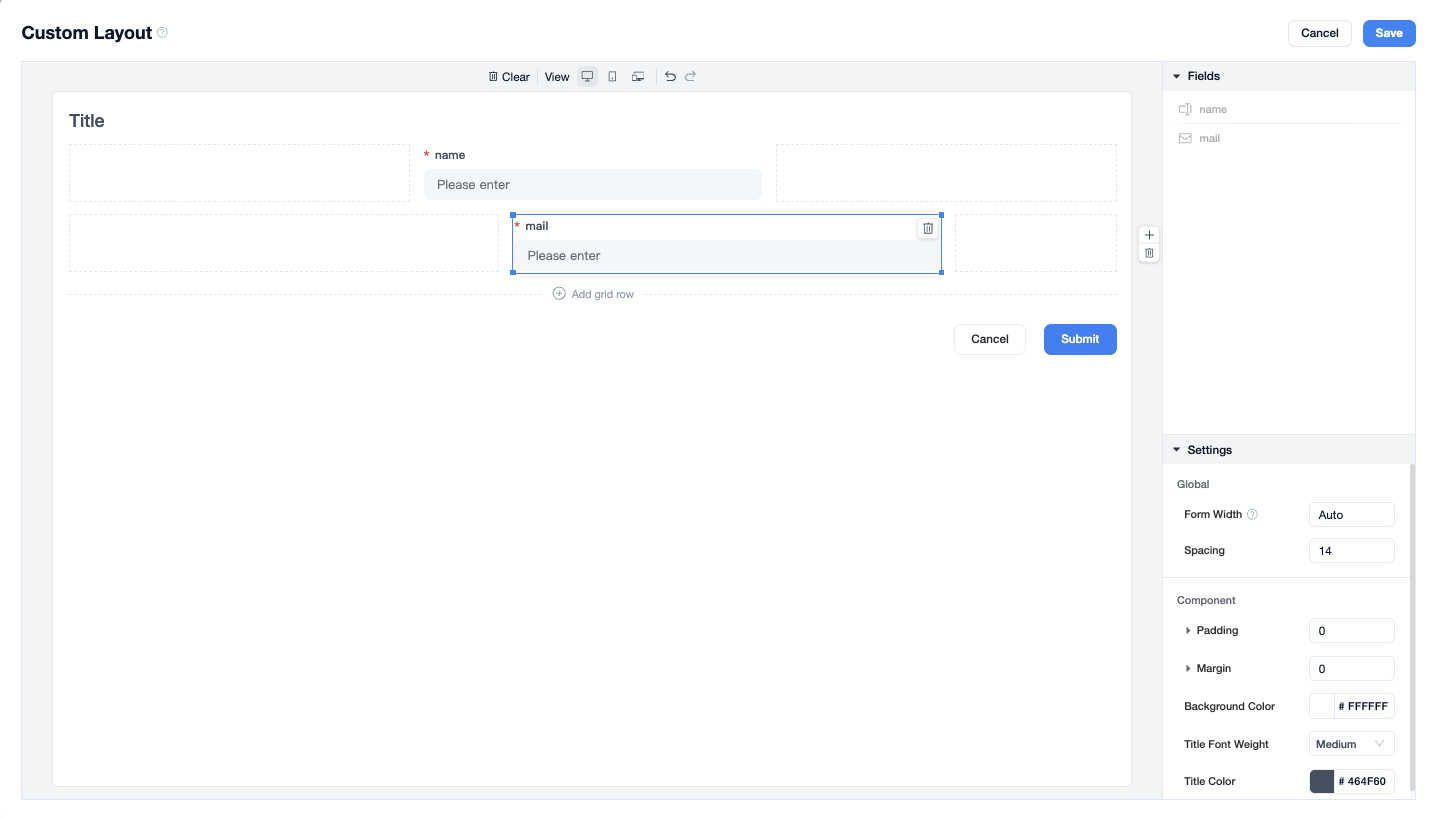
The Interactive Form node supports custom form layouts.
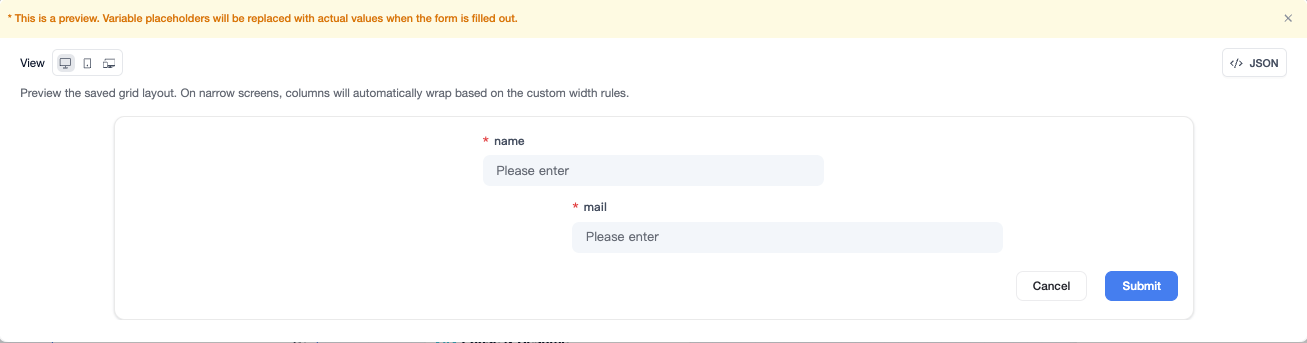
Custom Layout lets you adjust how fields are displayed in the form, such as field arrangement, column count, spacing, and form width. Layout affects only the form's appearance, not the meaning of the fields.
Form Button
Interactive Form node supports configurable button labels:
| Buttons | Description |
|---|---|
| Primary Action | Used to submit the form (default: Submit) |
| Secondary Action | Used to cancel the form (default: Cancel) |
The primary button typically represents actions such as submit, confirm, or approve, while the secondary button represents actions such as cancel, reject, or return.
Access Verification
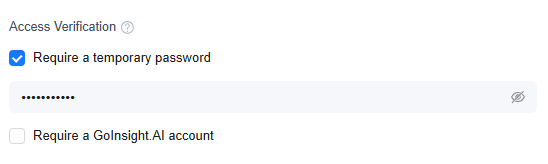
Access verification determines who can view and fill out the form.
Currently supported:
| Verification Methods | Description |
|---|---|
| Require a temporary password | Visitors must enter a one-time password before they can open the form |
| Require a GoInsight.AI account | Visitors must log in with a GoInsight.AI account to access the form |
If a form is shared externally via a link, or contains approval-related content, sensitive information, or internal data, enable access verification as needed.
Preview Form
After configuration, click Preview Form to see how the form will actually appear, and confirm that the fields, buttons, and layout match your expectations.


Leave a Reply.