Definition
The Document Read node can read content that has been uploaded to the Documents and store it in a variable for use by subsequent nodes in the workflow. For example, the content read can be passed as a variable to the LLM node, allowing the LLM to understand the content and conduct question-and-answer sessions.
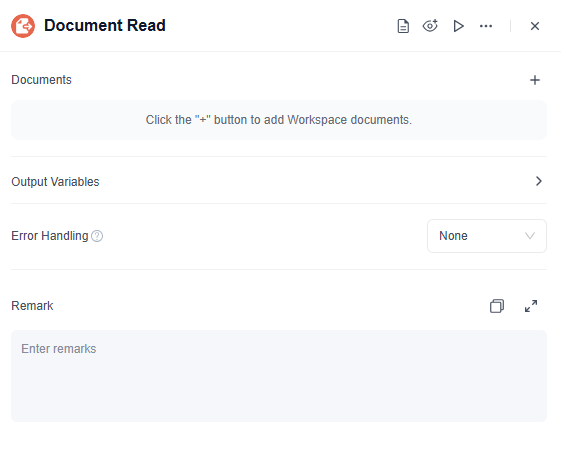
Configuration
After adding the Document Read node to the canvas, click the node to configure it in the right-side configuration panel. Click + to select the documents to read. You must configure the Target Variable Name for each selected document. The output variable format is String.
- A Document Read node can read one or more documents. Click + to add a new document.
- Variable/Expression: Enter the full document name and path here, such as
Category 1/Category 2/Document Name, to read the document under the corresponding path. Variables can be inserted in this dialog box. Each Variable/Expression input box supports one document path.
Tip: By inserting variables into Variable/Expression, you can flexibly read document content. For example, in an Interactive Flow, you can use a Variable Extractor to extract the document path or name, then insert it into the Variable/Expression input box of the Document Read node. This makes it easy to call a specified document in the workflow.
Use Cases
1. Check Document Content
After using the Document Read node to read a document, you can add a review node, such as an LLM node, and configure review rules to check whether the document content meets requirements, such as whether the format is correct or whether it contains sensitive information. If non-compliant content is found, subsequent nodes can output alerts or modification suggestions to ensure that the documents always meet standards and specifications.
2. Compare Content Information
After using the Document Read node to read a document, you can configure subsequent nodes to compare document content. For example, if the document content is a list of purchased customers, subsequent nodes can reference this variable to determine whether the consulting customer is a purchased customer, such as by using an LLM node or Code node. If a match is found, the corresponding processing flow can be triggered to support precise customer relationship management.
3. Quickly Query Document Content
After using the Document Read node to read a document, you can configure subsequent nodes to enable quick queries. For example, if the document content is an after-sales policy, subsequent nodes can reference this variable and add a query node, such as an LLM node, to quickly output the corresponding after-sales policy based on the customer's question. This improves service efficiency and customer satisfaction.
Differences Between Document Read Node and Knowledge Retrieval Node
| Comparison Item | Document Read Node | Knowledge Retrieval Node |
|---|---|---|
| Functional Positioning | Converts specified documents into structured variable outputs. | Retrieves relevant information from the Documents based on input questions or keywords, then outputs the results. |
| Content Processing Method | Reads specified document content without semantic analysis. | Indexes and semantically processes Documents' content for retrieval. |
| Output Result and Format | Structured variable in String format. | A list of relevant knowledge entries, including titles, content snippets, and other information. |
| Configuration | No input variable is required. The specified document is output as a structured variable. | A Query variable is required. You can configure TopK and the relevance threshold for knowledge retrieval. |
Error Handling Branch for the Document Read Node
The Document Read node supports reading multiple documents in the same node and outputting them as different variables.
In actual use, some documents may be read successfully while others may fail. For example, a document path may be configured incorrectly, the target document may not exist, or the current user may not have access permission for the corresponding document.
Therefore, when the error handling method of the Document Read node is set to Default Value, the system provides the Default Value Scope setting to control how default values are applied.
| Option | Description |
|---|---|
| Failed Items Only | Only document output variables that fail to be read will use default values. Documents that are read successfully will still output their actual content. |
| All Items | As long as any document fails to be read, all document output variables under this node will use their configured default values. |
When Failed Items Only is selected, the node will continue running even if a document fails to be read. The failed document variable will output the default value, while other successfully read document variables will still output their actual content normally.
When All Items is selected, as long as any document fails to be read, all output variables under the current node will uniformly fall back to their default values.
This mechanism is suitable for scenarios where one node reads multiple documents at the same time. It prevents the entire node from having no available output due to a single document read failure.
Simple case display
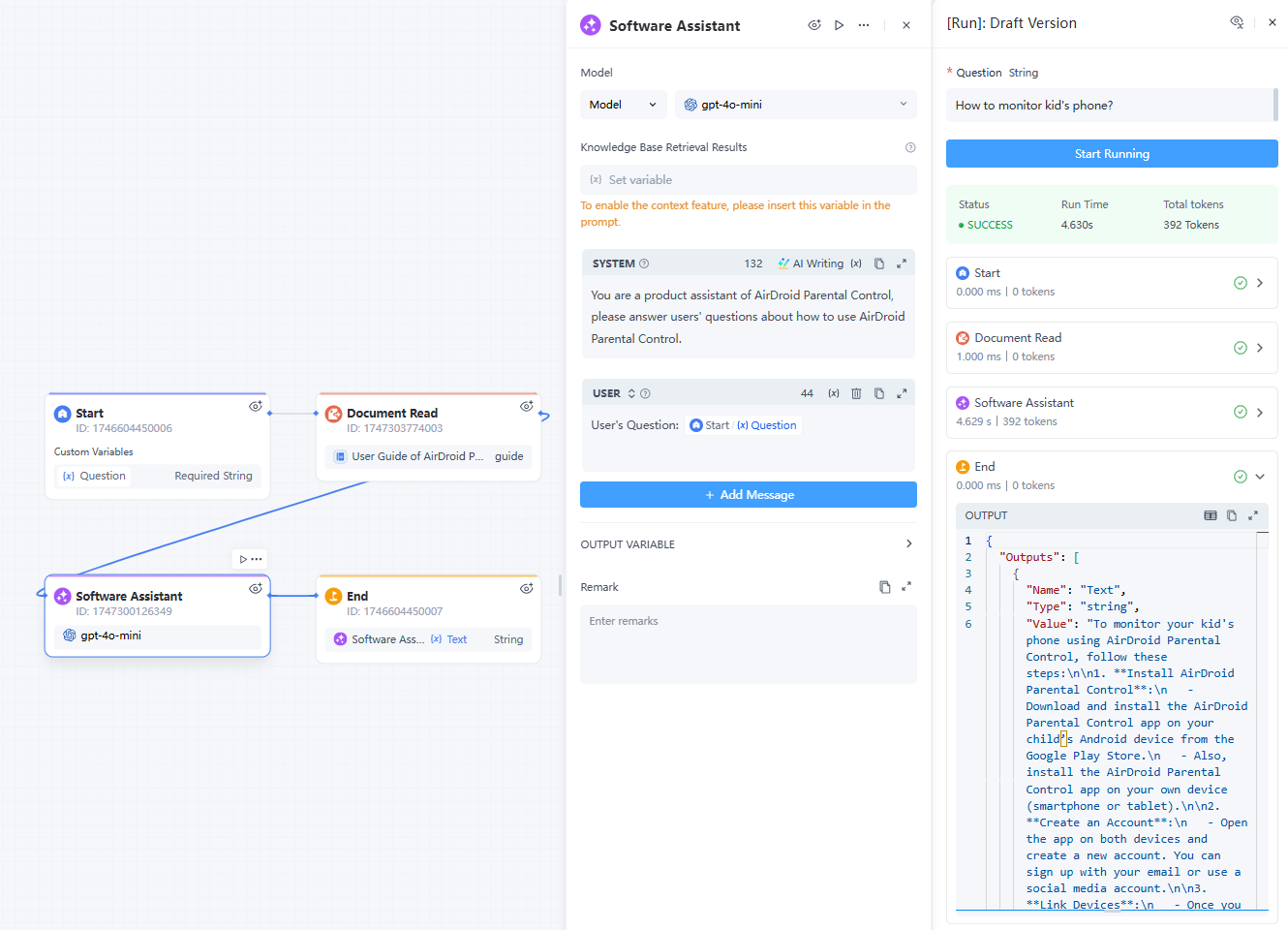
AirDroid Parental Control Software User Assistant (Service Workflow): Answer any questions users have about how to use AirDroid Parental Control.
- Start node: Add a "Question" variable to input the user's question.
- Document Read node: Upload and read the document "User Guide of AirDroid Parental Control" in the Documents.
- LLM Node:
- SYSTEM: For example, "You are a product assistant of AirDroid Parental Control, please answer users' questions about how to use AirDroid Parental Control."
- USER: Insert the user's question, the "Question" variable.
- End node: Select the variable output by the LLM node, which is "Text (String)."
Note
- You can only add up to 10 documents.
- If a document is updated, it is then necessary to retrain and test whether the output effect is accurate.
- The output variable name must be filled in, otherwise it cannot be selected.


Leave a Reply.