GoInsight.AI has built-in support for multiple mainstream System Models that enterprises can directly call in scenarios such as InsightFlow and Workspace.
Administrators can go to "Settings" → "Model Management" to centrally configure the usage policies of AI models within the enterprise, including enabling or disabling specific models and adding the enterprise's own model API Keys.
System Models
GoInsight.AI's System Models cover several mainstream model series, including:
- Microsoft Azure OpenAI
- Microsoft Azure OpenAI - US
- Microsoft Azure OpenAI - EU
- OpenAI
- Anthropic Claude
- Google Gemini
Among these, the Microsoft Azure OpenAI, Microsoft Azure OpenAI - US, Microsoft Azure OpenAI - EU series feature a blue checkmark, indicating that these model series have enterprise-level security and compliance capabilities, making them more suitable for business scenarios with high requirements for data security, privacy protection, and compliance.
Understanding Model Information
In the model list, each model displays pricing, capability tags, and applicable scenarios to help administrators quickly determine whether to enable it.
The icons and labels below are commonly used throughout the list:
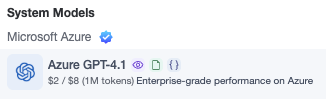
- Blue checkmark: Indicates that the model series has enterprise-level security and compliance capabilities.
- $2 / $8 (1M tokens): Indicates the model's input/output pricing, charged per 1 million tokens.
- Purple eye icon: Indicates support for image recognition, which can be used for scenarios such as image understanding and screenshot analysis.
- File icon: Indicates support for file interpretation, which can be used for scenarios such as document analysis and material summarization.
- {} icon: Indicates support for structured output, suitable for use in workflows and JSON output scenarios.
- Model description: Highlights the model's key capabilities and typical use cases, such as complex reasoning, long-text processing, low-cost fast response, and multimodal understanding.
Model Selection Recommendations
While the model list already provides a brief introduction to each model's use cases and pricing, the following general guidelines apply:
- Models with names containing mini, nano, flash are usually more suitable for handling lightweight, fast, and cost-sensitive tasks, such as information extraction, content rewriting, simple classification, and daily Q&A.
- Models with names containing o1, o3, Thinking are usually more suitable for handling tasks that require deep thinking and complex reasoning, such as multi-step analysis, complex business judgment, strategic planning, and code analysis.
For most day-to-day business scenarios, prioritize models that offer a good balance of speed and cost. For tasks that require higher complexity or accuracy, choose models with stronger reasoning capabilities.
Enabling or Disabling Models
Administrators can control whether a specific model is enabled via the toggle switch on the right side of the model in "Settings" → "Model Management".
Once a model is disabled, members will not be able to select that model. Enterprises can uniformly manage the range of models available within the organization according to data security requirements, cost control policies, team permissions, and business scenarios.
Adding Enterprise-Owned Models
In addition to the models provided by default in the system, enterprises can also connect their own AI model services and configure the corresponding API Key via "Settings" → "Model Management" → "Add".
This capability is suitable for scenarios where an enterprise has already purchased model services such as OpenAI, Azure OpenAI, Anthropic, or Gemini, and wishes to integrate them under unified management within GoInsight.AI.


Leave a Reply.