Definition
The LLM node is used to call large language models within a Workflow to perform tasks such as Q&A, summarization, rewriting, classification, information extraction, and content generation. In the LLM node, you can configure the Model, Prompt, Memory, File Input, Structured Output, and Error Handling.
Model
The LLM node supports three model configuration methods:
- Model: Select a model directly from the model list.
- JSON: Configure and pass model parameters using JSON.
- Value: Dynamically specify the model and temperature values via variables.
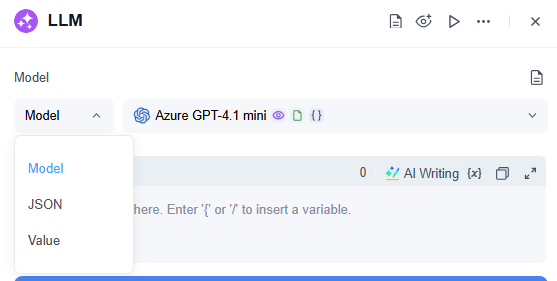
In the "Model" mode, selectable models include System Models and Custom Models.
The availability of system models depends on the administrator's settings in "Settings → Model Management". Only models enabled by the administrator will appear in the selectable model list.
The model list displays the model name, price, and capability icons to help users select the appropriate model based on task requirements:
- Eye icon: Indicates the model supports image understanding capabilities.
- Document icon: Indicates the model supports document processing capabilities.
- Curly bracket icon {}: Indicates the model supports structured output capabilities.
- Blue checkmark icon: Indicates the model is better suited for scenarios with higher enterprise security and compliance requirements.
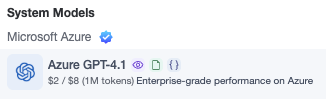
When configuring the LLM node, choose a model with the corresponding capabilities based on the actual task. For example: select a model with image understanding for image processing; select a model with document processing for handling documents; select a model with structured output capabilities when using structured output.
Prompt and Message Configuration
The LLM node builds the model context through multiple messages. Common message types include SYSTEM, USER, and ASSISTANT.
- SYSTEM is usually used to set the model's role, task goals, response rules, and output specifications.
- USER typically provides the user's question, input content, or data passed from previous nodes.
- ASSISTANT can be used to supplement the model's historical responses or example replies to help the model understand the context.
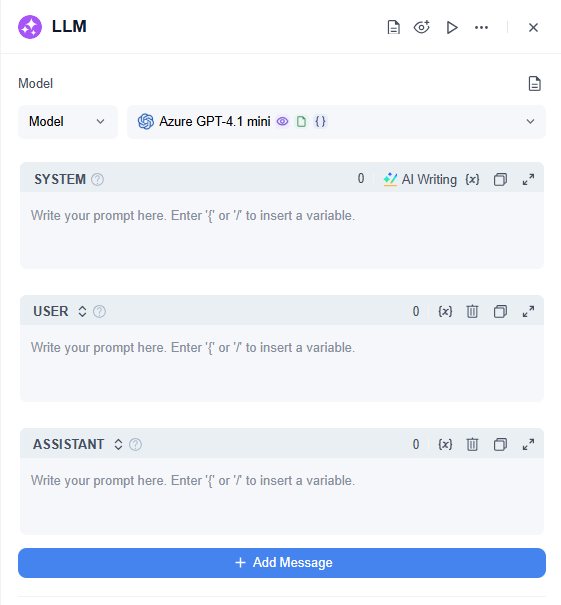
When writing Prompts, it is common to specify the model identity, task objectives, input information, processing requirements, output format, and other notes or constraints.
The input box supports direct text input as well as variable insertion. For example, Start / Query represents the user input variable from the Start node, typically used to pass the user-submitted question when running the Workflow into the LLM node.
The LLM node also supports AI-generated Prompts. Users can describe their requirements, and the AI will generate a Prompt that can then be applied to the node. The Prompt editing process supports version comparison for easy viewing of changes between versions.
Users can also add more USER or ASSISTANT messages via "Add Message" to build a more complete multi-turn context.
Memory (Enabled in Interactive Flow)
The LLM node supports enabling "Memory" to allow the model to reference historical dialogue content during execution.
History can be configured in two ways:
Specified means directly specifying the number of historical records to reference; Value means passing history through variables.
The memory scope supports Session and Current Node:
- Session: Reads the most recent N turns of dialogue from $ChatHistory as the model context. $ChatHistory is a session history variable provided by the Start node representing historical messages within the current conversation thread.
- This Node: Only records the current LLM node's own input and output as the context available for subsequent executions of this node.
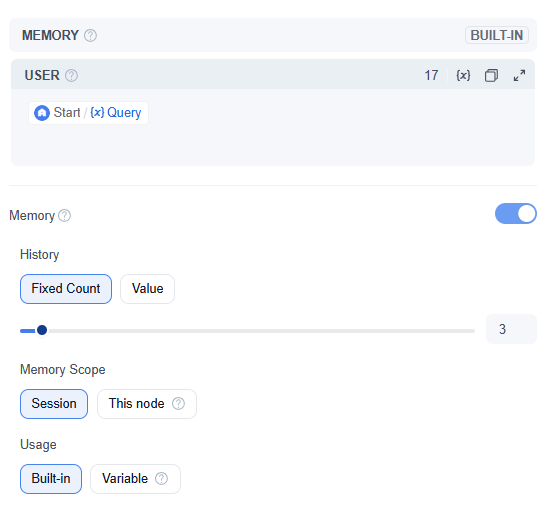
The difference between these options is whether the model remembers the entire conversation thread or only the current node's own input and output.
For example, in multi-LLM Workflows or Workspace conversations, multiple LLMs or Agents may participate in the same task. When "Session" is selected, the LLM node can refer to the entire conversation thread; when "This Node" is selected, it only focuses on the current node's own historical inputs and outputs.
Memory usage supports Built-in and Variable modes.
Choosing "Built-in" means the historical records are passed directly as the internal node context to the model; choosing "Variable" allows the history to be used as a variable, enabling custom control of referencing in the Prompt.
Files (Enabled in Interactive Flow)
The LLM node supports file input, allowing the model to understand and output based on images or document content.
A common configuration is to use file variables from the Start node:
Start / $UserFiles$UserFiles represents files uploaded by the user when running the Workflow. This variable comes from the Start node, and whether the file upload entry is enabled can be configured in the Start node.

For example, if the Start node enables file uploading, users can upload files when running the Workflow; the LLM node then receives these files through Start / $UserFiles and lets the model analyze, summarize, or answer based on file content.
Note that file input must be used in conjunction with model capabilities:
- When processing images, select a model with the Eye icon.
- When processing documents, select a model with the Document icon.
If the model does not support the corresponding capability, it may not be able to correctly process the related file content.
Output Variables
The LLM node outputs two variables by default:
| Output Variable | Type | Description |
|---|---|---|
| Text | String | Content generated by the model |
| History | Array[Object] | Actual context used by the LLM node, including the current Q&A |
Text is typically used for further processing of the model-generated result by subsequent nodes.
History can be used to view or pass the actual context used during this node execution.
Structured Output
The LLM node supports structured output. Once enabled, you can configure additional output fields for the node. The model will generate results according to the field definitions and automatically parse them to the corresponding fields.
There are three configuration modes for structured output:
- Disabled: Structured output is not enabled; only the default generated content is output.
- Enabled: Manually configure structured output fields.
- Variable: Pass structured output configuration through variables.
When configuring structured output fields, you can set the field name, field description, and field type.
The "Variable" mode is suitable for scenarios requiring dynamic changes in structured output configuration. For example, some runtime scenarios may need the model to return structured fields, while others require only plain text output. Using variables allows dynamic decisions during Workflow runtime on whether to enable structured output and which structured fields to use.
Structured output is suitable for scenarios such as extracting titles, outputting classification results, generating summaries, outputting scores, or returning judgment results.
Note that when using structured output, you should select a model with the Curly bracket icon {}. This icon indicates the model supports structured output capabilities.
Error Handling
The LLM node supports error handling mechanisms.
| Error Handling Method | Description |
|---|---|
| No Handling | If the node execution fails, the Workflow run will be interrupted |
| Default Value | If the node execution fails, the Workflow continues running, using configured default values to replace node outputs |
| Error Handling Branch | If the node execution fails, the current path is interrupted and switches to a configured error handling branch |
When choosing "Default Value," you can configure default values for the LLM node's output variables, such as Text and History. Even if the model call fails, the Workflow can continue to run downstream.


Leave a Reply.