Once you have created and orchestrated an Interactive Flow, the next step is to edit and debug it.
For information on how to create and configure a workflow, refer to: GoInsight.AI Overview
Main components and functions of the menu bar
The following table outlines the core components of the interactive workflow toolbar and what they do:

Editing an Interactive Flow
- Save: Saves the draft content currently being edited in the workflow designer.
- Save and Publish: Saves and generates a published version.
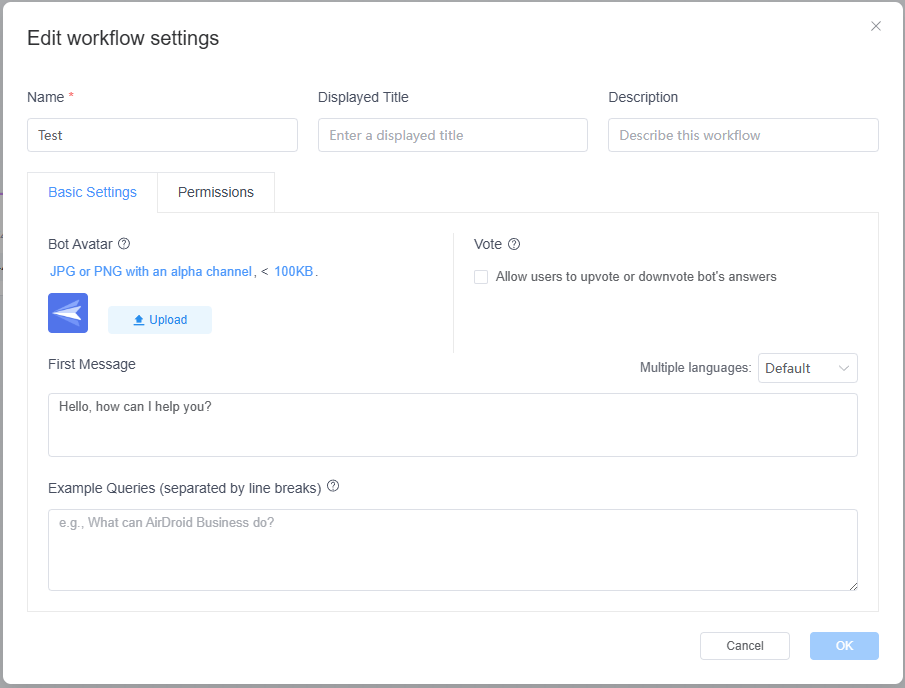
- Settings: Configures basic settings for the published Chatbot, such as its name, display title, and description, as well as the access permissions for the Interactive Flow within your organization.
Debugging an Interactive Flow
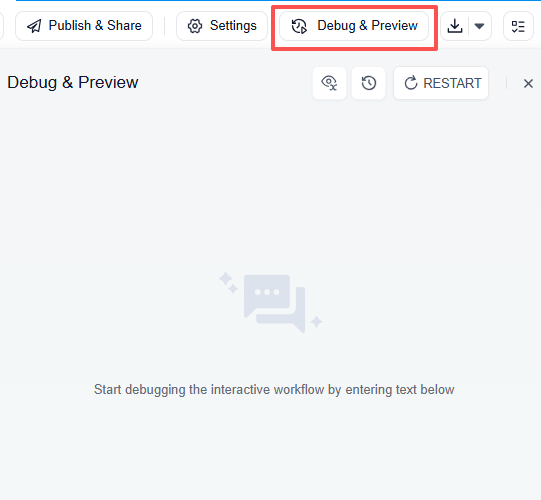
- Debug and Preview: Simulates the execution of the workflow, letting you verify its logic and behavior before running it in production. You can also view the input and output of each node in the run results to help identify and fix issues.
- Debug History: Views the debugging history of the workflow.
- Export DSL: Exports the workflow as a DSL File.
- Checklist: Views a list of potential issues in the workflow. Make sure all issues are resolved before publishing.
Once you have debugged the Interactive Flow and confirmed it behaves as expected, you can proceed to publish it.
You can refer to: Sharing Interactive Flows Externally


Leave a Reply.