Definition
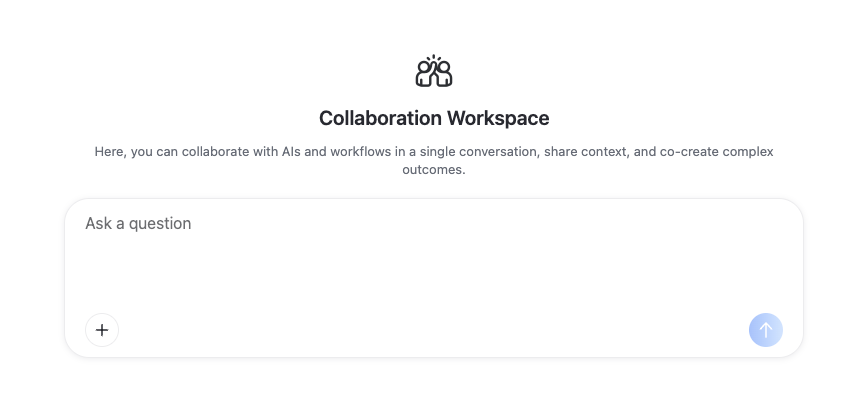
Collaboration Workspace is the collaboration session feature within Workspace.
In the same conversation space, users can call workflows and mention members via @, and collaboratively advance tasks based on the shared chat context. It is suitable for business scenarios involving multi-turn communication, multiple participants, or tasks completed through continuous workflow calls.
Calling Workflows via @
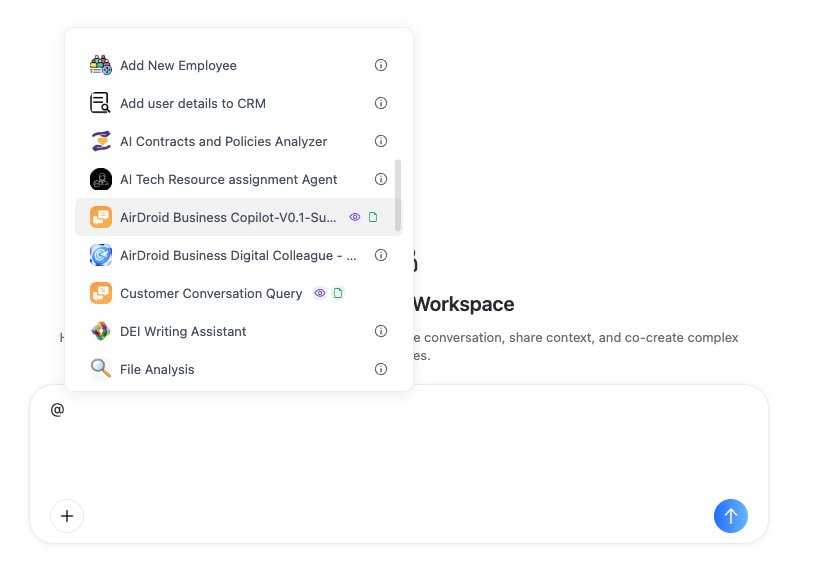
Enter @ in the input box of the Collaboration Workspace, and the system will display a list of callable objects, including:
- Recent: Recently used objects for quick access.
- Interactive Flow: Workflows published within the enterprise, which the current user has permission to call.
- Members: Members in the current Workspace, who can be mentioned with @ in group chat.
- AI Assistants: Optional AI Assistants or models.
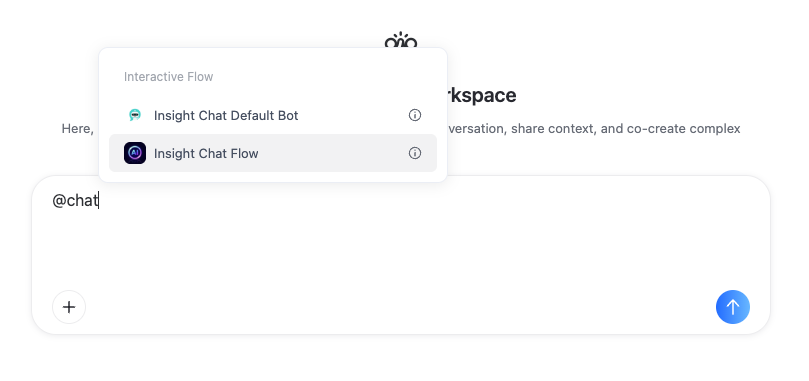
Users can either select workflows directly from the list or continue typing keywords after @ to quickly search for the target workflow.
For example, entering: @chat
The system will automatically filter workflows containing "chat" in their names, making it convenient for users to quickly locate and call them.
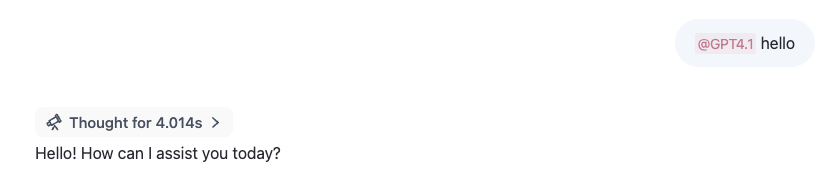
After selecting the workflow, input the specific question or task command, for example:
@Customer Inquiry Agent Did any new clients get assigned to me yesterday?
@Email Composition Agent Write an email to Denny
- Workflows callable via @ must be published within the enterprise, and the current user must have permission to call them. If the workflow is not published, or the current user does not have permission to call it, it will not appear in the callable list.
- If the user does not @ any workflow or collaborative object, the system will prompt the user to ask a question via @workflow, or get help via @help.
Inviting Members to Collaborate
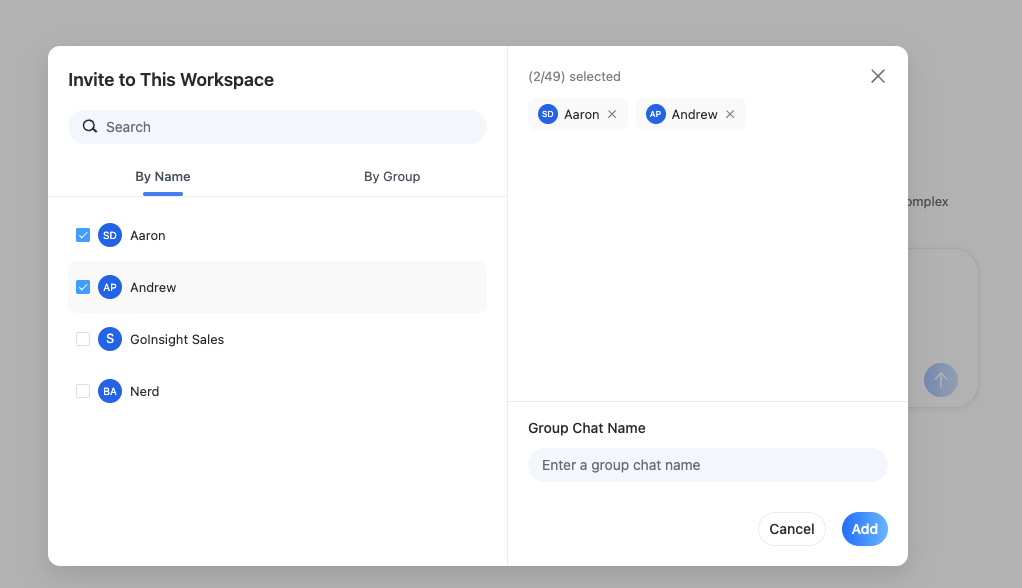
Collaboration Workspace supports inviting organization members to join the current session.
Users can click Add People in the top right corner to select the members they want to invite. After joining, members can view the existing conversation history in the current Workspace and continue participating in the discussion based on the existing context.
In multi-person collaboration scenarios, users can also mention members in the current Workspace via @ to have them confirm information, supplement details, or advance subsequent tasks.
Since different members may have different permissions, some workflows may only be callable by specific members.
For example, general team members can first complete preliminary steps such as information lookups and content organization. Once the task reaches the approval, confirmation, or execution stage, the authorized owner can call the corresponding workflow within the same Workspace to complete the remaining steps.
Conversation Context Sharing
Within the same Collaboration Workspace, the chat history forms a shared context.
The results of workflow calls, discussions among members, and subsequently supplemented information are all retained within the same session. Workflows called afterward can continue processing tasks based on the preceding context.
For example, a user first calls the customer inquiry workflow to retrieve information on new clients assigned yesterday. When subsequently calling the email composition workflow, it can directly generate the email based on the previously returned client information, without needing to copy and paste the content again.
This approach reduces repeated communication and allows tasks to progress continuously within the same Workspace.
Use Case: Sales Team Handling New Client Follow-Up
Suppose the sales team wants to complete the process of "query new clients → compose welcome email → collaborative confirmation" within the same Workspace.
- Step 1: the user enters: @Customer Inquiry Agent Did any new clients get assigned to me yesterday?
- The workflow returns the new client information from yesterday.
- Step 2: the user continues: @Email Composition Agent Write an email to Denny.
- Since the preceding client information already exists in the current conversation context, the email composition workflow can generate the email content based on the existing information.
- Step 3: if confirmation from a colleague is needed, the user can invite members to join the current Workspace via "Add People", or directly @ mention members who have already joined within the conversation. Members can view the preceding inquiry results and email content, and continue to add comments or advance subsequent operations.
- If the final step requires higher permissions, such as approval or executing the send action, an authorized member can also continue to call the corresponding workflow within the same Workspace to complete the operation.
Possible Causes of @ Workflow Execution Failure
In Collaboration Workspace, when a user calls a workflow via @, the workflows they can see and select indicate that the workflow has been published within the enterprise and that the current user has permission to call that workflow.
If the called workflow internally uses other resources, and the current user only has permission to call the workflow but lacks permission to view or use the related resources, this may cause errors during workflow execution.
Common causes include:
- The workflow uses a knowledge base, but the current user lacks permission for that knowledge base.
- The workflow uses a tool, but the current user lacks permission for that tool.
If such execution errors occur, it is recommended to contact the owner of the workflow to confirm whether the permissions for the knowledge bases, tools, or services that the workflow depends on have been correctly granted.
Creating New Branches from Historical Conversations
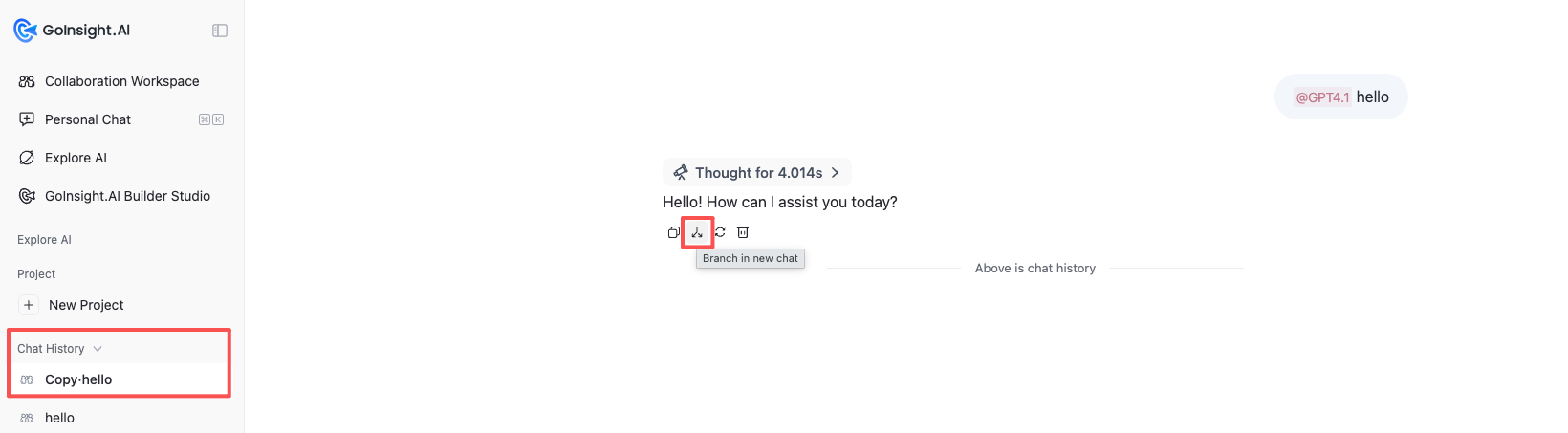
In the historical conversation of a Collaboration Workspace, users can click the Branch in new chat button at a given point in the conversation to start a new branch session based on that point in the current conversation.
The new branch retains the context prior to that point, allowing users to continue asking questions, calling workflows, or inviting members to collaborate based on it, without affecting the original conversation branch.
This feature is suitable for scenarios where another approach needs to be explored again from a certain historical point. For example, after client information has already been retrieved earlier, the user can open a new branch from that point to separately try different email composition directions or follow-up plans.
Frequently Asked Questions


Leave a Reply.