Definition
An Agent Node is an "intelligent decision-making + tool invocation" component designed to enable a Large Language Model (LLM) within a workflow to autonomously select and utilize tools at runtime based on defined strategies, facilitating multi-step reasoning or operations.
- By mounting a specific "Agent Strategy", the model can leverage contextual instructions, tool information, and its own reasoning results to determine in each execution round whether and how to employ a tool (system tools, cloud-side tools, etc). It then incorporates the data returned from these tools into the next round of reasoning or output, allowing for a more flexible processing flow.
- Compared to LLM nodes that utilize simple prompts, an Agent Node can engage in multiple cycles of "thinking and executing" according to the strategy, making it suitable for scenarios that require external data or executable actions.
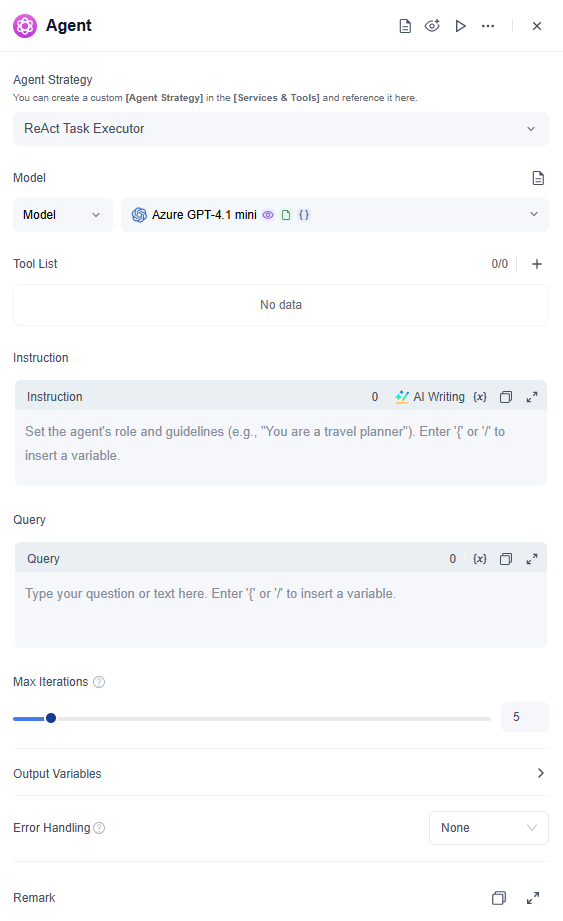
Add an Agent Node
- 1. Open the Workflow Editor
- Navigate to the workflow canvas you need to edit within the GoInsight.AI workspace.
- 2. Drag and Drop the Node
- Locate the "Agent" node in the left or top component panel on the canvas. Drag it to the appropriate position in the visual flowchart, connecting it with the preceding and subsequent nodes.
- 3. Select an Agent Strategy
- In the configuration panel of the Agent Node, specify an "Agent Strategy" that defines how the model will perform multi-step reasoning, invoke tools, and produce results.
- GoInsight.AI provides two default sources of Agent Strategies:
- Official System Strategy: Developed and embedded by the GoInsight.AI official team, suitable for common multi-step reasoning or tool-use scenarios.
- Custom Agent Strategy: Enterprise teams can create and publish their own agent strategy in the Services & Tools module.
Configure Node Parameters
Based on the selected Agent Strategy, the node displays different parameters or feature options. The following are common general configurations:
1. Model
- Specify the LLM used to power the Agent node.
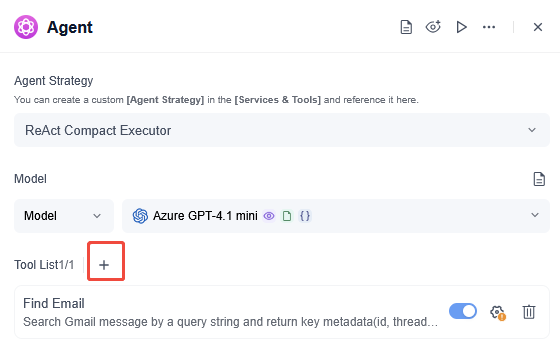
2. Tool List
- Add or manage external capabilities that the Agent node can call, such as apps and custom tools.
- Click + to select and add apps or tools.
- You can enable, disable, or delete added tools.
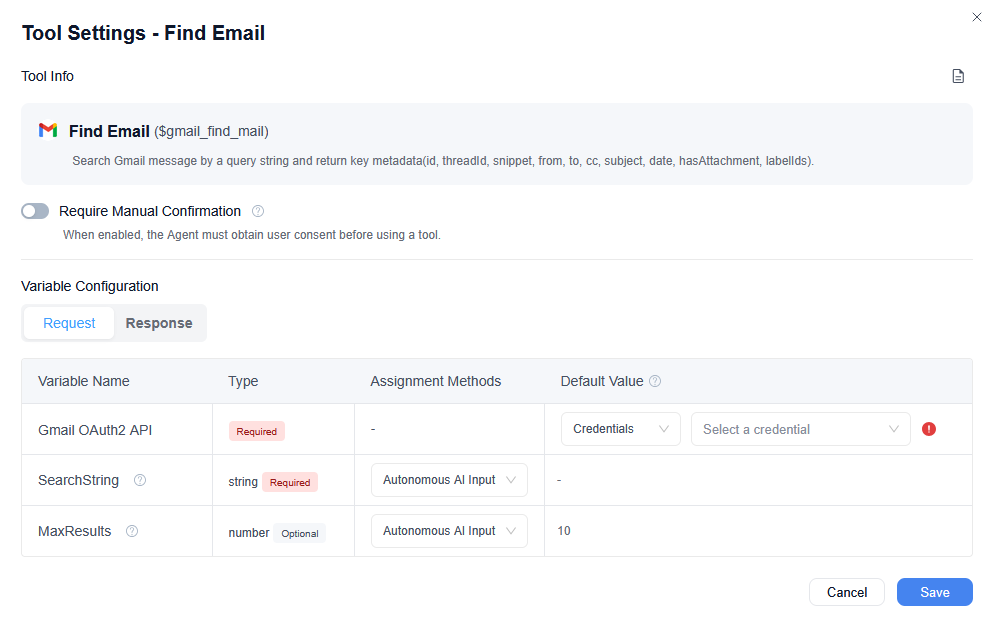
- Edit the specific settings of added apps or tools.
- Manual confirmation before execution.
- Variable assignment method, Credential, default value, and other settings.
- Disable parameters: If related parameters are disabled, their corresponding results will not be passed to or returned to the LLM.
3. Instruction
- Used to tell the Agent node about the scenario, goal, or constraints.
- You can place role settings, task requirements, or business context here so that the Agent node consistently follows these instructions during multi-step reasoning.
4. Query
- Usually corresponds to the user's input, or the question or requirement text passed from an upstream node.
- The Agent node uses both Query and Instruction for reasoning, action planning, or tool call instruction generation.
5. Max Iterations
- To prevent the Agent node from continuously looping during multi-step reasoning, you can set a maximum number of execution rounds, also known as the iteration limit.
- When the Agent node exceeds this number without stopping, it automatically stops to avoid infinite rounds of calls.
6. Memory
- When Memory is enabled, the Agent node can retain context across multi-turn conversations or repeated instruction calls, producing more coherent responses.
- Historical records: Use a slider or numeric value to set the size of the history. This indicates how many historical interactions the Agent node can look back on and reference.
- Benefits and considerations of Memory.
- Context coherence: After Memory is enabled, the Agent node can correctly understand pronouns, field names without explicit references, and similar follow-up content by using previous context.
- Accuracy and performance: The larger the Memory window, the higher the possible model cost. Balance this based on actual needs and call costs.
- Memory Scope: Set the Memory scope to Session or Current Node.
7. Files
- When using a multimodal LLM, you can pass images or documents through this variable so the LLM can understand and generate outputs based on file content.
- To use this feature, you need to enable the $UserFiles variable in the Start node to allow users to upload files.
8. Output
- Defines the final output data structure of the Agent node. The result can be passed to subsequent nodes for further processing.
- It includes the final response text, tool call results, or key information related to multi-step reasoning.
9. Error Handling
- Mechanisms triggered when the node encounters an error.
- No Handling: If the node fails, an error is reported and the workflow ends.
- Default Value: If the node fails, the workflow continues and uses the default value you specify as the output result.
- Error Handling Branch: If the node fails, the workflow interrupts the current path and redirects to the error handling branch you configured.
View Execution Logs
The Agent Node generates detailed logs during execution to help you debug and understand the model's reasoning process and tool invocation trajectory:
- 1. Basic Information
- Displays the input, output, execution time, token consumption, etc. for each run.
- 2. Detailed Round Records
- You can view the Agent Node’s thinking, tool invocation, receiving tool responses, continued reasoning, etc., helping you analyze whether the reasoning logic and tool usage meet expectations.
- 3. Error Diagnosis
- If the Agent Node encounters invocation failures, timeouts, or other exceptions, the specific reasons will also be shown in the logs.
Developing and Managing Agent Strategy
If the built-in system strategies cannot meet specific customization needs, enterprises can also develop and publish their own custom agent strategy.
For more details, please refer to: Agent Strategy
Summary
- Agent Nodes empower large language models within workflow executions with "multi-step decision-making" and "self-service tool selection" capabilities, effectively addressing complex scenarios that simple dialog nodes cannot handle.
- You can flexibly combine models, tools, and strategies during node configuration and enhance contextual coherence and process transparency through memory and logging functions.
- If the default strategies do not meet business requirements, custom strategies can be created in the Services & Tools module to develop intelligent workflows better tailored to specific enterprise or scenario needs.


Leave a Reply.