Definition
The Start node is a preset starting node required in every workflow. It serves as the first node for creating and configuring global variables, providing initial information for the normal execution of subsequent workflow nodes and the overall application flow.
Configuration
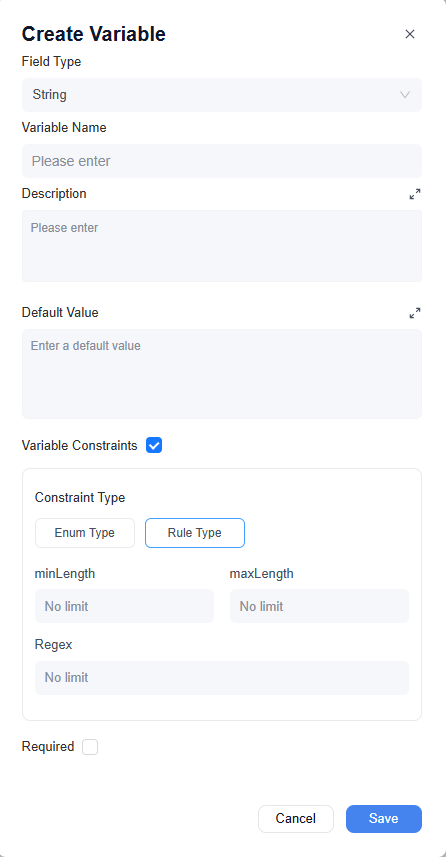
On the Start Node settings page, you will see two parts of the settings: custom variables and preset system variables. The preset configurations of the Start node differ between Interactive Flow and Service Flow.
Custom Variable
Users can preset custom variables based on their needs for use in subsequent processes. For example, in a weekly report assistant workflow, users are required to provide background information in advance according to a specified format, such as their name, work date range, and job responsibilities. This preliminary information helps LLMs generate higher-quality responses.
Add Custom Variable:
Select the “Start” node, then click the “+” sign to the right of “Custom Variable” to add it.
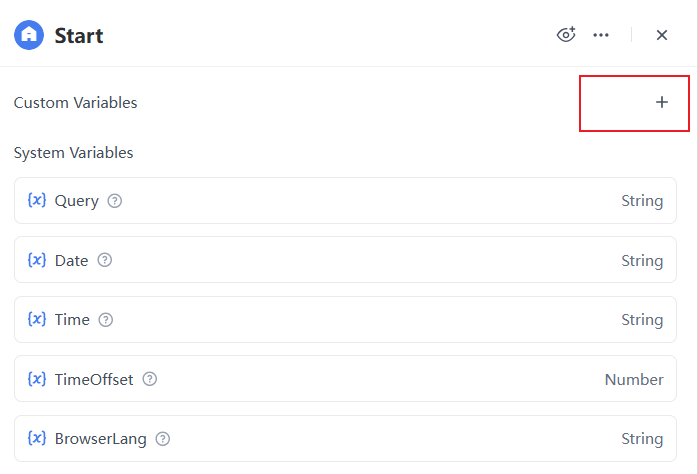
- 1. Supports configuring input parameters of various data types, including String, Number, Bool, and Object.
- 2. Supports directly adding parameters and setting parameter names.
- 3. Enter a description of the input parameter to help the model understand the meaning of the passed-in parameter.
- 4. Supports setting default values.
- 5. Variable Constraints: Used to enforce rules on the input content of custom variables, ensuring that variable data meets specific requirements and preventing invalid or erroneous data from affecting the normal flow of subsequent workflow nodes.
- Enum Type
- Restricts variable values to a preset list of options; users can only select from the given options, ensuring consistency and standardization of input content.
- Rule Type
- Mini/Max Length: Restricts the character length range of variable values to prevent content from being too short or too long.
- Regex: Defines the input format using regex, such as validating data in specific formats (e.g., email addresses, phone numbers), to ensure content conforms to the preset pattern.
-
- 6. Supports setting variables as private (when a workflow is called from outside, access to internal variables (Protected) is restricted; they are not made public or passed in).
System Variable
System variables are system-level parameters preset in both Interactive and Service Flow modes. These variables can be read globally by other nodes within the application. They are usually used in advanced development scenarios such as building multi-turn dialogue applications, collecting application logs, and monitoring or recording usage behavior across different applications and users.
System Variables for Service Flow:
| Variables | Data Type | Description |
|---|---|---|
| UTCDate | String | The date when the current workflow starts running, using UTC time, formatted as yyyy-MM-dd. |
| UTCTime | String | The time when the current workflow starts running, using UTC time, formatted as HH:mm:ss. |
| $BrowserIP | String | The user's browser IP address. |
| $BrowserUserAgent | String | The user's browser UserAgent. |
| $ABEvent | Object | Contains device details, trigger reasons, and automation execution results when an AirDroid Business alert is triggered. This information can be used for further AI analysis and more complex automation workflows. |
| $WorkflowID | String | The ID of the workflow. |
| $BatchID | String | The batch ID associated with the current workflow execution. |
| $UserID | String | A unique ID used to identify the user and track the same user across multiple sessions. |
| $UserDisplayName | String | The user's display name. |
| $UserInfo | String | The user's information. |
| BrowserLang | String | The user's browser language, such as zh-CN or en-US. |
| $SessionID | String | The identifier of the current Q&A session. |
| $PersonalDataPath | String | The path to the Personal Data directory in the current workflow executor’s documents. |
System Variables for Interactive Flow:
| Variables | Data Type | Description |
|---|---|---|
| Query | String | The user's input question or content. |
| Date | String | The date when the current workflow starts running, using UTC time, formatted as yyyy-MM-dd. |
| Time | String | The time when the current workflow starts running, using UTC time, formatted as HH:mm:ss. |
| TimeOffset | Number | The user's browser timezone offset in minutes relative to UTC. For example, UTC+8 is 480. If it cannot be collected, the value is 0 (corresponding to UTC time). |
| $LastAnswer | String | Stores the output from the previous conversation turn. |
| $LastAnswerRole | String | Stores the role name used in the previous response. |
| $Round | Number | Indicates the current conversation turn in an Auto-Continue conversation. |
| $IsAutoContinue | Bool | Indicates whether the current conversation is in Auto-Continue mode. |
| $ChatHistory | Array[Object] | Conversation history, including previous Q&A records and token counts. |
| $UserFiles | Array[File] | Files uploaded by the user. When disabled, the file upload entry will be hidden in the chat interface. |
| $TargetWorkflowID | String | The workflow ID specified through @ in the collaboration workspace. |
| $IsCollaboration | Bool | When the value is "True", it indicates a group chat; otherwise, it indicates a standard one-on-one chat in the collaboration workspace. |
| $BrowserIP | String | The user's browser IP address. |
| $BrowserUserAgent | String | The user's browser UserAgent. |
| $WorkflowID | String | The ID of the workflow. |
| $BatchID | String | The batch ID associated with the current workflow execution. |
| $UserID | String | A unique ID used to identify the user and track the same user across multiple sessions. |
| $UserDisplayName | String | The user's display name. |
| $UserInfo | String | The user's information. |
| BrowserLang | String | The user's browser language, such as zh-CN or en-US. |
| $SessionID | String | The identifier of the current Q&A session. |
| $PersonalDataPath | String | The path to the Personal Data directory in the current workflow executor’s documents. |
Remark
You can fill in the remarks and explanations for the Start node here.
Note
- After entering the parameter name, make sure to select the corresponding field type.
- The custom variables you enter must fulfill the format requirements. If they do not comply with the format requirements, they cannot be entered.


Leave a Reply.