Definition
In GoInsight.AI, a Service is a reusable module that extends workflow capabilities. You can publish an existing Service Flow as a Service and directly reference it in other workflows to quickly reuse existing logic, reduce redundant development, and improve workflow creation efficiency.
How to create a Service?
Only two steps are required to publish your Service Flow as a Service:
- Step 1.Publish as Service
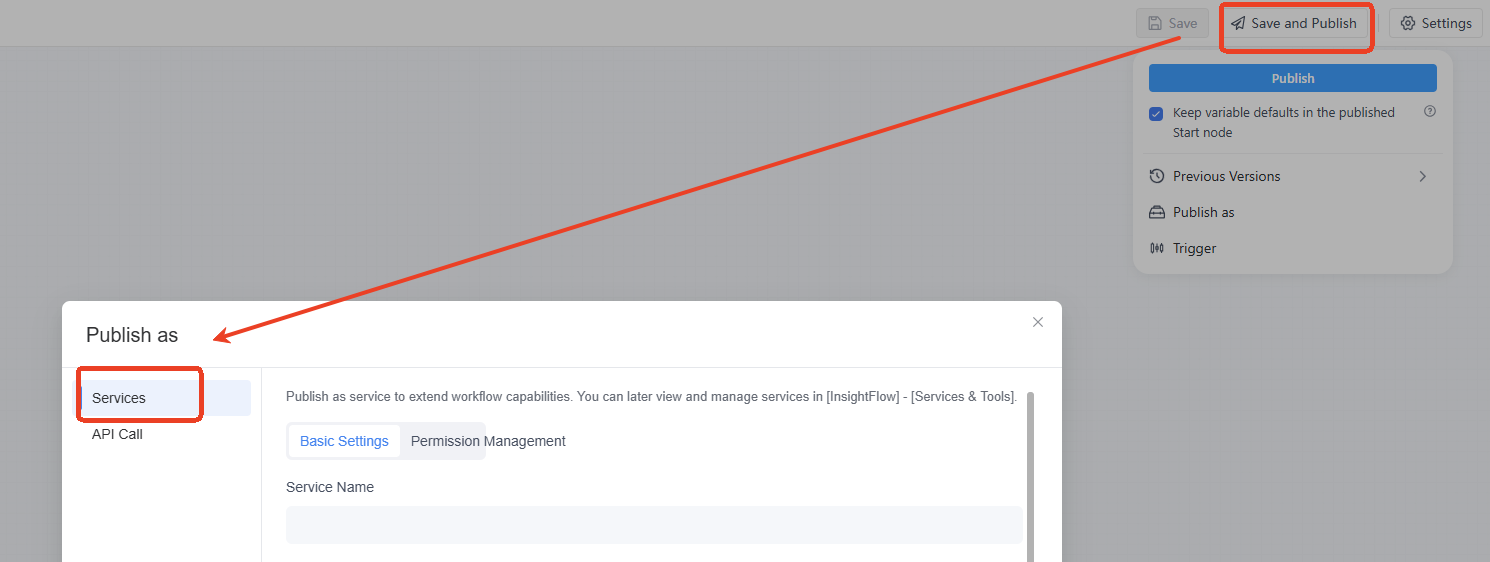
- After creating a service-based workflow, click the upper-right "Save and Publish" → "Publish as" → "Service".
- Step 2.Fill in Service Information
- In the popup settings window, configure the following:
- Service Name: A short and memorable name
- Service Description: A brief explanation of the service's purpose for better understanding
- Service Permissions: Set which team members can reference this Service
Click “Save” to complete! The Service is now ready to be referenced by other workflows.
How to reference a Service?
When editing a workflow, you can combine existing Services like building blocks without developing from scratch.
- Step 1.Add Service Node
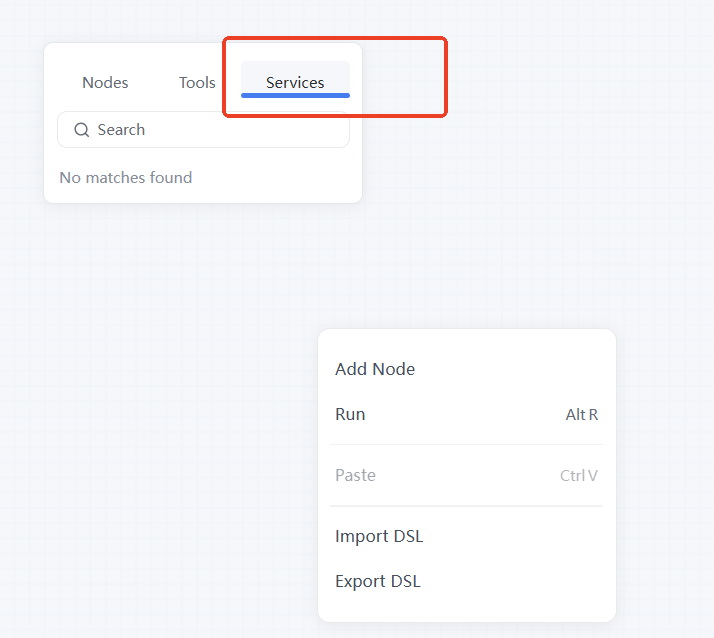
- Right-click on the canvas and select “Add Node” → “Service”. The system will display all available Services for reference.
- Step 2. Select the Service
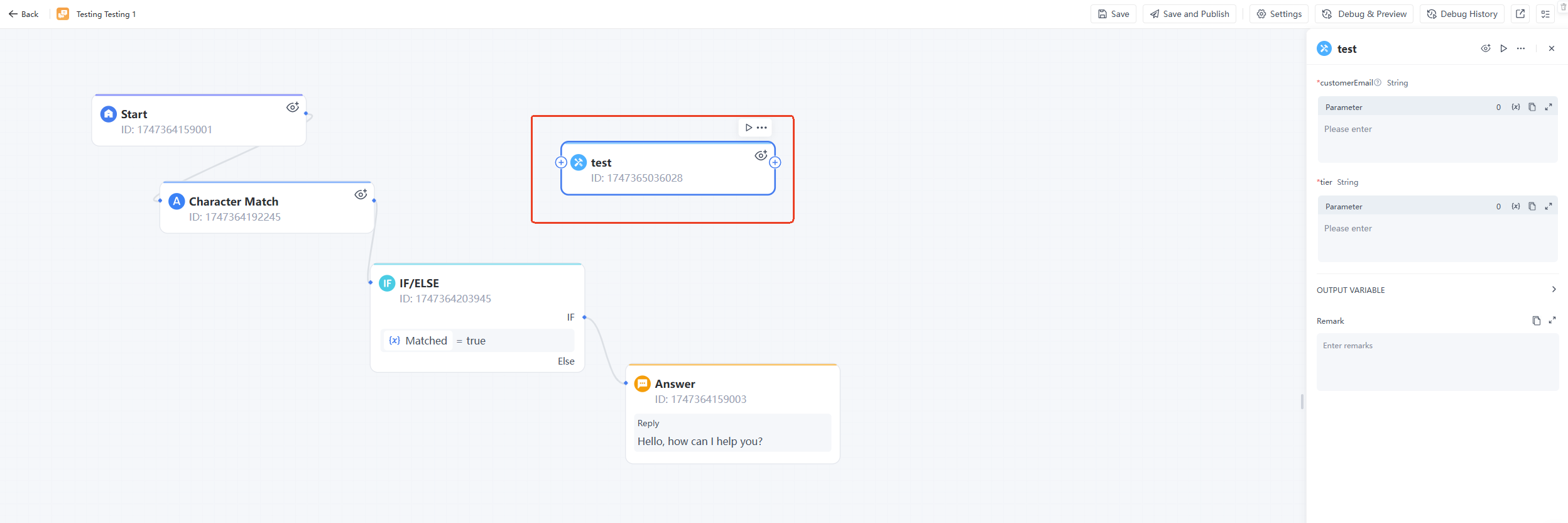
- Click on the desired Service to insert it into the current workflow. The Service will inherit its original functions with no extra configuration needed.
- By reusing Services, you can quickly build complex workflows in GoInsight.AI and enhance your productivity.
Management of Services and Tools
GoInsight.AI offers a centralized management portal for overseeing services and tools. To access and manage these within GoInsight.AI, navigate to the InsightFlow - Services & Tools module.
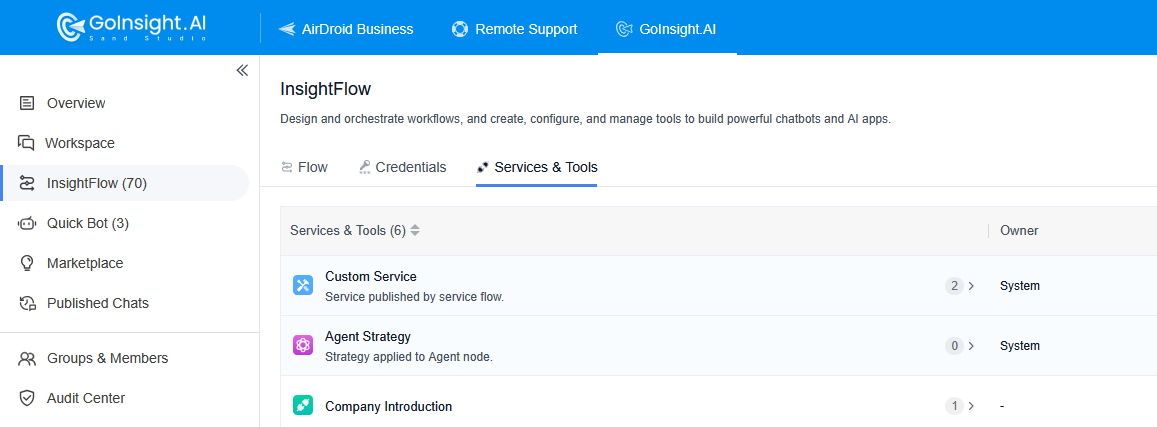
This module includes the following features:
- Custom Service: Services generated by Service Flow are automatically categorized here. Learn how to publish a Service Flow as a service.
- Agent Strategy: Any agent strategies you create will be automatically organized within this section.
- Customized Tool Categories: You can establish various categories and assign your custom tools to these categories during their creation. For instance, if you create a category named "Gmail," you can later classify any Gmail-related tools under this directory. This allows you to easily view all Gmail-related cloud tools in one place.
Permission Management
GoInsight.AI provides comprehensive permission management for services and tools, ensuring compliance with corporate standards.
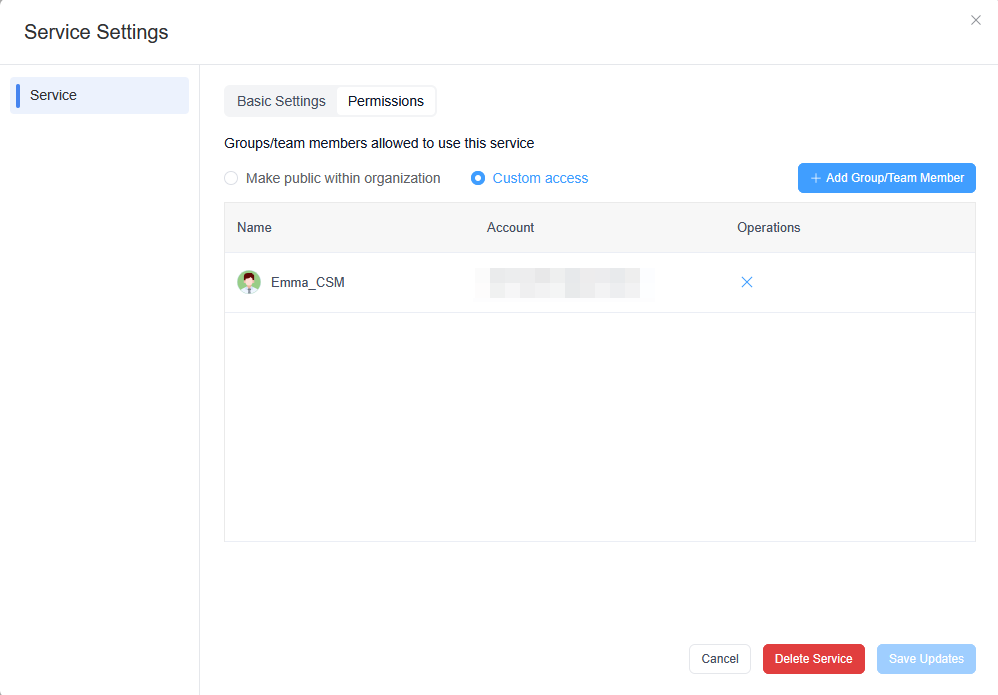
Permission Management for Custom Services
For custom services, you can set the scope of use for that service.
Permission Management for Custom Tools
Permission management for custom tools includes:
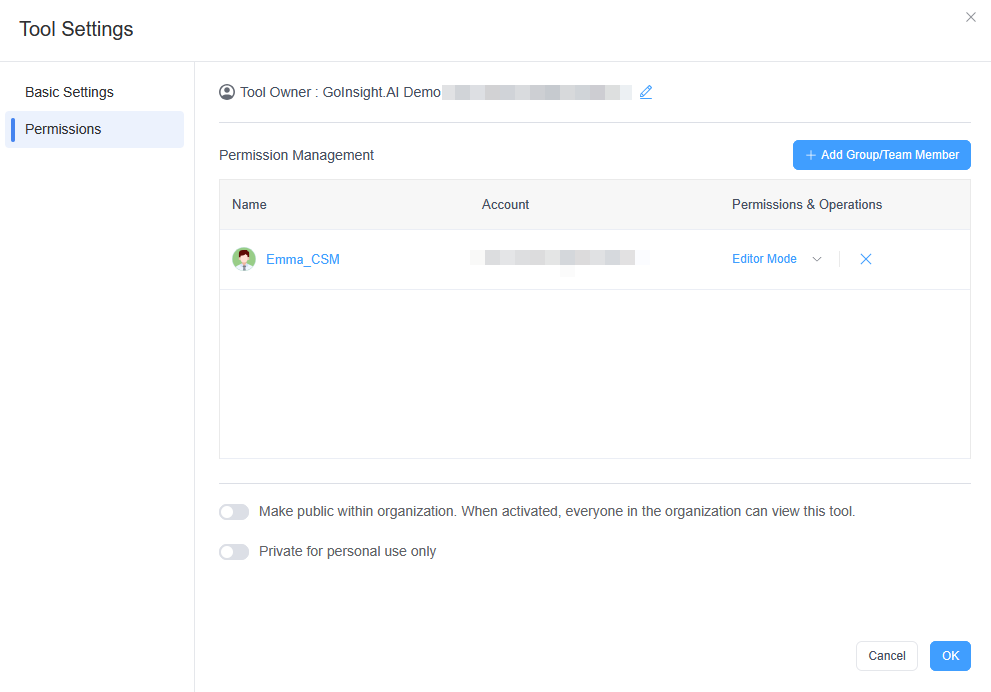
- 1. Setting permissions for team members: Add groups or members who can manage the tool, along with the corresponding permissions:
- Manageable: Can manage members and edit or delete the tool
- Editable: Can view and edit the tool
- View Only: Can only view the tool
- 2. Make Public Within Organization: Make this tool public within the organization and set the corresponding access permissions.
- 3. Private for Personal Use Only: When enabled, others will not be able to view or use this tool.


Leave a Reply.