In modern enterprises, simplifying management processes while ensuring the security and compliance of sensitive materials is an important challenge for every organization. For this reason, GoInsight.AI provides a complete permission system that covers both the enterprise level and the group level. It helps enterprises efficiently manage files and personnel changes in daily work, truly enabling lean management and secure collaboration. This allows everyone to fulfill their own responsibilities while avoiding risks caused by overlapping or misused permissions.
This article introduces the core logic, major roles, resource management mechanism, and common operation scenarios of this permission system.
Why Do Enterprises Need This Permission System
In daily enterprise collaboration, “who can access what data” and “who can perform which operations” are the areas that need the clearest definitions and also change most frequently. Once permissions are mismatched, such as when someone leaves the company but still retains management permissions for sensitive files, serious data security risks and management confusion may occur. At the same time, different enterprises have different needs for file privacy and departmental collaboration, so they need a flexible and controllable mechanism that allows administrators to manage with confidence and employees to use smoothly.
GoInsight.AI's permission system helps enterprises achieve and solve the following:
- Refined Enterprise Management
- Accurately assign roles and access permissions to ensure clear division of responsibilities, proper accountability, and reduced business risks.
- Sensitive File Protection
- The Private File mechanism gives resource owners exclusive access permissions. Administrators cannot view these files. Only in exceptional cases can a super administrator or enterprise owner transfer ownership.
- Reduced Organizational Complexity
- Multiple groups can be managed in parallel, with permissions isolated between groups. This ensures that when one administrator leaves or changes roles, collaboration in other areas is not interrupted.
- Support for Historical Asset Retention and Handover
- When employees leave or group assignments change, resource ownership can be handed over automatically or manually, ensuring that enterprise materials are not lost due to personnel changes.
Core Features of GoInsight.AI's Access Control
Access control is a critical component of enterprise management, and GoInsight.AI offers a robust and flexible solution to ensure both security and efficiency. Here are the core features that make it stand out:
1. Multi-Level User Management
GoInsight.AI implements a hierarchical user management system that provides distinct levels of control and responsibility:
| Enterprise Level | Provides top-level control over critical security and financial aspects. |
| Group Level | Enables autonomous management within specific teams, including assigning permissions for non-private resources and managing members. |
| Individual Level | Allows users to create resources with the option to keep them private or manage them collaboratively within their group. |
2. Adaptive Personnel Management
The system automatically adapts to changes in personnel, ensuring seamless transitions:
| Group Transfers | Automatically shifts management of non-private resources to the new group admin. |
| Employee Departures | Ensures that superiors or top-level admins can take over resources, preventing orphaned data. |
3. "Private" vs. "Non-Private" Resource Management
GoInsight.AI offers a flexible file management system that balances privacy and collaboration:
| Private Files | Accessible solely by the owner, offering maximum security for sensitive information, even from admins. |
| Non-Private Files | Facilitates internal collaboration with permission-based editing and sharing managed by authorized users. |
4. Flexible Resource Ownership Transfer
Ownership of resources can be transferred seamlessly:
| Executors | Only enterprise owners and super administrators can transfer ownership. |
| Scenarios | This feature is particularly useful for scenarios like employee departures or project role changes, ensuring that resources remain accessible and managed. |
| Details | New owners inherit the permissions of the resource, while the original owner can choose to retain or relinquish access rights, preventing resource loss or misuse. |
5. Audit Center
Used to view active sharing links, API keys, and designated access points within the organization, as well as members’ activity logs, enabling administrators to monitor access and operations within the organization.
For more details, please refer to: Audit Center
Function Explanation & Operation Guidance
This part will guide you on how to configure the permission system step by step to achieve optimal "lean management" and "secure collaboration" within your organization.
1. Define Enterprise-Wide Openness:
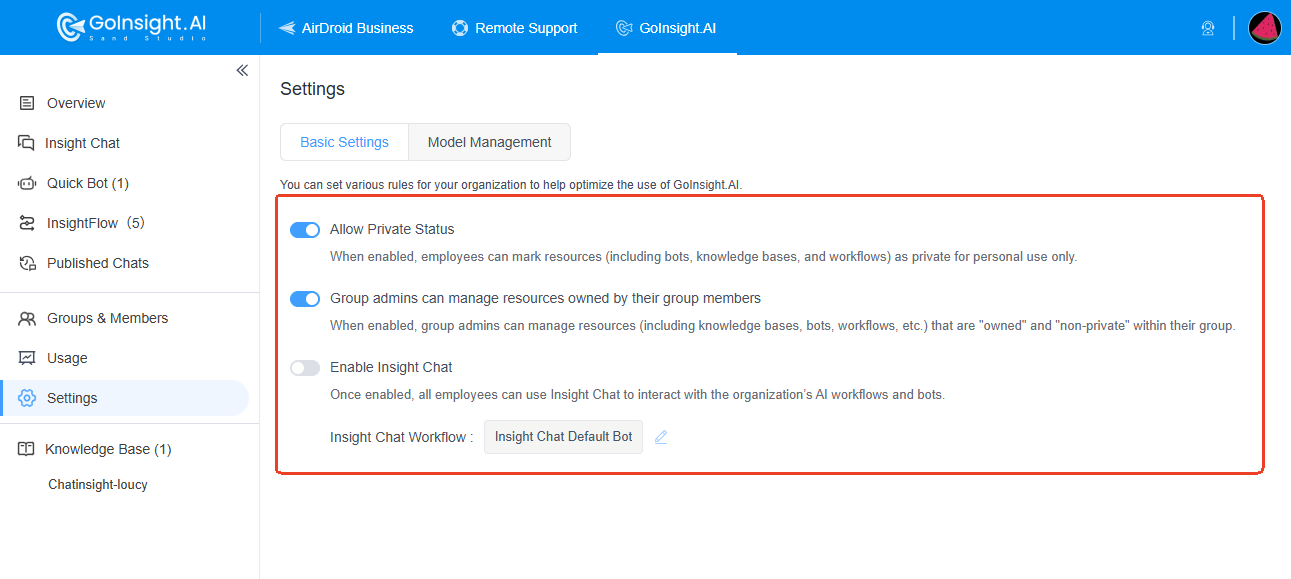
As the ‘Enterprise Owner’, your first step is to determine the overall openness of your GoInsight.AI environment in the “Settings” panel.
Allow Private Status: When enabled, employees can create private files (including Bots, Knowledge Bases, and InsightFlow, etc.) for personal use only.
Group admins can manage resources owned by their group members: When enabled, group admins can manage resources (including Bots, Knowledge Bases, InsightFlow, etc.) that are "owned" and "non-private" within their group.
2. Establish Your Organizational Structure with Department Groups:
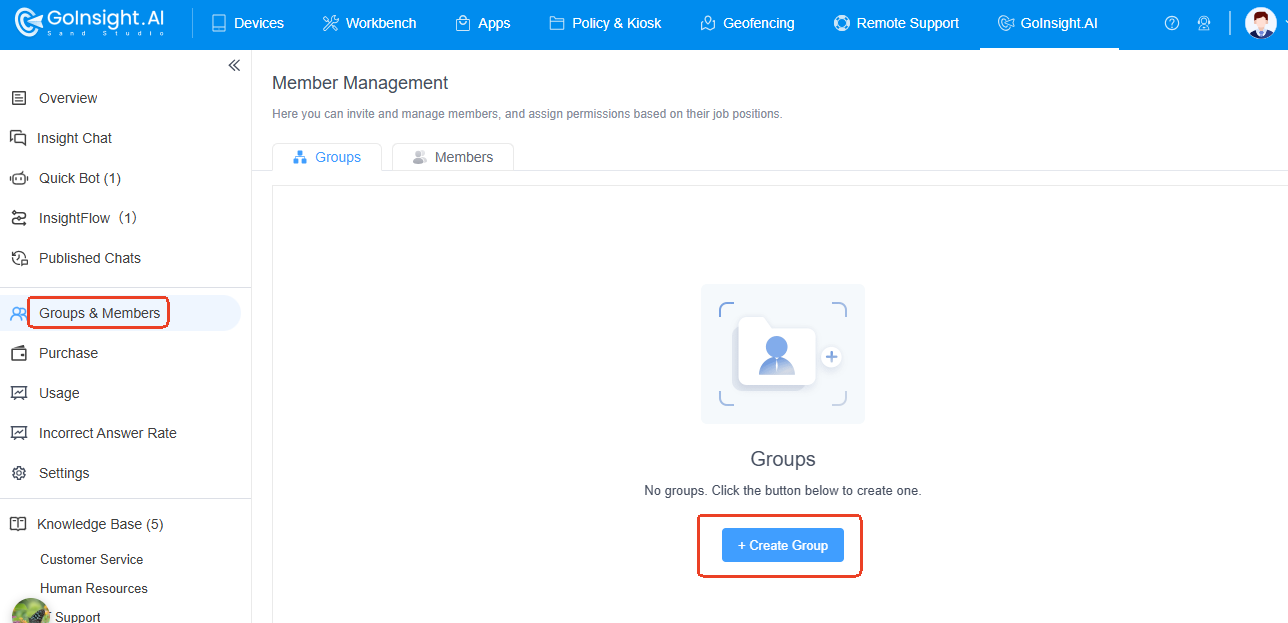
In the dashboard, Navigate to the “Groups & Members” section in the dashboard. Click on “+ Create Group” button to proceed.
3. Invite Employees and Assign Group & Initial Permissions:
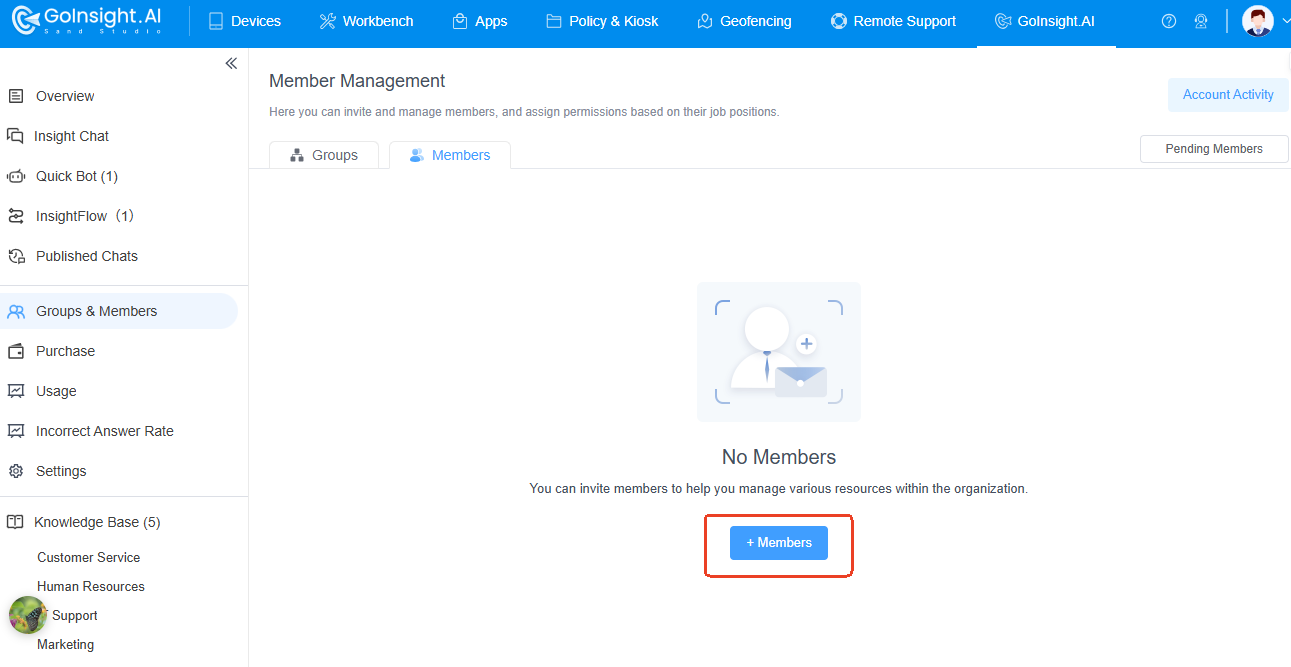
Within the “Groups & Members” section, select the “Members” tab. Then click the “+ Member” button to invite specific member(s).
| For Team Member role | can only manage bots, knowledge bases, workflows that they have created or been assigned. |
| For Super Admin | can manage all bots, knowledge bases, workflows, and invite/manage group admins and team members. |
You'll also select their group and optionally specify their position within that group.
4. Setting Resources to "Private" or "Non-Private":
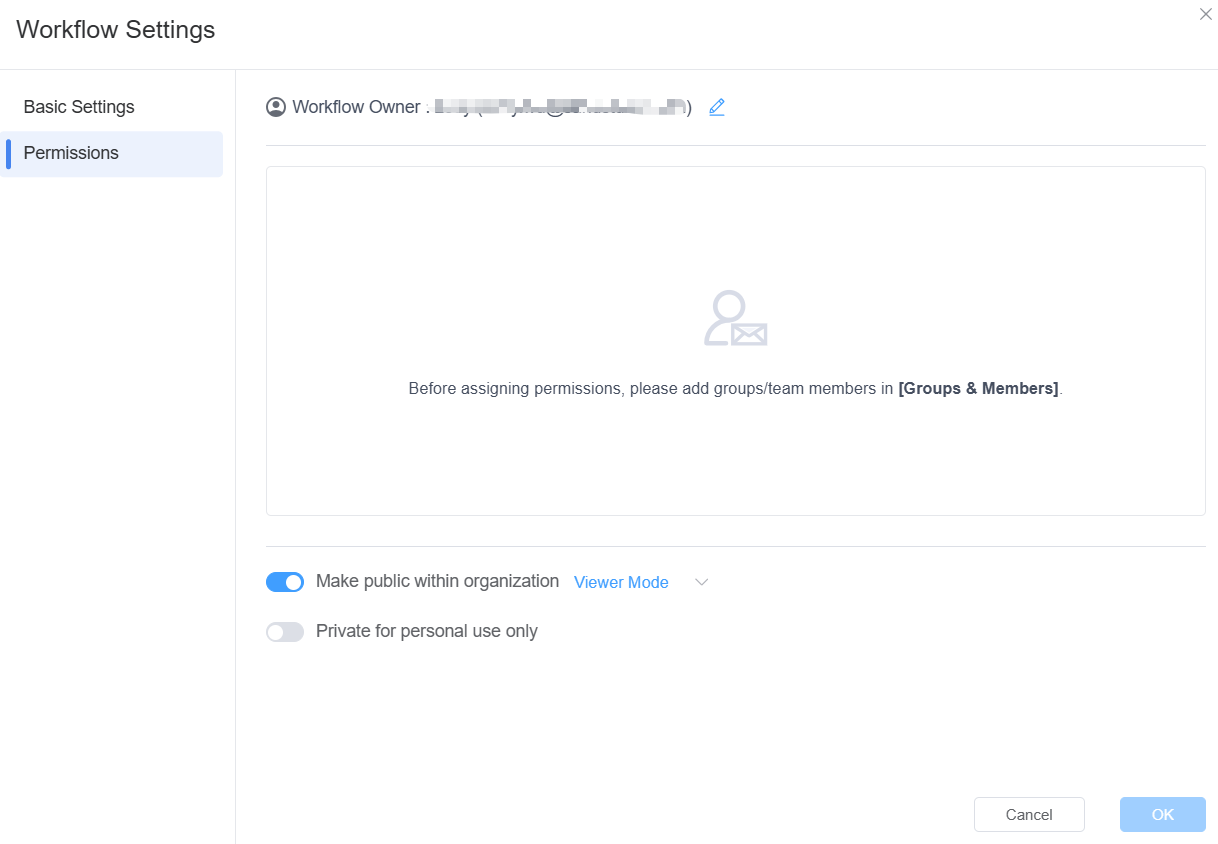
To control the visibility of a specific resource (Bot, Knowledge Base, InsightFlow, etc.), click the “Edit” icon associated with that resource. Select the “Permissions” module, where the resource owner can decide and complete the settings.
5. Configuring Resource Permissions for Enterprise-Wide or Specific Access:
Click the “Edit” icon associated with resources (Bot, Knowledge Base, InsightFlow, etc.) and go to the “Permissions” module, where you can edit the permissions of the resources. Decide whether to make the resources public within the enterprise and which personnel and groups can access and use them.
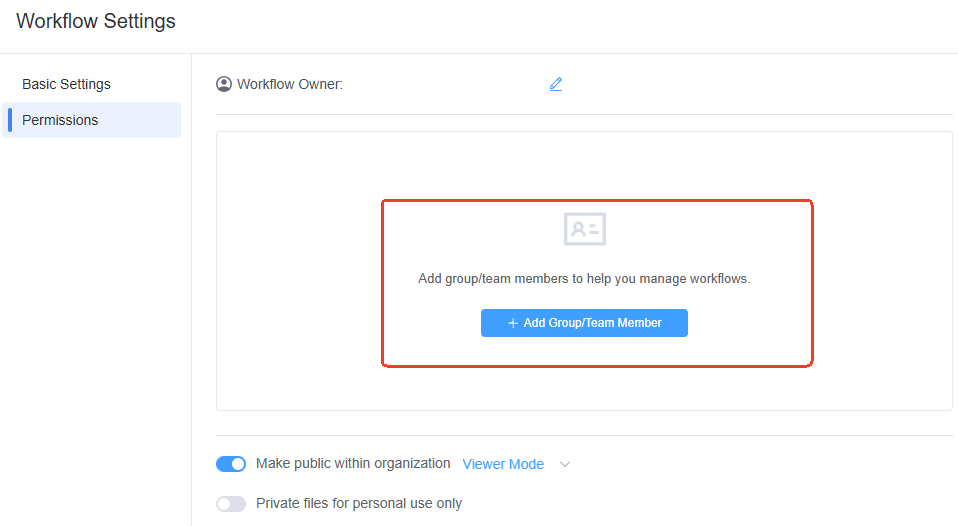
For each selected individual or group, you can assign one of the following permission levels:
| Manager Mode | Manage members and edit/delete workflows |
| Editor Mode | View/Edit workflows |
| Viewer Mode | View workflows only |
| Execute Only | Can only be used in Workspace; specific content cannot be viewed |
6. Editing Resource Owners
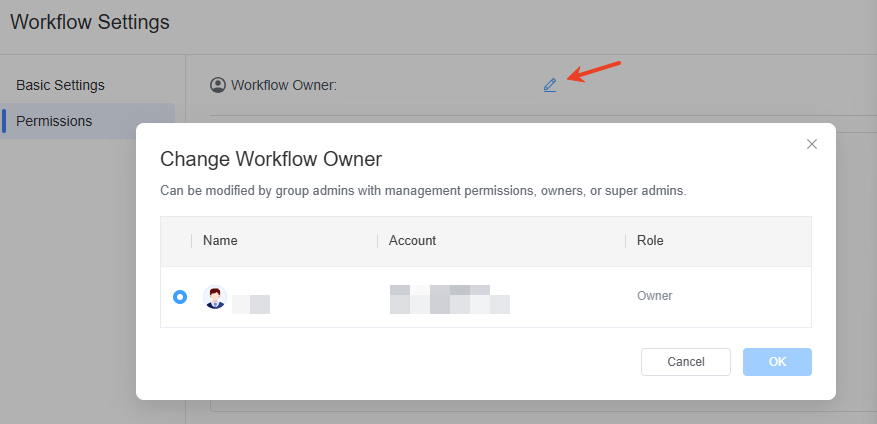
To change the owner of a resource, click its “Edit” icon and navigate to the “Permissions” section. Only “Owner” and “Super Admin” have the authority to edit the resource owner. This ensures a high level of control over critical resource ownership, especially during transitions.
7. Audit Center
In the Audit Center, you can view all active sharing links and API keys for your organization and directly disable specific access points. It also provides a comprehensive log of member activities, allowing you to track their actions. For more details, see: Audit Center
What Value Does GoInsight.AI's Permission System Deliver
- Security and Compliance
- Clear permission boundaries are defined for roles at each level, preventing unauthorized access or permission gaps.
- Private files ensure that key materials are controlled only by their owners, reducing the risk of data leakage.
- Simplified Collaboration Process
- Group administrators can flexibly manage non-private files within their groups, reducing the daily maintenance workload of higher-level administrators.
- Automated file owner transfer and offboarding handover mechanisms prevent personnel changes from becoming gaps in document management.
- Flexible and Controllable
- Enterprise owners and super administrators can add or remove groups and adjust roles at any time, meeting the needs of frequent organizational changes.
- Private features can be enabled or disabled as needed, making the permission system highly flexible and suitable for various business scenarios.
- Continuously Scalable
- Supports multiple groups and multi-level management structures, making it easier for enterprises to expand quickly or coordinate across complex departments.
- When administrators from different groups have equivalent permissions, seamless handover can be achieved, reducing management gaps caused by individual absences.
Conclusion
The new enterprise permission system helps your team maintain agile and efficient collaboration across various scenarios:
- Enterprise owners and super administrators
- Serve as the top-level safety control for managing core resources and permission changes.
- Group administrators
- Handle daily management within their groups, making distributed autonomy possible.
- Team members
- Can focus on creating and using files without worrying that files will become unmanaged or be deleted by mistake.
As enterprises continue to grow and team structures become increasingly complex, only a reasonable permission system can ensure the security and efficient use of core knowledge assets.
If you want to learn more about how to configure, debug, and implement this permission system in practice, follow the steps provided in this article and verify them in your own environment. We believe this will give your enterprise a more stable, orderly, and sustainable foundation for collaboration.


Leave a Reply.