GoInsight Workspace is the unified entry point for GoInsight.AI.
It brings together your organization's scattered capabilities of team collaboration, AI conversations, and published Workflow/assistant into a single interface, so your team can complete an entire task within one thread:
Discuss → Invoke capabilities → Get results → Decide and hand off → Record and review.
Unlike generic "chat-only" AI tools, GoInsight Workspace isn't focused on making AI better at answering questions. Instead, it enables enterprises to turn high-frequency, repeatable tasks into reusable, governable capabilities: built and published by a few, and consistently reused by the rest of the team.
Main Areas in Workspace
In GoInsight Workspace, you'll see four main work areas on the left:
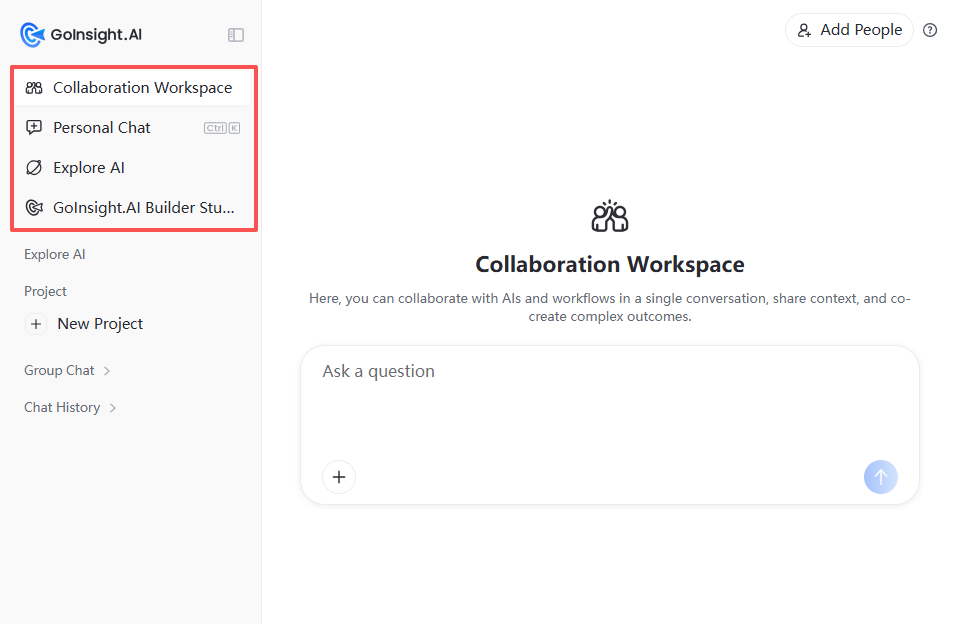
1. Collaboration Workspace (Your team's main hub)
This area is to advance tasks together as a team.
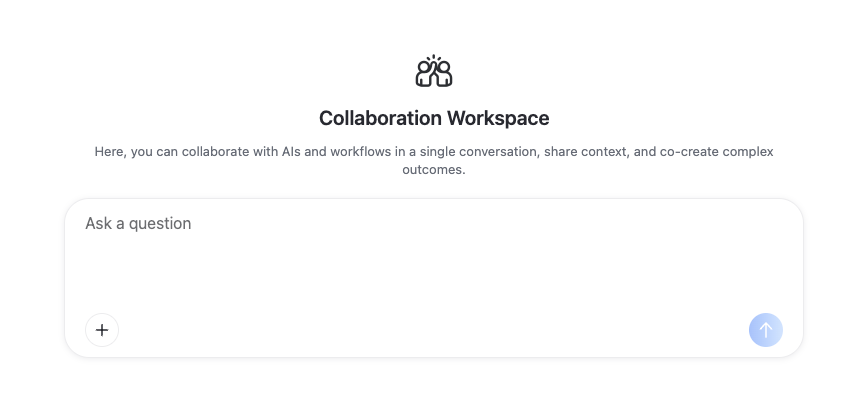
Within the same conversation space, you can:
- @ mention a published Workflow/assistant to invoke it
- @ mention teammates to collaborate
- Share conversation context so tasks can move forward continuously
Suitable for: customer support collaboration, sales follow-up, cross-department alignment, and tasks that require multiple participants and multiple rounds of processing.
2. Personal Chat (your private AI Space)
This area is for one-on-one conversations and experimentation with AI.
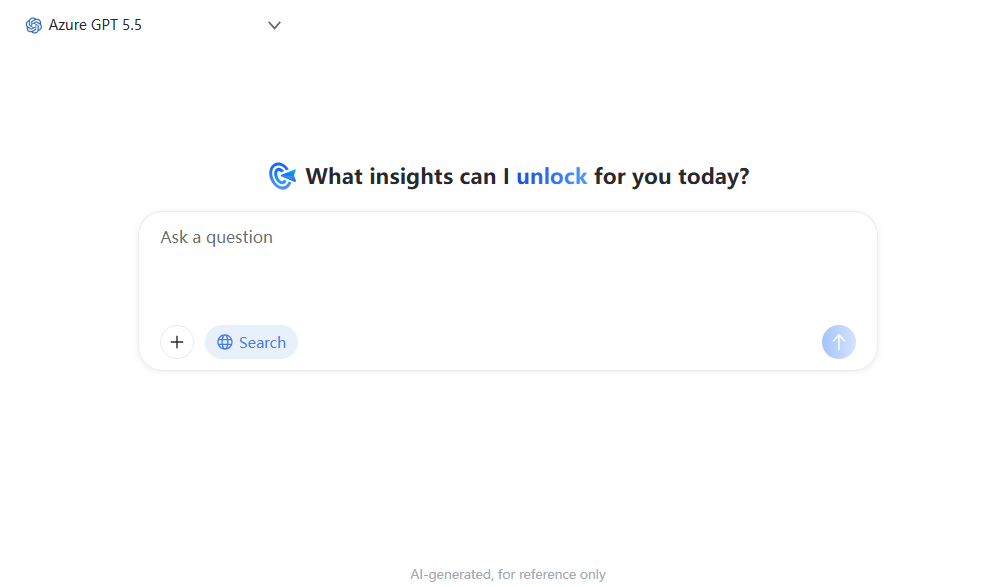
Personal Chat helps you:
- Draft content, organize your thoughts, or run quick analyses
- Test Prompts or compare different Models
- Validate an idea before bring it into team collaboration
In short: think it through in your personal space first, then bring the mature capability into team collaboration.
File Upload: You can upload files so the AI can interpret the content, extract key points, and generate structured output based on them.
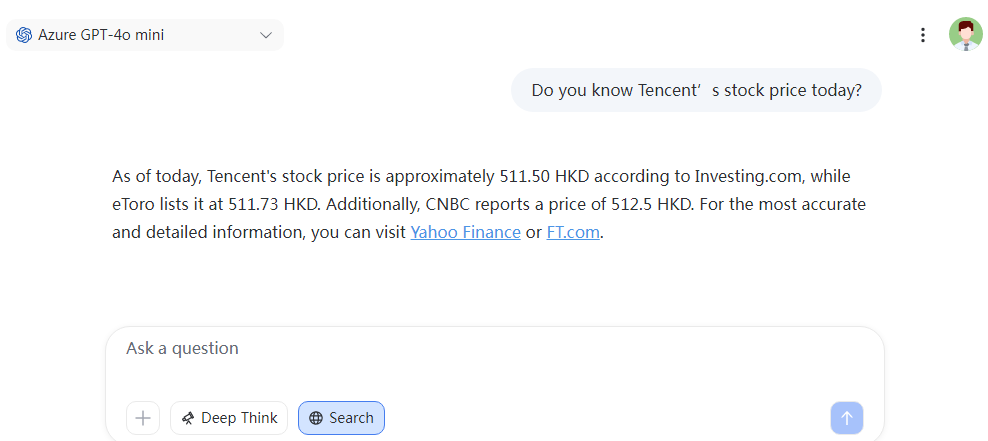
Web Search: Below the chat box, there's a toggle for "Web Search." When enabled, the AI model's responses will incorporate the latest information available online.
The images below compare responses before and after enabling "Web Search":
- Before opening "Search"
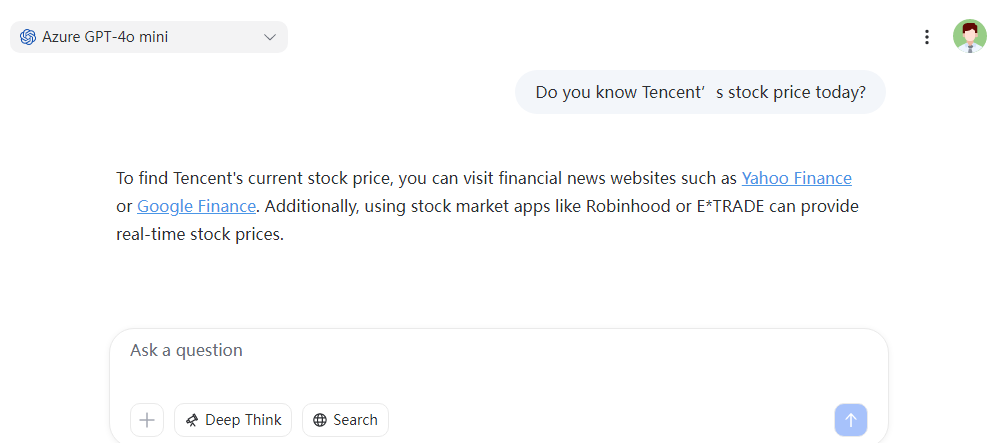

- After opening "Search"

3. Explore AI
Explore AI allows you to access Bots and Interactive Flows that have been made available to you within the organization, and interact with them.
You can see the capabilities already published within your organization, including:
- The name of the Interactive Flow/Bot
- Icon (Workflows and Bots have different icons)
- Creator name
- Creation time
- Number of users/uses
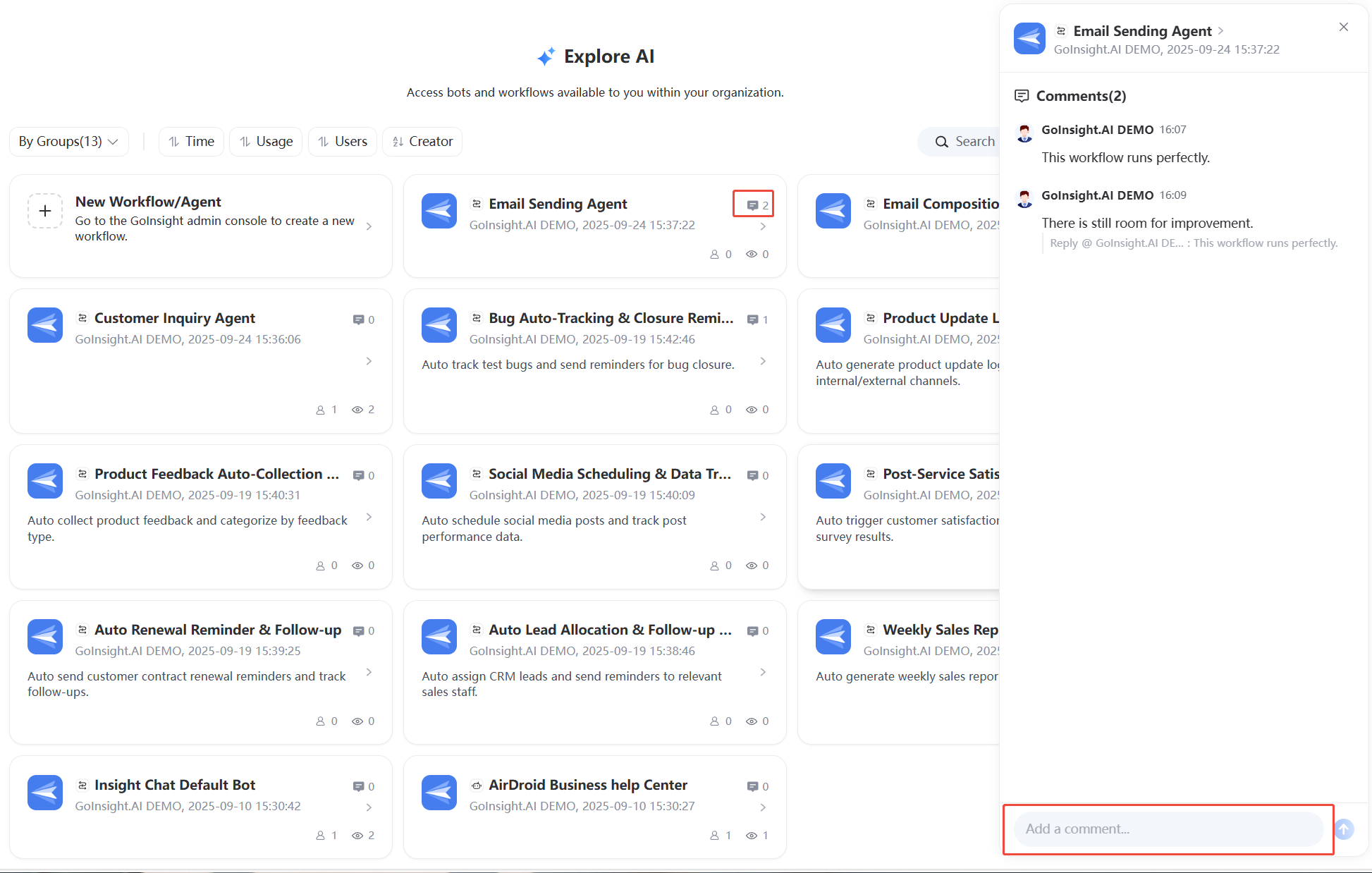
- Number of comments
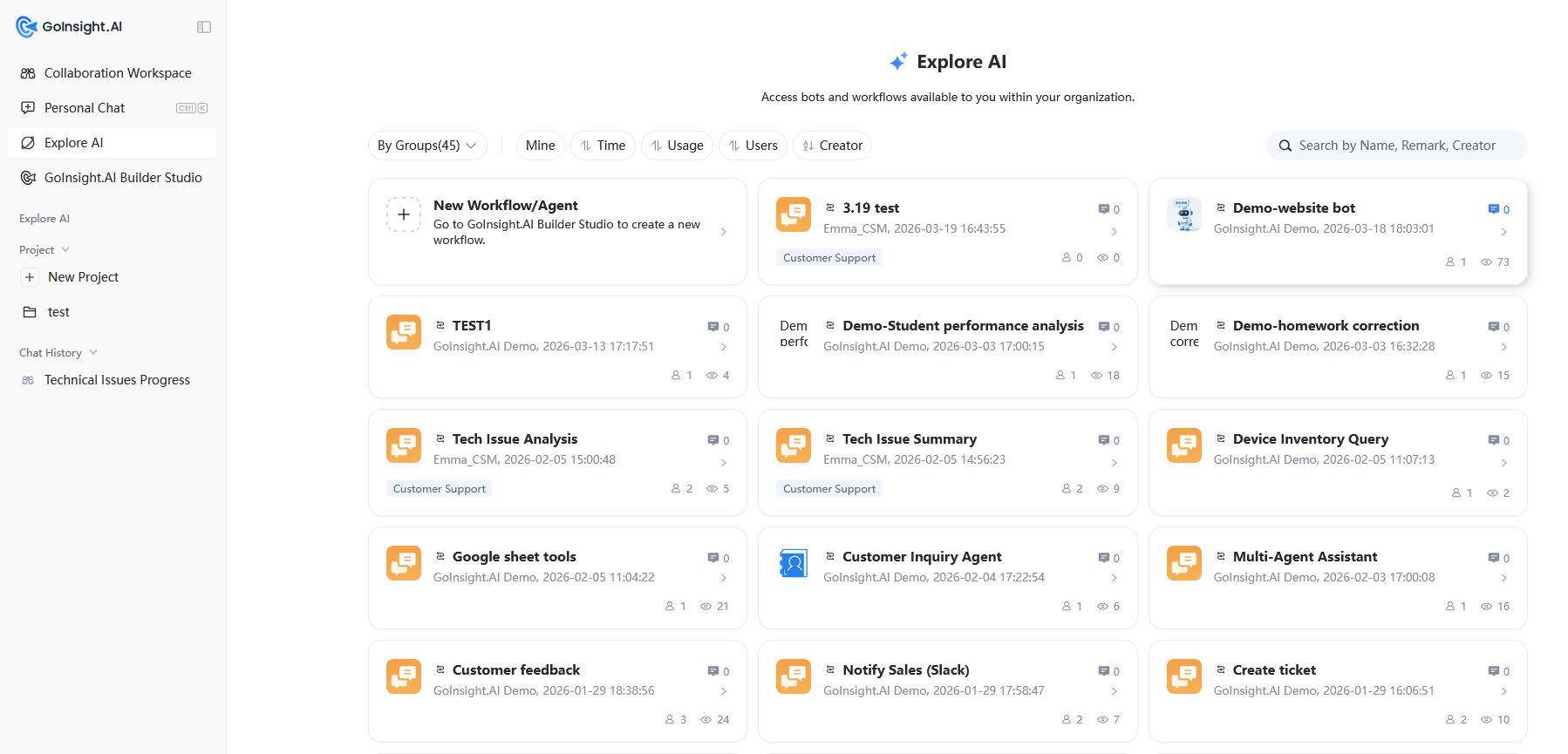
To help you quickly find the Bot or Workflow you need, this page offers a "Group by Department" view. It also supports the following sorting options:
"Mine," "Time," "Number of Uses," "Number of Users," and "Creator Name Z→A." You can also use the search box on the right to search by name, notes, or creator to find the Bot or Interactive Flow you're looking for.
After you select a Bot or Interactive Flow, a new conversation opens, where you can interact with the one you selected.
Comments: You can view comments on a Workflow, or create and delete comments.
Explore AI's value: Let employees find and use capabilities without needing to understand how they're built behind the scenes. It turns the output of a few Builders into an organizational asset that everyone can discover and reuse.
4. GoInsight.AI Builder Studio
Go to Builder Studio. This is the workspace where Builders transform repetitive work into reusable capabilities and publish them to the Workspace for team use.
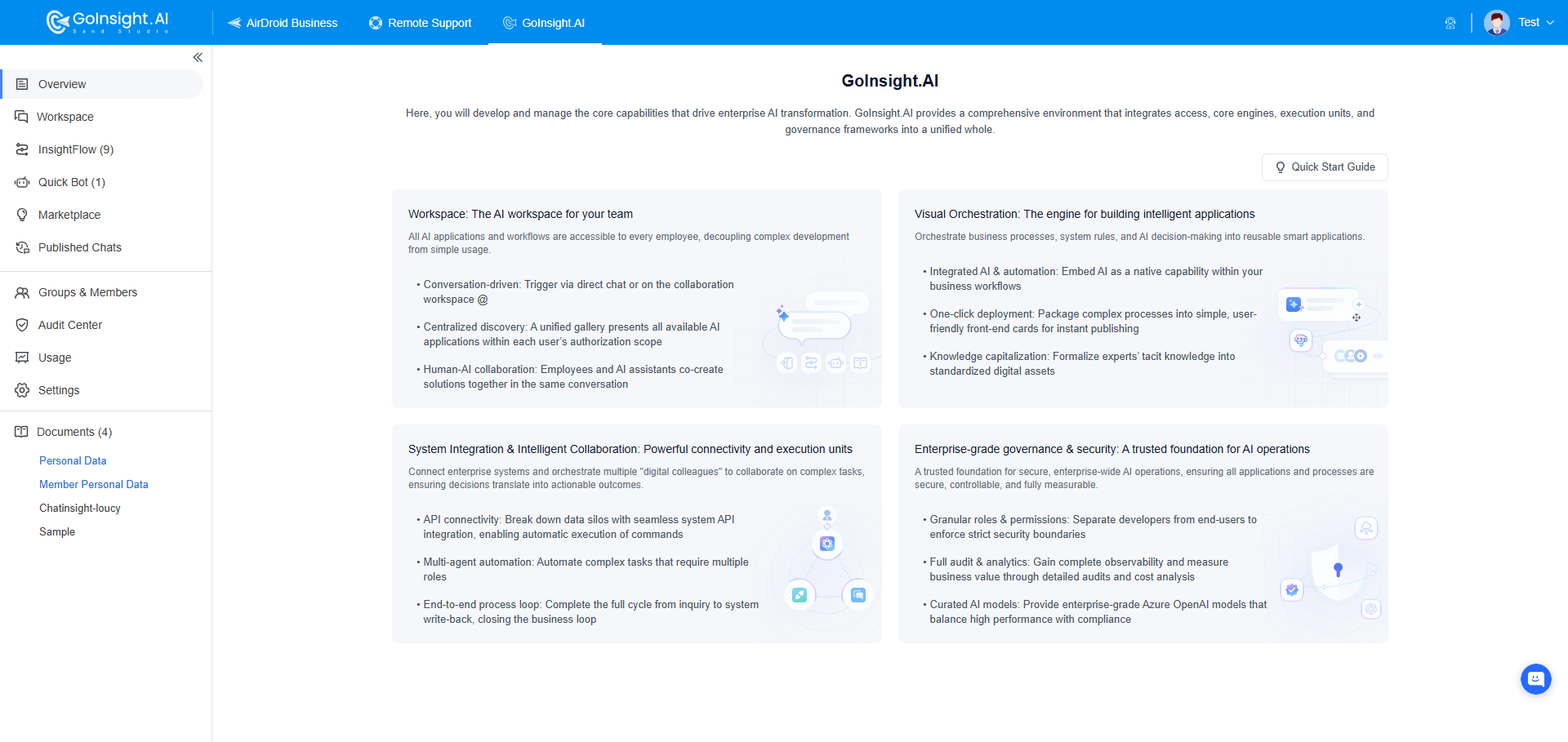
Builder Studio focuses on three core functions:
1 Build capabilities: use the visual Flow Editor to build Workflows and AI applications
- Create and orchestrate Workflows: Interactive Flow / Service Flow
- Combine different Nodes within a Workflow: LLM/Agent, logic control, Variables, error handling, and more
- Connect to business systems directly within the Workflow: query or write business system data through App Connectors / HTTP (API) Nodes to close the loop between execution and write-back
2 Manage connections and reuse: Credentials and Tools
- Credential management: centrally create and manage access Credentials for third-party systems (such as OAuth or API keys), and use them so Workflow Nodes can securely call external systems
- Custom Tools / reusable capability packaging: package common actions or logic into reusable Tools or services that an Agent or other Workflows can call, reducing duplicate build work
3 Publish and govern: make capabilities safe for everyone to use
- Publish Workflows to Workspace / Explore AI so the team has a channel to invoke them
- Configure visibility and permissions (who can use it, who can manage it), and use audit and usage data to guide further iteration
In short: Builder Studio handles "producing and governing capabilities," while Workspace handles "collaborating on and using capabilities."
Builder vs. Operator: Two Working Modes
At the core of GoInsight.AI is a layered usage model:
- Builder: builds and publishes processes, systems, and AI capabilities (typically IT/digital teams or key business staff)
- Operator: uses these capabilities directly in Workspace to get work done (the majority of employees)
The same person may act as a Builder in some scenarios and as an Operator in others.
Project and Chat History: Managing Your Conversations and Work
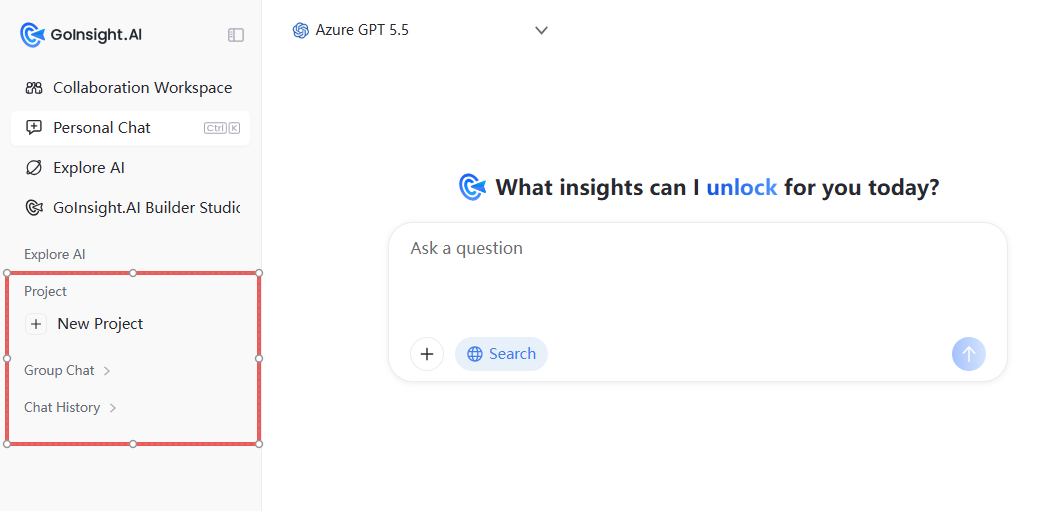
Chat History
Below the left navigation panel, "Chat History" lists past conversations in chronological order. You can find previous conversations here and continue them.
Click "..." next to a chat history entry to pin, duplicate, delete, rename, or "Add to Project" it. If you haven't created any Projects yet, the "Add to Project" option won't appear.
Project
Use Projects to group your frequently used conversations or capability records, similar to folders. You can create multiple Projects to archive different types of conversations as needed, making them easy to find and reuse later.
- Click "+ Create New Project" to create a Project. You can name it as you like and create multiple Projects. Click a Project's icon in the list to collapse or expand its conversation history, just like a folder.
- Click "..." next to a Project in the list to rename or delete it.
- Click "..." next to a conversation within a Project's list to add it to another Project, remove it from the current Project, rename it, or delete it.
First Time Using Workspace: Start with These 3 Steps
- Choose the right entry point first
- Need to work on a task with your team? → Collaboration Workspace
- Want to try something out or draft content on your own first? → Personal Chat
- Go to Explore AI to find "existing capabilities".
Many high-frequency scenarios already have a Workflow/assistant ready to use, so you don't need to start from scratch. - If you're a Builder, go to Builder Studio to "build and publish".
Turn high-frequency processes into reusable capabilities so "a few people build once, and everyone else reuses reliably."


Leave a Reply.