1. What is GoInsight.AI?
GoInsight.AI is an AI Collaboration Workbench for enterprises. It is not just a tool for "boosting individual writing efficiency"; it turns AI and automation into reusable, governable, and measurable organizational capabilities:
- A small number of Builders build and publish AI applications and automated workflows behind the scenes;
- The vast majority of employees (Operators) invoke these capabilities directly through conversations and cards in the GoInsight Workspace to get work done, leaving behind traceable execution records.
2. GoInsight Workspace: The Unified Entry Point for Team Collaboration and Execution
GoInsight Workspace is the entry point most employees use every day. It includes:
- Collaboration Workspace: The main arena for team collaboration and execution (group/project spaces)
- Personal Chat: A personal space for conversations with AI (drafts/experiments/learning)
- Explore AI: The enterprise's internal "AI Capability Center," for browsing and searching available workflows/applications
- Builder Studio: The backend entry point for building and orchestrating workflows and AI applications
- My AI Usage: View AI usage data for individuals or the organization (with tiered permissions)
Within the Collaboration Workspace, teams can collaborate just like using IM, completing the following steps within a single conversation:
Discuss → @Invoke an AI assistant (or discuss with teammates) → Get results → Decide and hand off → Leave a record and review
Operators don't need to understand the underlying orchestration—they only need to see things like:
- "Create ticket"
- "Generate customer reply draft"
- "Equipment inspection/exception handling"
- "Generate daily/weekly report"
- "Reconciliation/approval assistance"
These business capability cards, commands, and assistants can be invoked directly within the conversation.
3. Builder and Operator: Two Modes of Work
The key to GoInsight.AI lies in "layering":
- Builder (the one who lays the tracks): In Builder Studio, Builders visually build workflows, connect systems, and configure permissions and policies, then publish capabilities to the Workspace for the team to reuse. Builders are typically IT/digital transformation staff, business leads, process owners, internal tool managers, and similar roles.
- Operator (the one who runs on the tracks): Operators use "published capabilities" in the Workspace without needing to understand nodes, variables, APIs, or other technical concepts. Most employees only need to learn to: search/select a capability → fill in parameters → view results → decide and collaborate.
4. Core Capabilities of GoInsight.AI
4.1 Visual Low-Code Orchestration (Builder Studio / Flow Editor)
Using the drag-and-drop Flow Editor, Builders can connect workflow logic, AI capabilities, and enterprise systems, supporting:
- Conditional branching, loops, variables, error handling, and other complex logic
- Packaging workflows as reusable capabilities and publishing them for team use
4.2 AI-Native Capabilities: LLM / Document Understanding / Structured Extraction / Knowledge Base Retrieval (RAG)
Within workflows, AI nodes can process unstructured content (emails, ticket descriptions, documents, etc.). Typical capabilities include:
- Summarizing, rewriting, classifying, and extracting structured data
- Retrieving from the enterprise knowledge base (RAG) before answering, so outputs stay aligned with enterprise terminology and grounded in fact
4.3 System Connectivity and Execution Closed-Loop: App Connectors + API Calls
Through App Connectors, HTTP/API nodes, and others, GoInsight.AI can connect to enterprise systems (such as CRM, ticketing, ERP, databases, device management platforms, etc.) to:
- Query and write system data
- Create records, update statuses, and send notifications
- Turn "AI suggestions" into "system actions," closing the workflow loop
4.4 Controllable Automation: Human-in-the-Loop (Manual Intervention/Approval)
At critical nodes, you can configure:
- Pausing to wait for manual confirmation
- Resuming execution after manual approval or additional input
- "Human review guardrails" on high-risk actions, keeping workflows both efficient and controllable
4.5 Enterprise-Grade Governance and Metrics
GoInsight.AI includes built-in:
- Permission controls (by department, team, or resource)
- Audit logs and traceability
- Usage and cost metrics (view token usage and calls by user, department, or workflow)
This lets enterprises "confidently scale AI adoption" while continuously reviewing results in practice.
Workflow Lifecycle: Create, Build, Configure, Debug, and Publish
Having covered the Workspace and role division, we'll now look at how Builders:
- Create workflows (interactive/service)
- Build, configure and debug them in the Flow Editor
- Publish them so the team can reliably reuse them in the Workspace
Step 1: Create a Workflow
You can import an existing DSL file or create a new workflow.
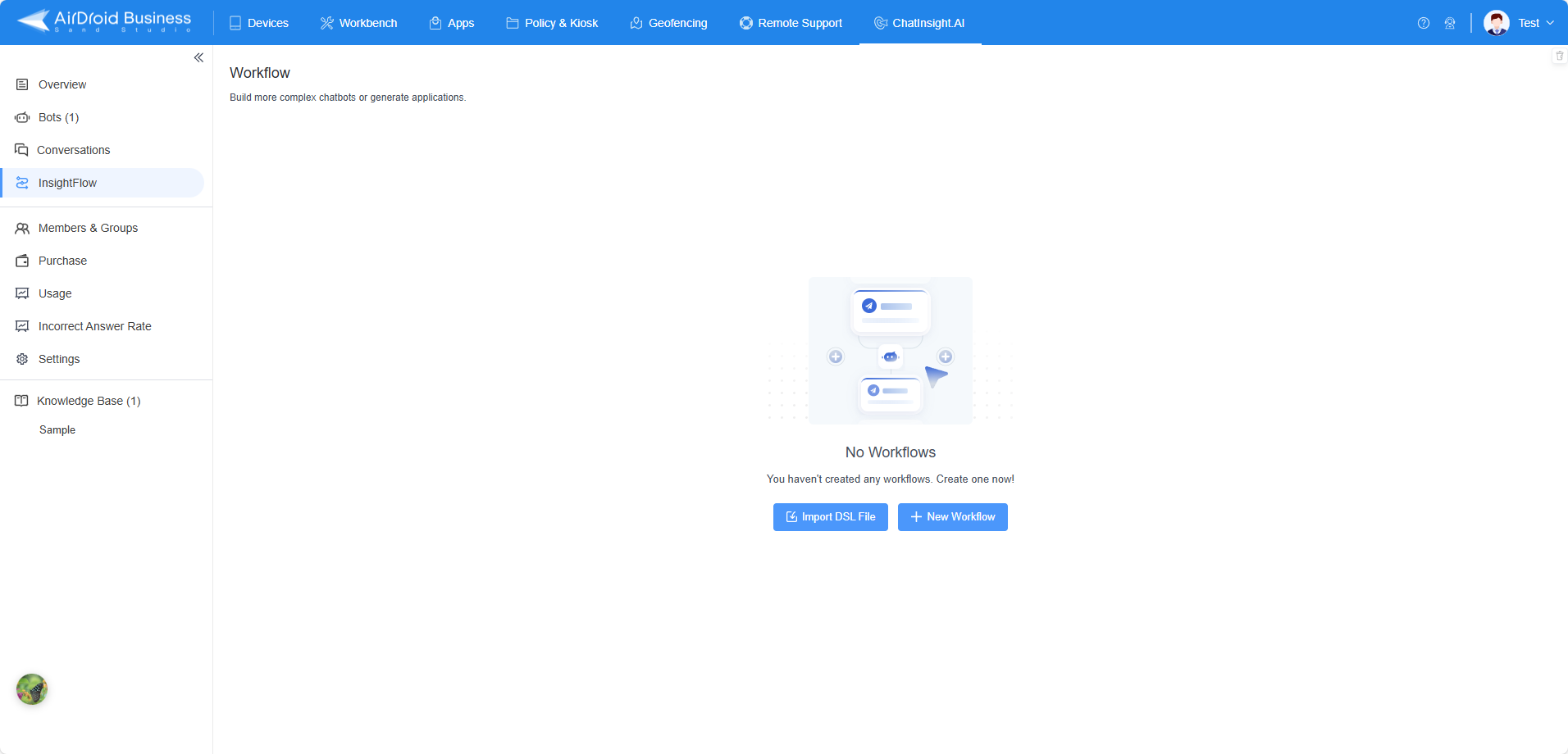
Example: To create a new workflow, click + Create Workflow, then:
- Enter the workflow name and workflow description.
- Select the workflow type. Workflow types include: interactive workflow and service workflow.
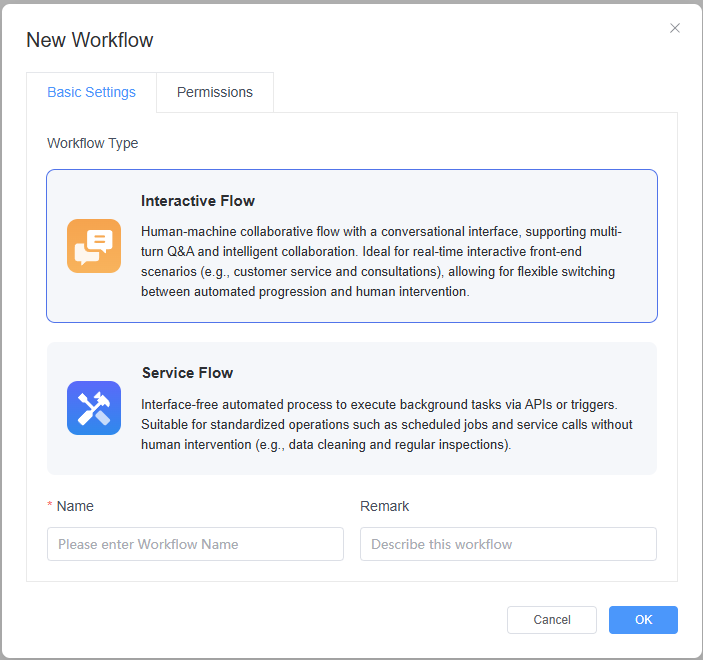
Step 2: Build, Configure and Debug a Workflow
Clicking a new or existing workflow takes you to its orchestration interface, where you can visually design and manage the workflow's nodes.
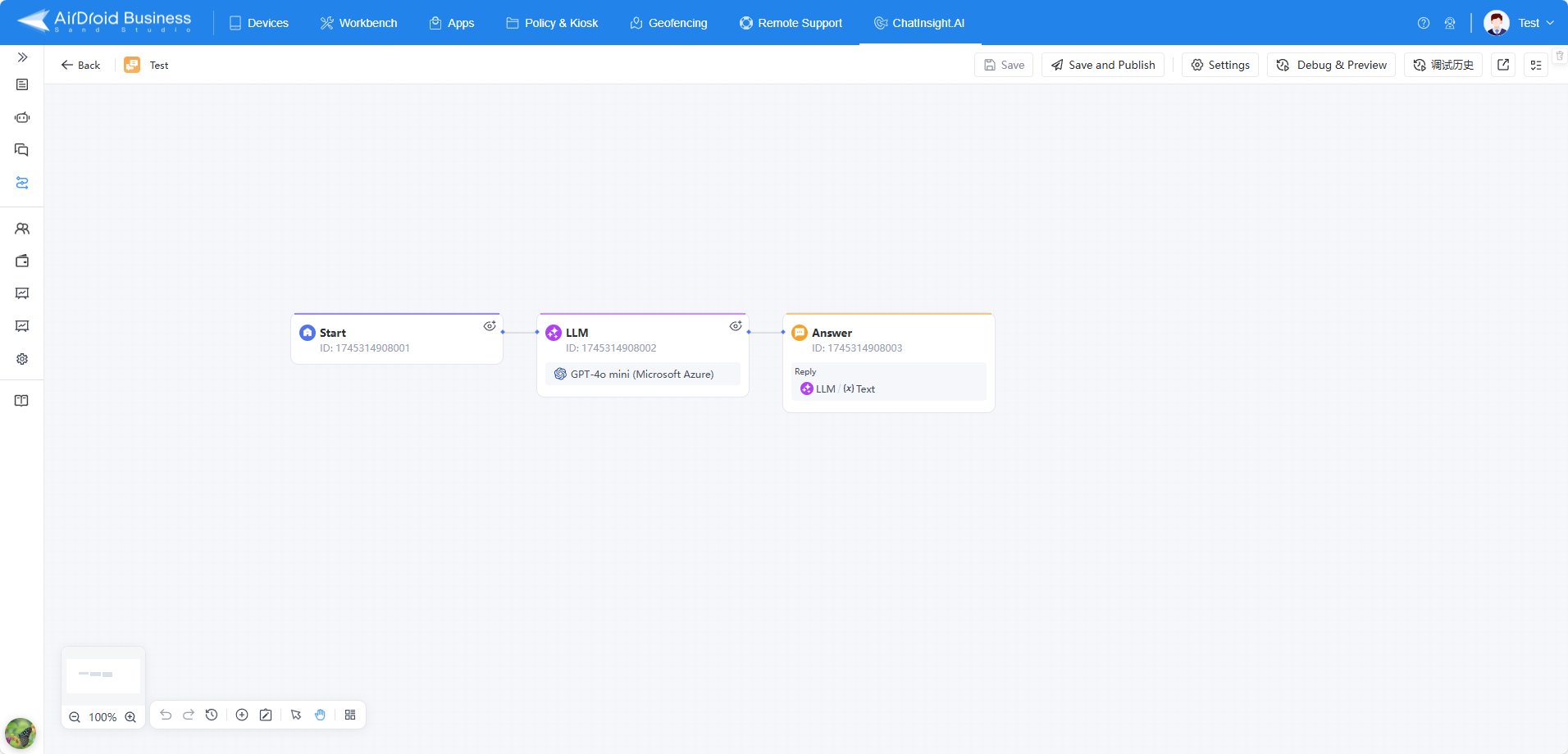
Workflow Building Page Overview
1) Workflow Canvas
The workflow canvas graphically displays nodes and their connections, making it easy to understand the overall structure and data flow of the workflow. You can drag and drop different nodes onto this area to build your workflow.
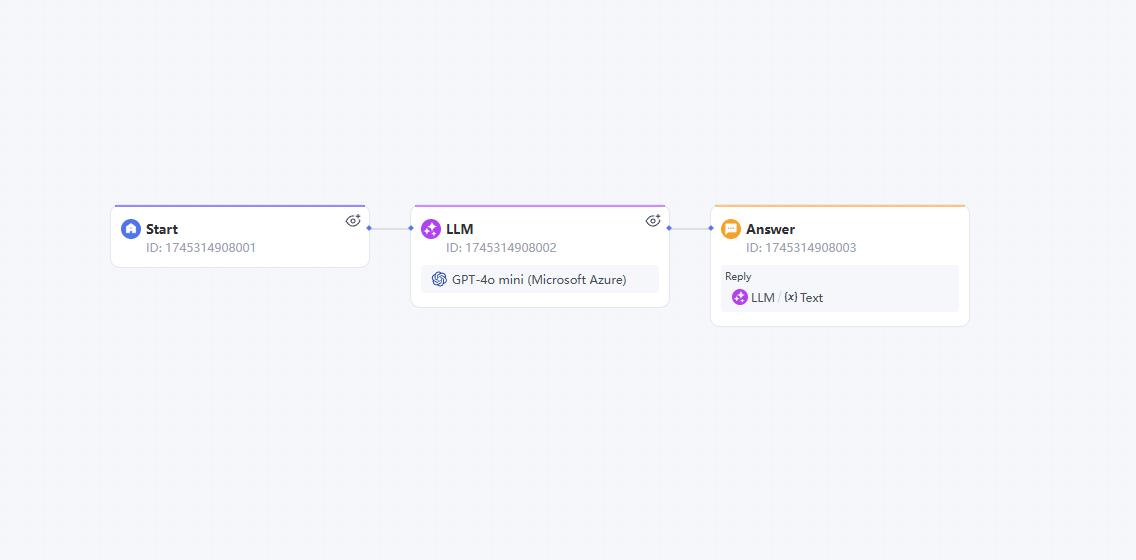
- Node Dragging: In hand mode, drag the canvas to move the view and easily browse different nodes and connections.
- Node Operations:Drag and drop different node types onto the canvas—such as LLM nodes or knowledge base retrieval nodes—to quickly build your workflow. Connect nodes with connector lines to define execution order and logical relationships.
- To connect two nodes, press and hold the
+connector button on the first node, then drag the connector line to the next node.
- To connect two nodes, press and hold the
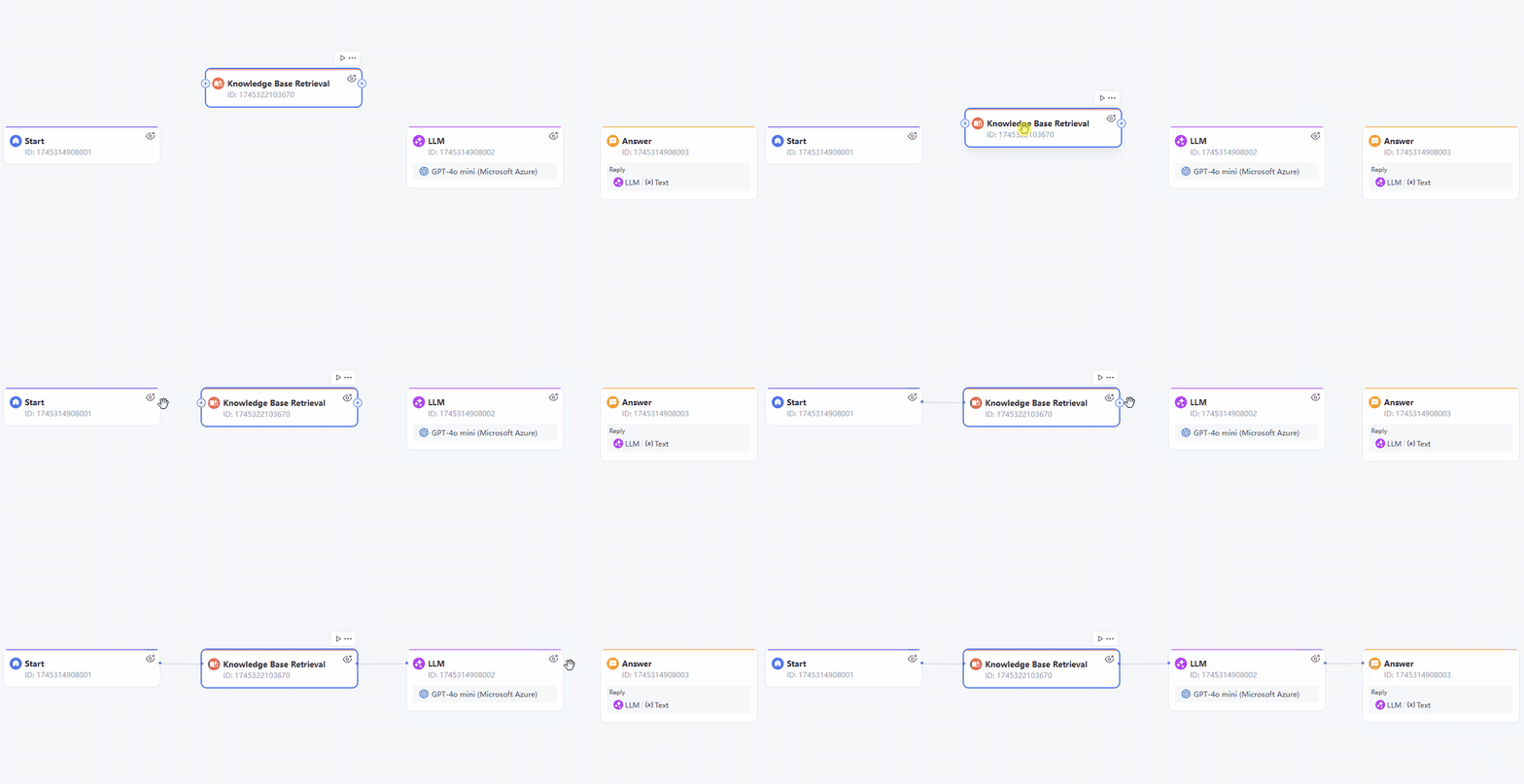
- You can also click a node's
+connector button to add a node, tool, or service. - Node Configuration: Click any node to open its settings panel on the right. Here, you can configure the node's specific parameters, such as input fields and keyword lists, to fit your workflow's needs.
- Canvas Zoom: The workflow canvas supports zooming in and out, making it easier to work with complex workflows.
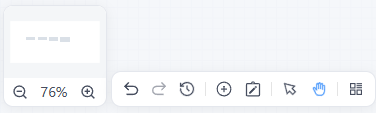
- Zoom in/out: Adjust the workflow canvas view. A workflow thumbnail is also displayed above the zoom buttons.
- Undo: Revert recent actions to easily correct mistakes or return to a previous state.
- Redo: Reapply undone actions. If you undo an action and change your mind, use redo to quickly restore it, making adjustments easier during design.
- Change History: Your edits are tracked and saved locally on your device. This history clears once you exit the editor.
- Add Node:You can add:
- Basic workflow nodes.
- Tools: Includes GoInsight.AI's built-in tools and custom cloud tools.
- Services: Once you publish a service-oriented workflow as a service, you can insert it directly into other workflows.
- Add Note: Add notes and customize the background color, font size, bold text, or insert links.
- Pointer Mode: Switch to this mode to precisely select and click nodes. It is ideal for selecting, connecting, and configuring nodes, ensuring quick and accurate workflow editing.
- Hand Mode: Switch to this mode to drag and move the canvas. This makes it easier to view and manage large workflows. You can pan the canvas to view different nodes and connections without accidentally selecting or editing them.
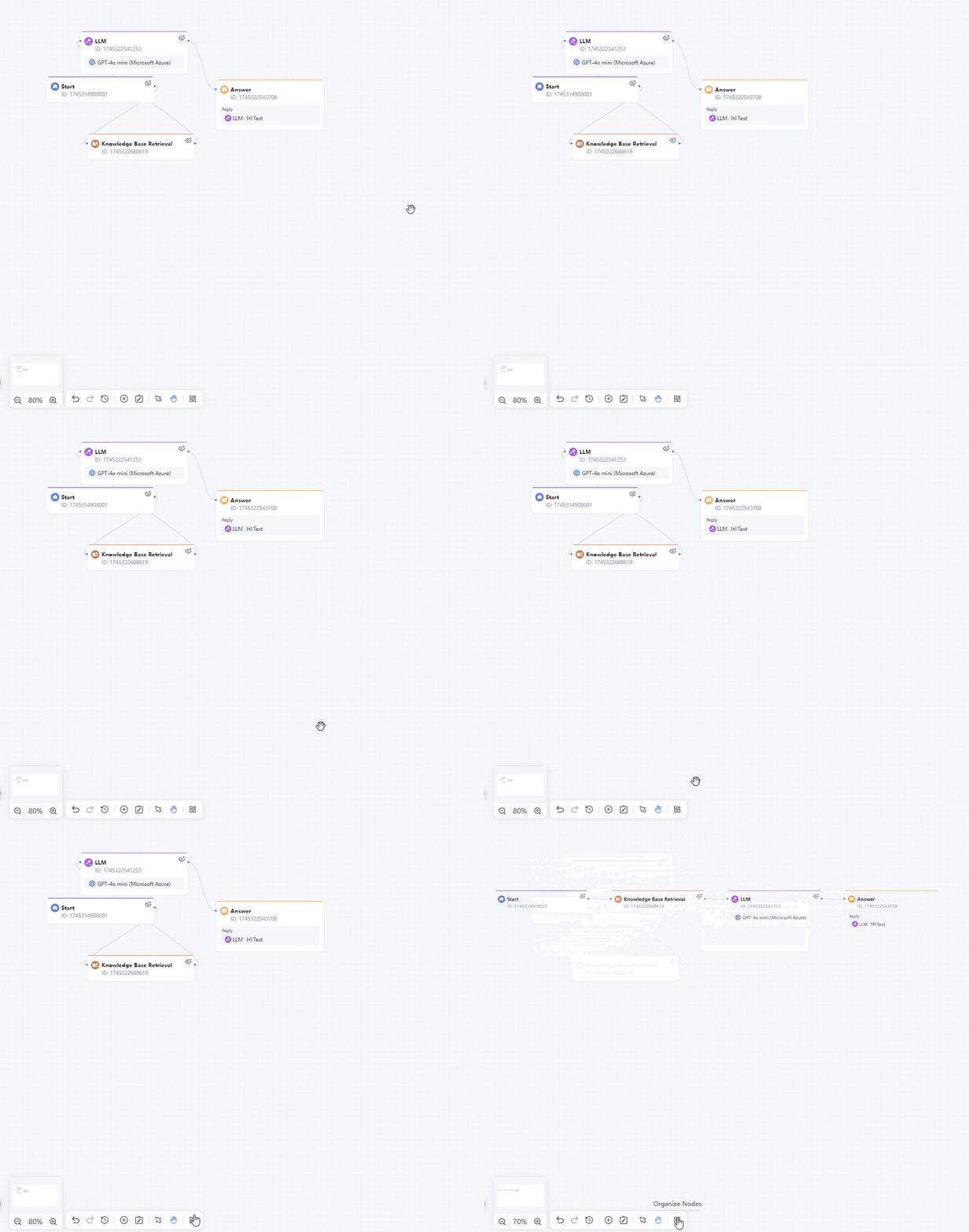
- Arrange Nodes: Automatically organize the nodes and adjust the canvas size.
- Besides basic nodes, GoInsight offers powerful built-in tools and allows users to create custom tools to meet different business needs.
- For more details, refer to:
- Click a target node to enter its configuration interface, where you can:
- Define node execution logic and data processing rules.
- Set input and output parameter mappings.
- Debug built-in functions and business algorithms.
- The system provides real-time validation to automatically check parameter compliance during configuration.
- To edit and debug interactive workflows, refer to: Interactive Flow
- To edit and debug service-oriented workflows, refer to: Service Flow
- Trigger execution via @ Workflow / @ Assistant in the Collaboration Workspace.
- Browse, search, and initiate use in Explore AI.
- Publish it as a service, allowing other members of your organization to directly import and call it within the workflow canvas. See: Publishing a Service Flow as a Service
- Set the scheduled execution time for the service-oriented workflow: Triggering a Service flow
- For interactive flows, refer to:
- For service flows, refer to:
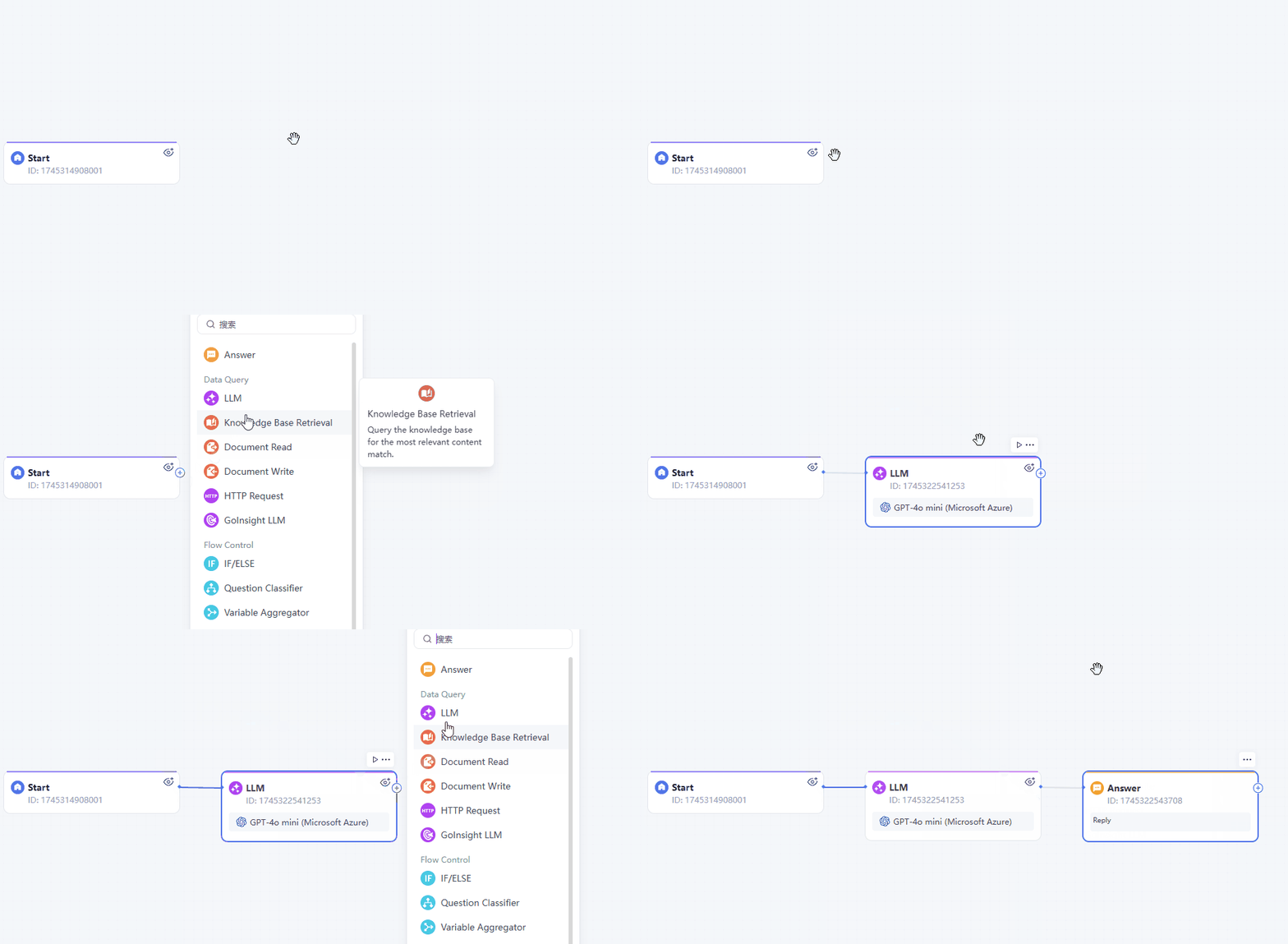
This also works when inserting a node, tool, or service between two already connected nodes.
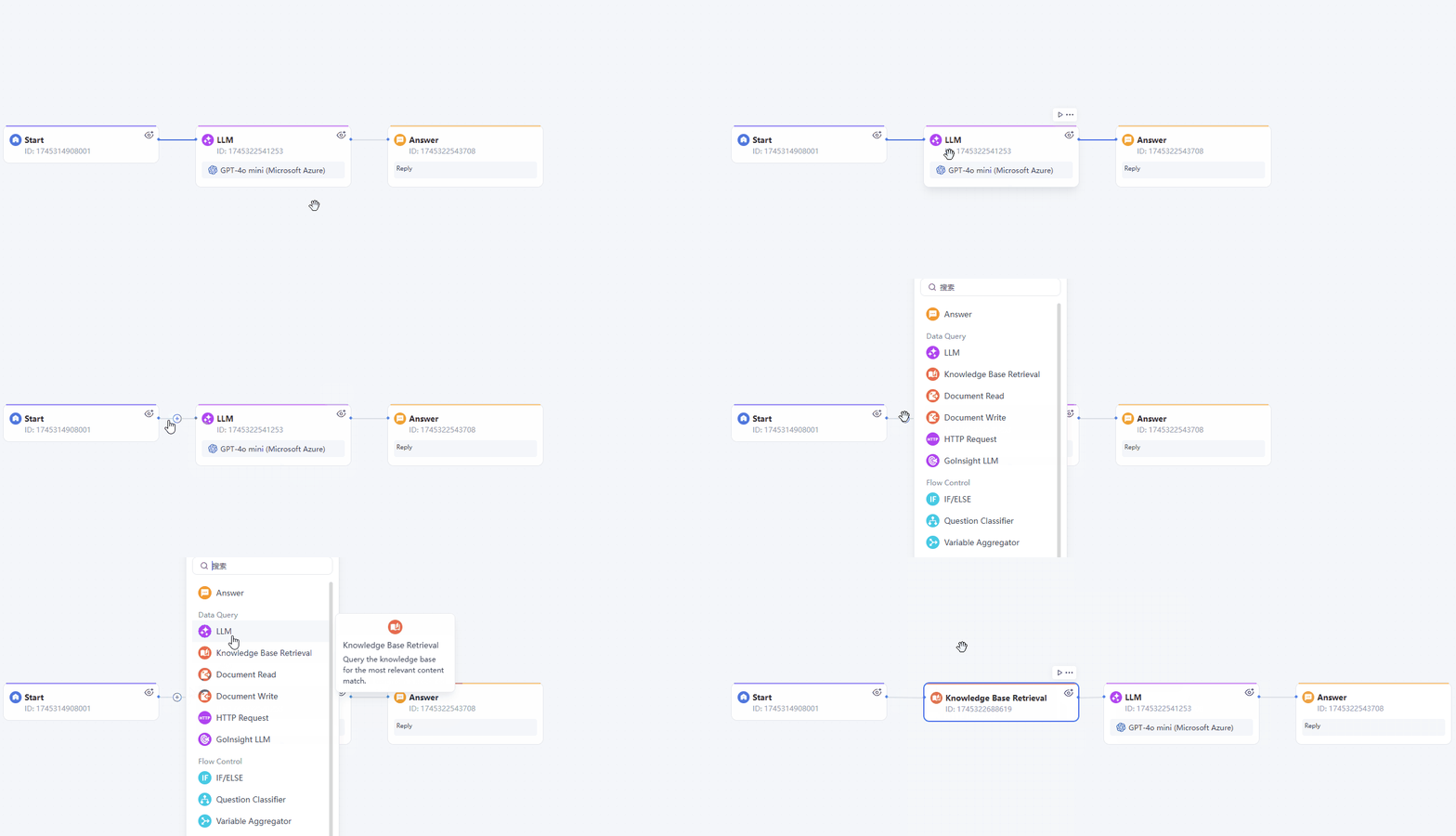
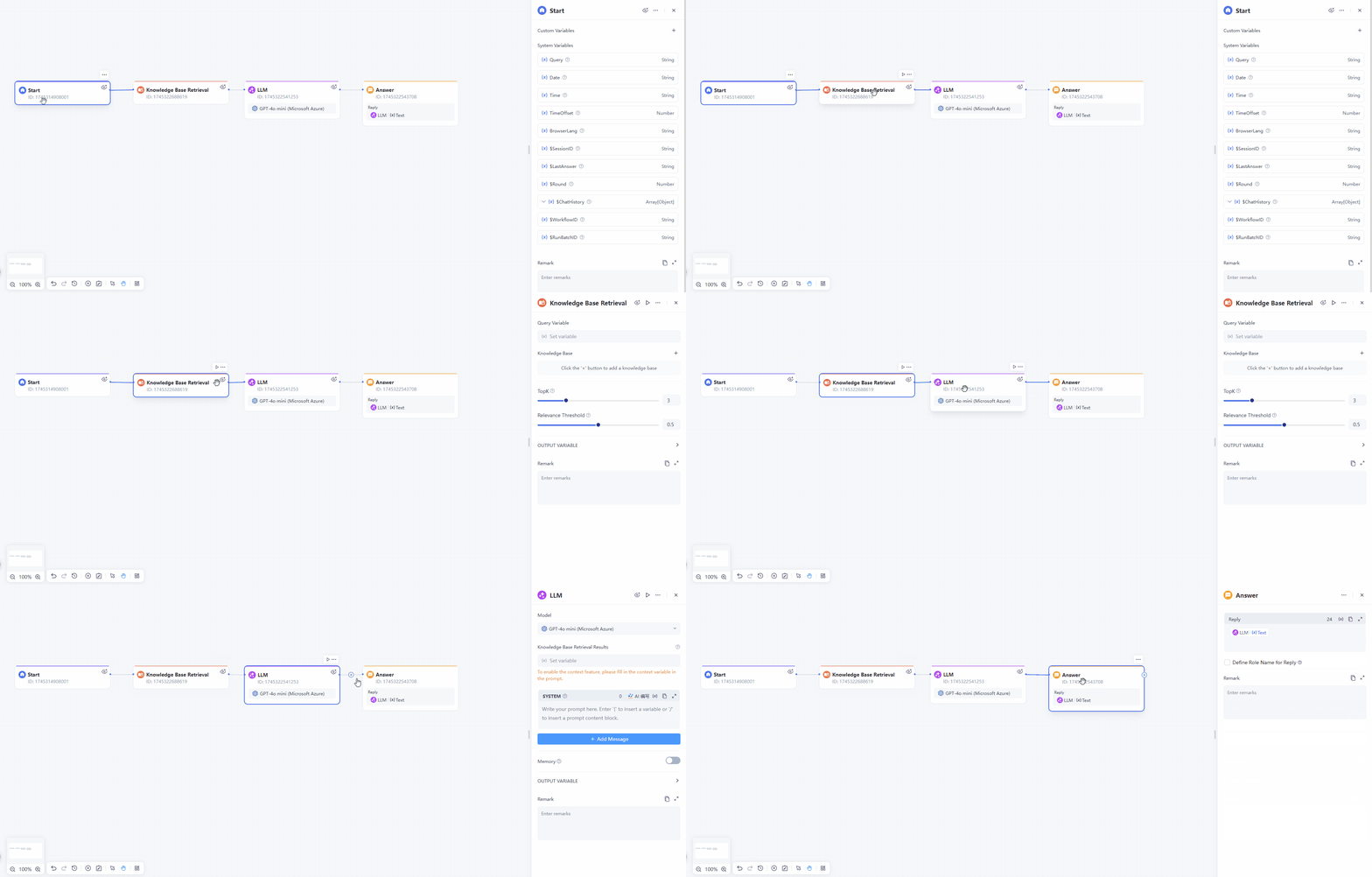
2) Toolbar
Adding and Debugging Nodes
1) Adding Required Nodes
After creating a workflow, you can add nodes as needed. GoInsight supports flexible combinations of multiple node types to handle full-cycle orchestration, from data collection to business decisions.
2) Editing and Configuring Nodes
Click an added node to edit and configure it. Each node has specific functions that you can adjust to meet your requirements.
Editing and Debugging Workflows
Once you have orchestrated the workflow and configured the nodes, you can debug the entire process. Run a simulation to ensure the results meet your expectations. The debug results show the execution path of the workflow and the operating details of each node.
Step 3: Publishing Workflows
Once you finish debugging and confirm the workflow runs as expected, click Save and Share in the menu bar to publish it.
1) Publishing Internally
Once published, team members can find and use the workflow in the GoInsight Workspace through the following methods:
For service-oriented workflows, you can also:
2) Sharing Externally
If you want to share the workflow externally:


Leave a Reply.