
Overview
Stop wasting hours manually hunting and organizing Upwork job listings. This workflow triggers a cloud scraper to fetch fresh job data, extracts key details, and appends each job entry neatly into your Google Sheets—turning tedious searching into effortless archiving.
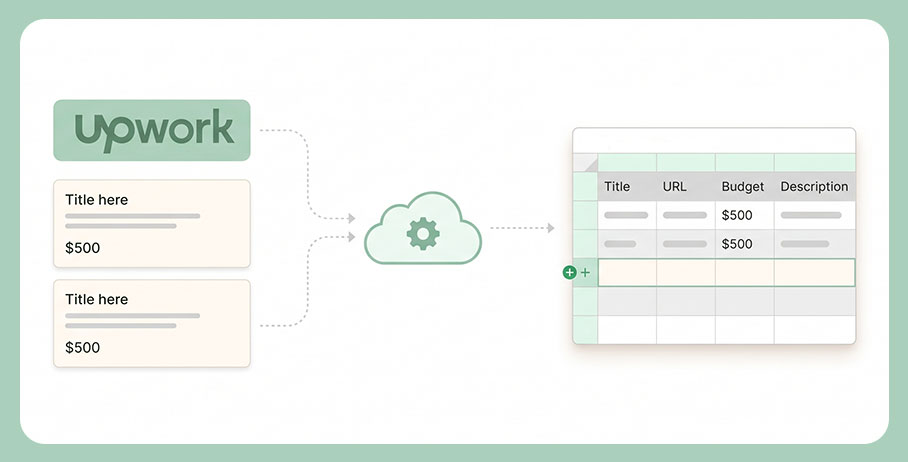
Generated by AI
The Impact
- Eliminate manual search. Automatically fetch the latest Upwork jobs without lifting a finger.
- Streamline data organization. Append structured job info directly into your Google Sheet in real time.
- Save time on filtering. Access all key job details in one place for quick review and decision-making.
- Build automation foundations. Use the collected data as input for further AI-powered workflows or reports.
Who This Is For
- Freelancers maintaining a live database of potential gigs to spot high-value projects fast.
- Sales Teams tracking client opportunities and project trends without toggling platforms.
- Recruiters compiling job openings in a centralized sheet for streamlined candidate matching.
- Project Managers who want an updated feed of relevant job postings for resource planning.
- Data Analysts building datasets for market research or automated reporting pipelines.
How It Works
- Trigger Cloud Scraper
- The workflow uses your Apify Task ID and API token to start a scraping task that fetches Upwork job listings in real time.
- Parse and Format Data
- A Python code node converts the raw JSON response into a clean array of job objects with title, URL, budget, and full description.
- Iterate Over Jobs
- The workflow loops through each job object to process them sequentially for data extraction and sheet appending.
- Flatten Job Details
- Each job’s details are converted into a fixed-order string array matching the Google Sheet columns.
- Append to Google Sheets
- The formatted job data is appended as a new row in your specified Google Sheet, building your archive automatically.
What You'll Need
Before using this template, make sure you have:
- An Apify account with a saved Upwork Extractor task configured for your keywords and limits.
- Your Apify API token for authenticated API calls.
- Access to a Google Sheets spreadsheet with a worksheet having headers: Title, URL, Budget, Description.
- Google Sheets API credentials configured in the workflow for appending rows.
How to Use
- Step 1. Configure Upwork Scraping Task
- Step 2. Retrieve Task ID and API Token
- Step 3. Prepare Google Sheet
- Step 4. Input Parameters
- Step 5. Run and Verify
Create a new task in Apify’s Upwork Extractor, set your search keywords, job limit, and sorting, then save it.
Locate your task ID from the Apify console URL and copy your API token from Apify Settings > Integrations.
Ensure your target sheet has the four exact headers in the first row: Title, URL, Budget, Description.
Enter your Google Sheet ID, sheet name, Apify Task ID, and API token into the workflow’s start node.
Execute the workflow and verify new rows appear in your Google Sheet matching the latest Upwork jobs.


