
Overview
Recruiters waste hours manually screening senior frontend developer CVs against tough criteria. This workflow automates extraction of candidate info and uses AI to quantitatively score and justify fit based on job specs, then logs results into Google Sheets for fast, consistent decisions.
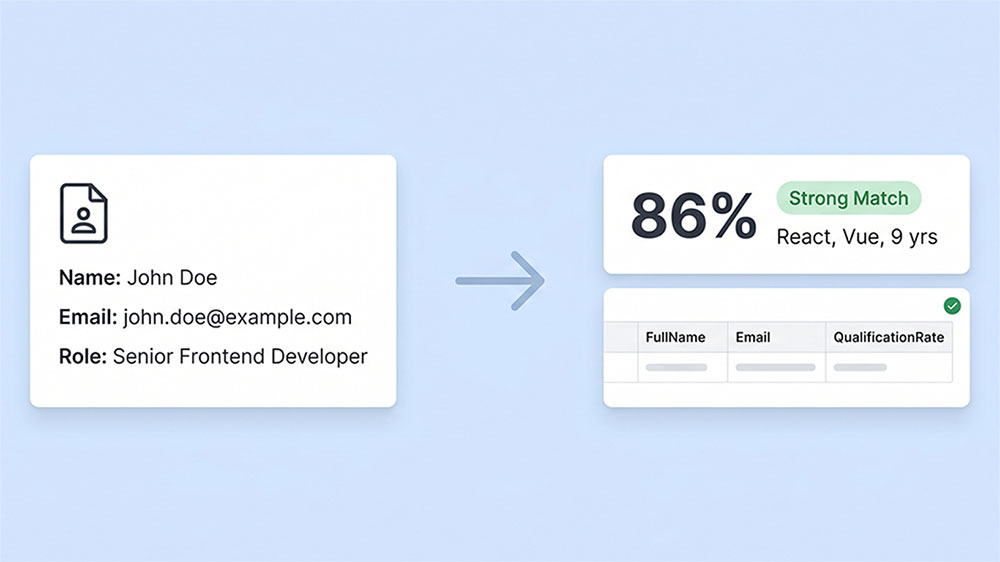
Generated by AI
The Impact
- Slash manual screening time. Auto-extract candidate data and score CVs instantly with AI.
- Standardize evaluations. Ensure consistent scoring aligned to job requirements.
- Archive results orderly. Write detailed analyses to Google Sheets for audit and follow-up.
- Focus interviews. Quickly surface candidate strengths and gaps for targeted questioning.
Who This Is For
- Recruitment managers screening large pools of senior frontend candidates.
- Technical interviewers prepping with quick skill summaries and scores.
- Outsourced recruiting teams needing uniform quality control and record keeping.
- HR analysts tracking candidate qualification metrics over time.
How It Works
- Input Candidate Data
- Supply candidate full name, email, and a downloadable CV PDF link.
- AI Qualification Scoring
- AI extracts candidate info from CV, scores against Senior Frontend Developer criteria, and generates evidence-based explanations.
- Spreadsheet Management
- Validate or create Google Sheets for output; determine final spreadsheet ID to store results.
- Parse AI Output
- Extract structured qualification data and candidate contact info from AI JSON response.
- Append Results
- Write candidate name, email, qualification score, and detailed explanation into Google Sheets for tracking.
What You'll Need
Before using this template, make sure you have:
- Candidate CV as a publicly accessible or controlled-access PDF URL.
- Google Sheets OAuth credentials to read or create spreadsheets.
- If writing to existing sheets, ensure the sheet and headers (FullName, Email, QualificationRate, QualificationDescription) exist.
How to Use
- Step 1. Provide Candidate Info
- Step 2. Configure Spreadsheet
- Step 3. Run the Workflow
- Step 4. Verify Results
Fill in the candidate's full name, email, and the URL to their CV file (PDF).
Enter an existing Google Sheets SpreadsheetId or leave blank to create a new one; optionally set sheet name and new spreadsheet title.
Trigger the workflow to process the CV, score qualifications, and append results to Google Sheets.
Check the target Google Sheet to confirm the candidate's qualification score and detailed evaluation have been recorded.


