
Overview
Manual resume screening tends to lack consistent standards, easily overlooks critical information, and can result in inaccurate evaluations of candidates. This automation extracts resume data from Google Drive, applies AI to score compatibility against job requirements, logs results in Google Sheets, and notifies HR and candidates instantly—streamlining recruitment and cutting screening delays.
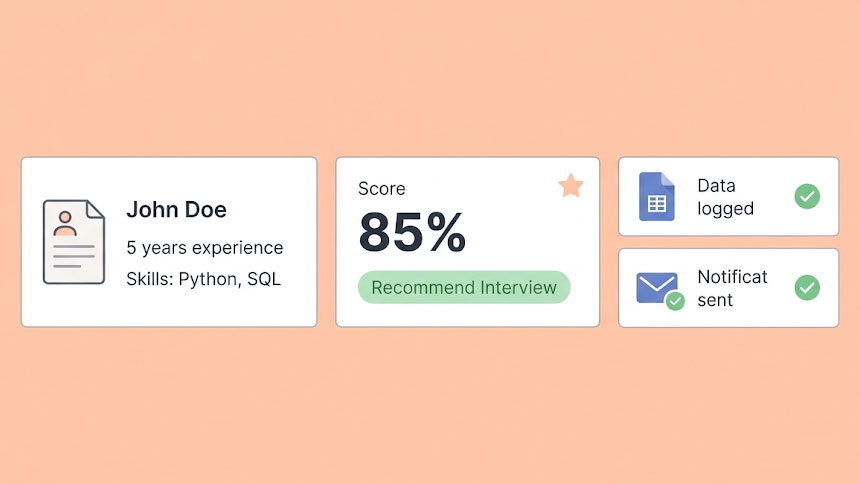
Generated by AI
The Impact
- Slash screening time. Automate initial candidate evaluation to handle high application volumes fast.
- Ensure consistent scoring. Use AI to standardize compatibility ratings and recommendations.
- Centralize data. Automatically append candidate details and scores into Google Sheets.
- Keep everyone informed. Trigger notifications to HR and candidates without manual intervention.
Who This Is For
- Recruitment teams managing large influxes of applications during peak hiring seasons.
- Campus recruiters automating first-round screening for mass graduate recruitment.
- RPOs and headhunters delivering unified candidate scoring and reporting to clients.
- HR managers seeking consistent, data-driven candidate evaluations.
How It Works
- Resume Reading
- Read candidate resume files from Google Drive using the provided FileId.
- AI Compatibility Assessment
- Analyze resume content against job description with AI, generating a compatibility score and interview recommendation.
- Structured Result Extraction
- Parse AI output into structured fields: CompatibilityRating and Recommendation for easy processing.
- Record to Spreadsheet
- Append candidate details and AI scores into the designated Google Sheet for tracking and review.
- Notify and Confirm
- Send notification emails to HR with candidate scores and confirmation emails to candidates acknowledging receipt.
What You'll Need
Before using this template, make sure you have:
- Google Drive credentials authorized to read candidate resume files.
- Google Sheets credentials with access to append candidate data rows.
- Gmail credentials authorized to send notification emails to HR and candidates.
- Candidate resume files uploaded to Google Drive with recorded FileId.
- A Google Spreadsheet with a sheet prepared with headers: FullName, Email, Expectation, Linkedin, CompatibilityRating, Recommendation.
- HR email address to receive notifications.
How to Use
- Step 1. Upload Resume
- Step 2. Prepare Spreadsheet
- Step 3. Configure Credentials
- Step 4. Input Candidate Data
- Step 5. Run and Verify
Place the candidate's resume file in Google Drive and note its FileId.
Create or select a Google Sheet and set up the target sheet with the required headers.
Ensure Google Drive, Sheets, and Gmail credentials are connected and authorized.
Fill in all required parameters: FullName, Email, Expectation, Linkedin, FileId, SpreadsheetId, SheetName, and HrEmail.
Trigger the workflow and confirm candidate data and AI scoring appear correctly in the spreadsheet and that notification emails are sent.


