
Overview
Manual note-taking rarely produces clean, atomic, well-linked notes. This automation converts structured inputs into atomic Zettelkasten notes, formats them with Obsidian YAML metadata, and saves Markdown files directly to Google Drive, streamlining knowledge capture and organization.
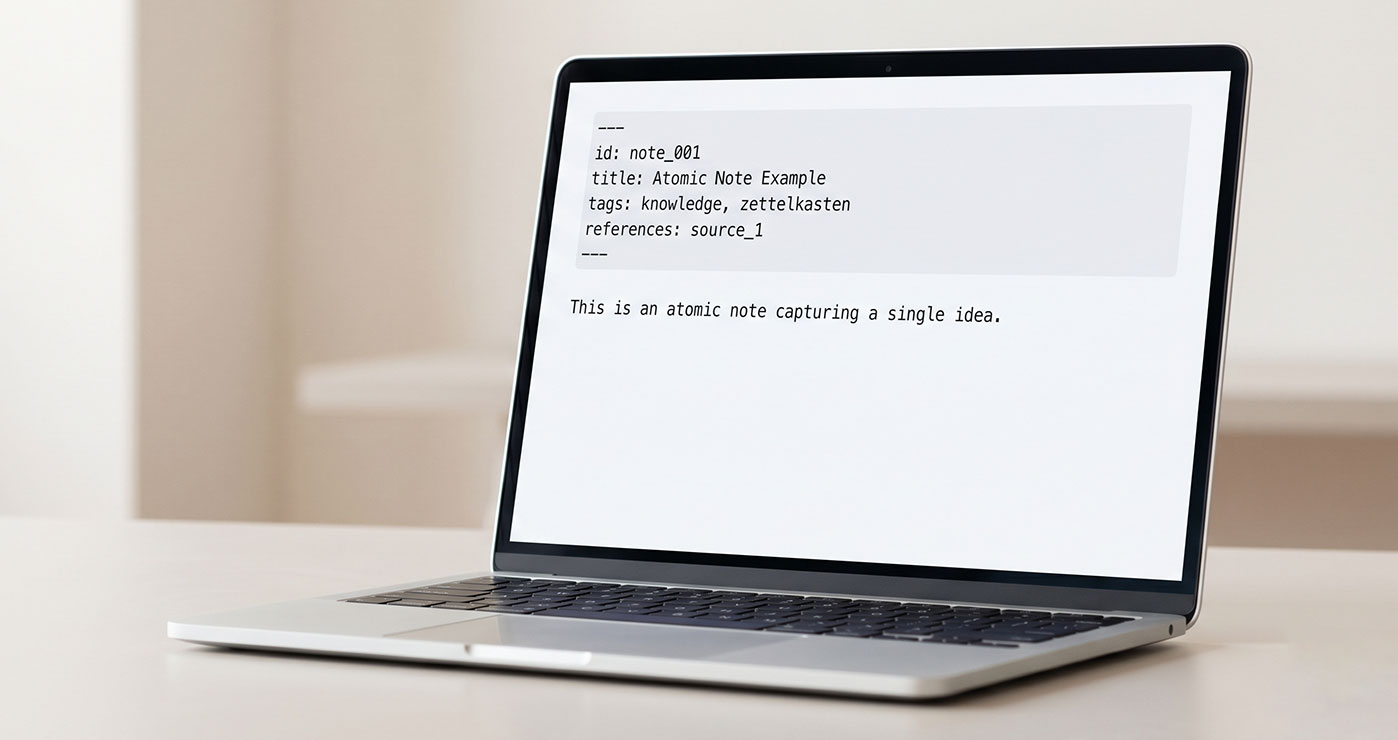
Generated by AI
The Impact
- Automate note creation. Extracts key insights and builds standalone knowledge atoms from raw data.
- Standardize metadata. Generates Obsidian-ready YAML frontmatter for seamless integration.
- Save instantly. Uploads Markdown notes to Google Drive folders automatically.
- Enable reuse. Structured notes improve retrieval and future knowledge expansion.
Who This Is For
- Researchers bulk-converting scattered literature into structured Zettelkasten notes for shared archives.
- Product teams atomizing meeting minutes into tagged notes for team knowledge bases.
- Writers organizing drafts and references into semantically tagged reusable notes.
- Educators structuring course content and discussion points for review and expansion.
How It Works
- Generate Zettelkasten Note
- Use an LLM to extract key insights from WorkflowData and output a structured JSON note with id, title, content, tags, and references.
- Parse Note JSON
- Clean AI output from code blocks and parse it into fields for note ID, title, content, tags, and references.
- Generate YAML Frontmatter
- Create Obsidian-compatible YAML metadata from parsed note content and extract it as a string.
- Build Markdown File
- Assemble the YAML frontmatter and note content into a clean Markdown file with a safe filename.
- Save to Google Drive
- Upload the Markdown file to the specified Google Drive folder using configured credentials.
What You'll Need
Before using this template, make sure you have:
- Structured JSON input (WorkflowData) with text, optional title, tags, and references.
- Google Drive credentials authorized for file upload.
- Optional Google Drive folder ID where notes will be saved.
How to Use
- Step 1. Prepare Input Data
- Step 2. Configure Credentials
- Step 3. Specify Folder
- Step 4. Run the Workflow
- Step 5. Verify Output
Provide a structured JSON object with raw materials containing source text, optional title, tags, and references as WorkflowData input.
Set up Google Drive credentials to enable uploading generated Markdown notes.
Optionally input the Google Drive folder ID where notes should be saved; leave blank to use the default location.
Trigger the workflow to generate, parse, assemble, and save notes automatically.
Check the generated Markdown files and metadata in the specified Google Drive folder to ensure successful execution.


