
Overview
Manually gathering and summarizing articles from multiple websites wastes hours each week. And even then, you may still miss important articles. This automation reads URLs from your Google Sheets, crawls their content, generates a polished newsletter using AI, and sends it via Gmail—cutting your workload and speeding up delivery.
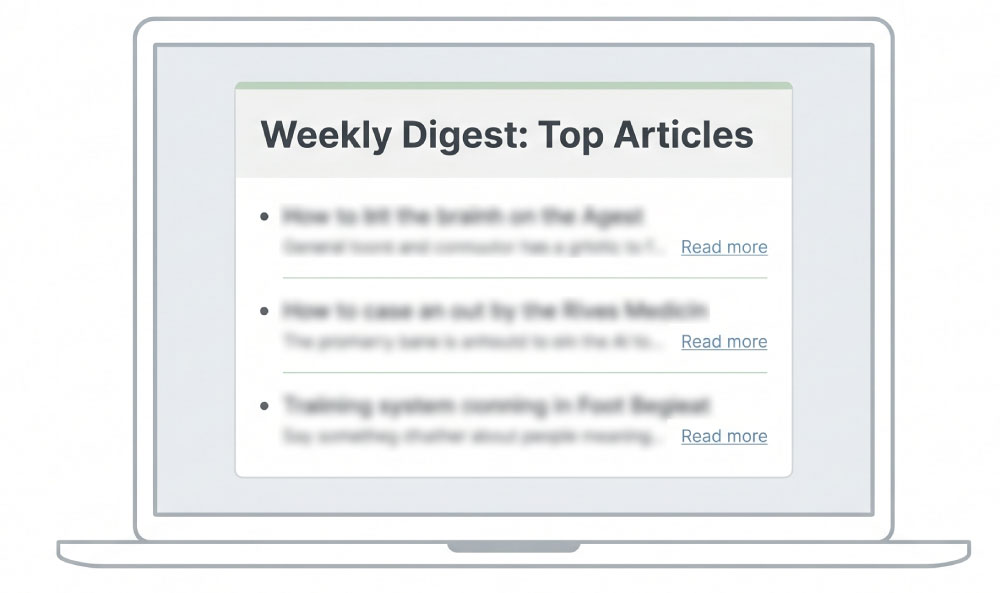
Generated by AI
The Impact
- Slash manual research time. Automate crawling and summarizing dozens of websites in one run.
- Generate catchy newsletters. Use AI to create engaging subject lines and HTML bodies.
- Accelerate info distribution. Send newsletters automatically via Gmail to your recipients.
- Centralize content sources. Manage all your URLs in one Google Sheet for effortless updates.
Who This Is For
- Content Teams generating weekly media monitoring reports.
- Product Managers tracking competitor news and tech blog updates.
- Researchers compiling academic or technical article digests.
- Marketing Specialists curating newsletters from multiple web sources.
How It Works
- Fetch URLs from Google Sheets
- Read the specified sheet and parse the first column to extract website URLs.
- Crawl each website
- Loop through URLs, extract titles and content by visiting each page.
- Format and aggregate articles
- Normalize crawled data into structured articles and combine them into a single prompt.
- Generate newsletter with AI
- Use LLM to create a JSON-formatted subject and engaging HTML newsletter body.
- Send newsletter via Gmail
- Automatically email the generated newsletter to the specified recipient address.
What You'll Need
Before using this template, make sure you have:
- Google Sheets OAuth credentials to read your spreadsheet data.
- Gmail credentials authorized to send emails on your behalf.
- A Google Sheets document containing URLs in the first column, with a clear header like websites, url, or link.
- The Google Sheets document ID and the target worksheet tab name.
- An email address that will receive the generated newsletter.
How to Use
- Step 1. Prepare Your Sheet
- Step 2. Configure Credentials
- Step 3. Enter Parameters
- Step 4. Run the Workflow
- Step 5. Verify Results
Fill the first column of your Google Sheets with website URLs, naming the header as websites, url, or link.
Set up Google Sheets OAuth and Gmail credentials for data access and email sending.
Input your SpreadsheetId, SheetName, and RecipientEmail into the workflow start node.
Trigger the automation to fetch, crawl, generate, and send the newsletter.
Check the recipient inbox for the newsletter and review logs for any errors.


