
Overview
Generating quality articles and organizing them manually in spreadsheets requires investing a great deal of effort and time. This automation generates articles from your topics and keywords, then appends them directly to a Google Sheet for effortless batch review and scheduling.
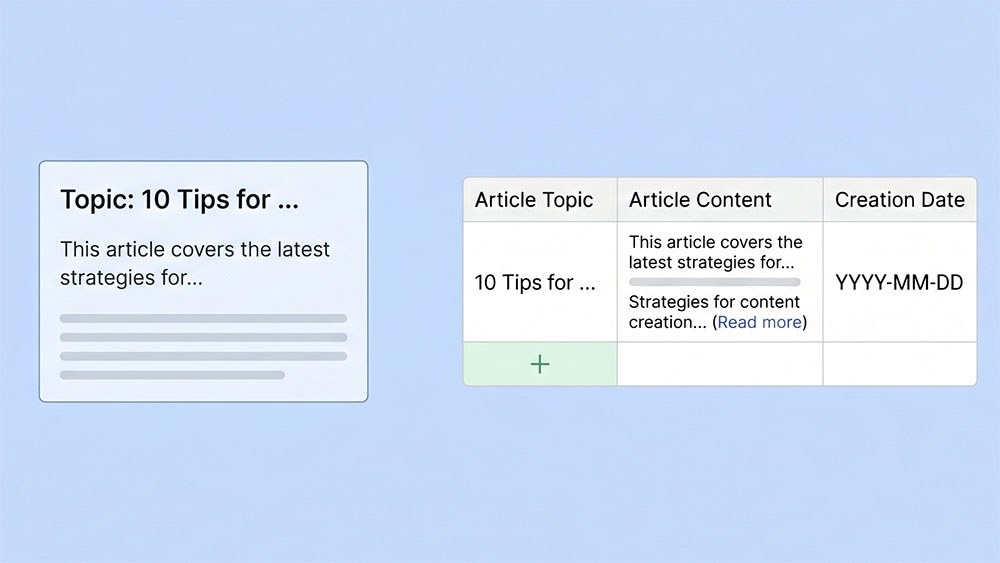
Generated by AI
The Impact
- Generate content instantly. Turn simple topics into full articles without manual drafting.
- Streamline data logging. Automatically append articles to Google Sheets for easy tracking.
- Reduce manual errors. Avoid copy-paste mistakes by automating content storage.
- Scale SEO efforts. Batch-produce keyword-focused drafts efficiently.
Who This Is For
- Content Operations Teams managing daily article production and editorial scheduling.
- SEO Specialists needing rapid generation of keyword-targeted draft articles.
- Bloggers and Creators building searchable archives of article drafts and ideas.
- Marketing Managers overseeing batch content workflows for campaigns.
How It Works
- Input Article Topic and Keywords
- Provide a clear topic and optional SEO keywords to guide article generation.
- Generate Article Content
- The workflow calls a large language model to create a full article draft based on inputs.
- Format Content for Spreadsheet
- Trim whitespace and assemble data into an ordered array: topic, content, current date.
- Append Data to Google Sheets
- Using provided Sheet ID and Sheet Name, the article data is added as a new row automatically.
- Complete and Review
- Confirm the new entries in your spreadsheet for batch management and scheduling.
What You'll Need
Before using this template, make sure you have:
- A Google Sheets spreadsheet with a worksheet that has headers: Article Topic, Article Content, Creation Date.
- Google OAuth credentials authorized to access and modify your Google Sheets.
- The Sheet ID (from your Google Sheets URL) and the exact Sheet Name where content will be appended.
How to Use
- Step 1. Prepare Your Spreadsheet
- Step 2. Configure Credentials
- Step 3. Enter Parameters
- Step 4. Run the Workflow
- Step 5. Verify Results
Create a Google Sheets file and set up a worksheet with headers: Article Topic, Article Content, Creation Date.
Ensure Google OAuth credentials are set up and authorized for accessing your spreadsheet.
Fill in ArticleTopic, SheetId, SheetName, and optionally TargetKeywords to guide article creation.
Trigger the automation to generate the article and append it to your Google Sheet automatically.
Check your Google Sheet to confirm the new article row has been added correctly.


