
Overview
Manual Instagram caption writing can be time-consuming and may interrupt workflow continuity. This automation reads briefs and audience data from Airtable, generates targeted captions with CTAs using an AI agent, and updates records automatically—streamlining content production and archiving.
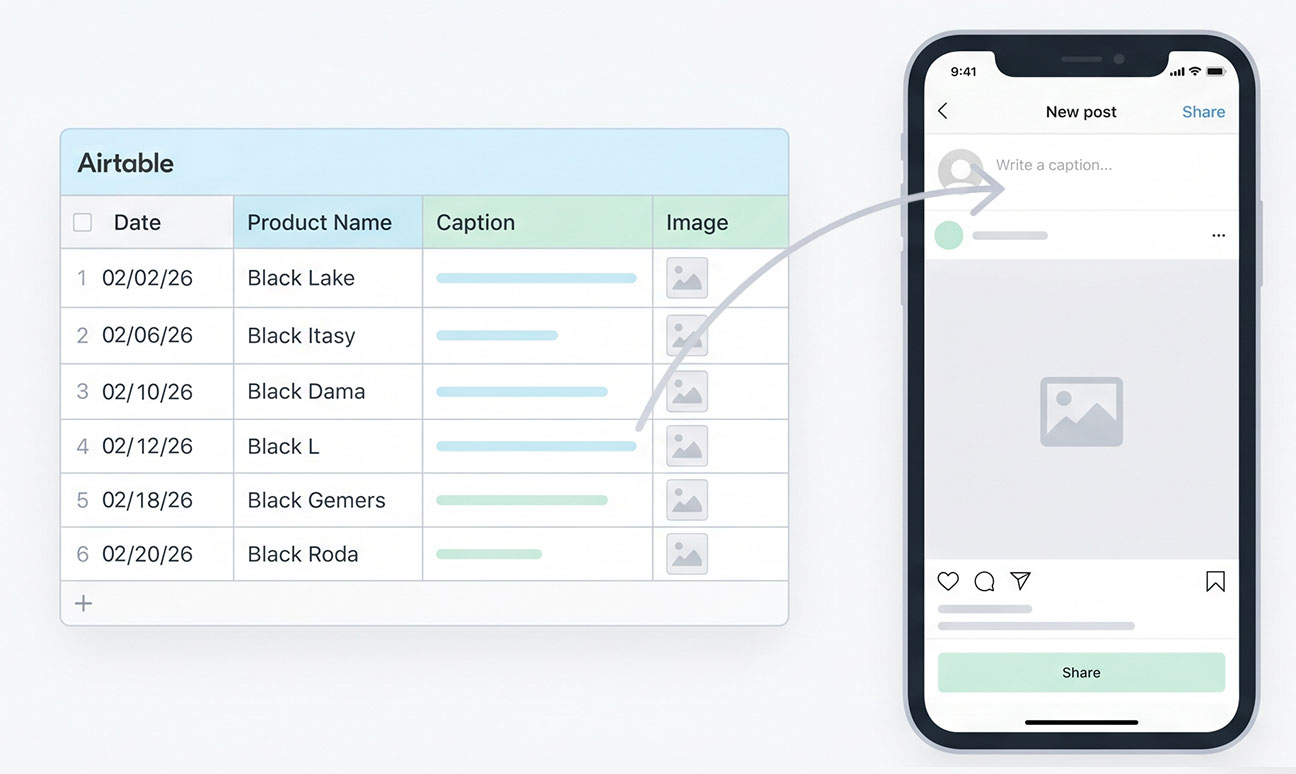
Generated by AI
The Impact
- Eliminate manual caption writing. Generate creative, audience-specific Instagram captions automatically.
- Accelerate campaign launches. Convert briefs and background info into publish-ready posts instantly.
- Ensure content consistency. Use background data to match tone and style precisely.
- Streamline record keeping. Write captions back to Airtable with status flags updated.
Who This Is For
- Social Media Managers automating daily Instagram caption production and archiving.
- Marketing Teams rapidly generating campaign posts tailored to target audiences.
- Content Agencies batch-processing client briefs into stylized social media captions.
- Brand Strategists ensuring consistent messaging aligned with audience insights.
How It Works
- Fetch Briefing
- Retrieve the target record from Airtable and extract the caption briefing and record ID.
- Validate Briefing
- Check if the briefing is empty; halt with a prompt if missing.
- Fetch Background Context
- Pull audience and style data from the background table for context.
- Generate Caption
- Use an AI agent to craft a creative, targeted Instagram caption with a clear CTA.
- Update Airtable
- Write the generated caption back to Airtable and reset publication/advertisement flags.
What You'll Need
Before using this template, make sure you have:
- Airtable account with two tables: main (briefings, captions, flags) and background (audience, tone, key points).Valid Airtable API credentials authorized to read and update these tables.BaseId, TableId, RecordId for the main table and BackgroundTableId, BackgroundRecordId for the context table.
How to Use
- Step 1. Prepare Airtable
- Step 2. Configure Credentials
- Step 3. Input Parameters
- Step 4. Run Workflow
- Step 5. Verify Results
Create two tables: one for briefs and captions, one for background audience/style data.
Set up Airtable API credentials with access to the relevant bases and tables.
Fill in BaseId, TableId, RecordId, BackgroundTableId, and BackgroundRecordId in the workflow.
Trigger the automation to fetch, generate, and update captions automatically.
Check Airtable records for generated captions and status updates to confirm success.


