
Overview
Manually managing leads, sending outreach emails, and tracking status drains time and invites errors. This workflow automates the entire cycle: it imports leads from Google Sheets, sends personalized emails one by one via Gmail, and updates each contact's status back in the sheet, slashing manual effort and boosting outreach speed and accuracy.
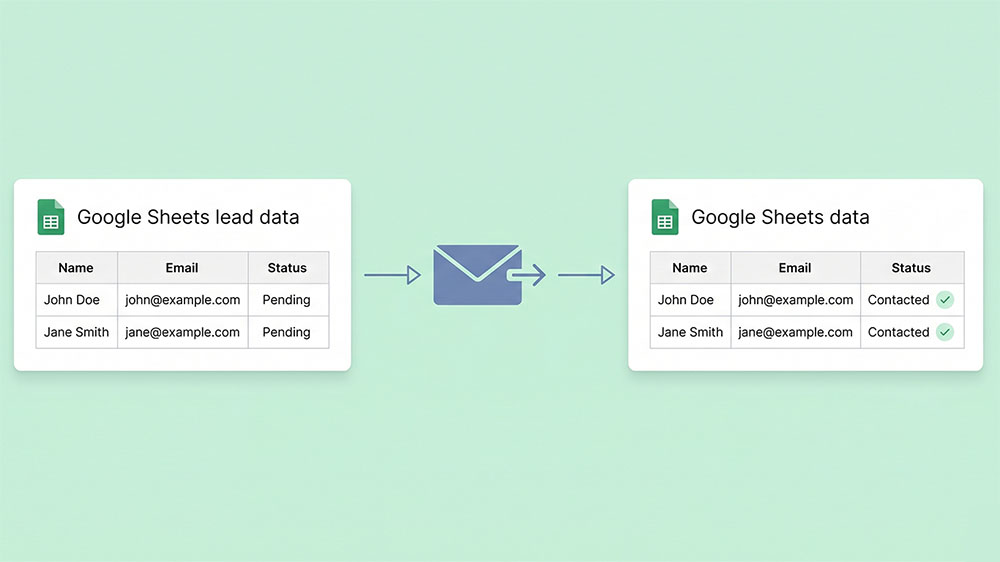
Generated by AI
The Impact
- Eliminate manual data entry. Automatically fetch and parse leads from Google Sheets without copying or formatting.
- Personalize outreach at scale. Send tailored emails to each lead individually using their name and email.
- Sync status updates instantly. Mark each contacted lead in the same sheet to maintain data consistency.
- Accelerate lead engagement. Streamline the entire email campaign process to reach more prospects faster.
Who This Is For
- Sales Teams managing cold lead outreach and tracking contact status in bulk.
- Customer Success Managers automating follow-ups and marking customers as contacted.
- Recruiters sending interview invitations and syncing candidate status updates.
- Marketing Professionals running personalized email campaigns from spreadsheet data.
How It Works
- Import Leads from Google Sheets
- Use spreadsheet ID and sheet name to fetch raw lead data rows.
- Convert Raw Data to Records
- Parse the table string into structured lead records keyed by header columns.
- Send Personalized Emails
- Extract each lead's name and email; send custom outreach emails via Gmail.
- Update Outreach Status in Sheet
- Write back lead name, email, and contact status tag into the original sheet row.
- Repeat for All Leads
- Loop through the entire lead list to complete batch processing automatically.
What You'll Need
Before using this template, make sure you have:
- Google Sheets OAuth credentials authorized to read and update your target sheet.
- Gmail account credentials configured to send emails on your behalf.
- A properly formatted Google Sheet with headers (Name, Email, Status) and lead data rows.
- The Spreadsheet ID and exact SheetName for the worksheet tab containing your leads.
How to Use
- Step 1. Prepare Your Lead Sheet
- Step 2. Configure Credentials
- Step 3. Input Parameters
- Step 4. Run the Workflow
- Step 5. Verify Results
Create a Google Sheet with columns named Name, Email, and Status; fill in your lead details below.
Set up Google Sheets OAuth and Gmail credentials in the workflow nodes for access and email sending.
Enter your Google Sheet's SpreadsheetId and SheetName exactly as they appear in your Google Sheets URL and tab.
Execute the workflow to import leads, send personalized emails, and update the status automatically.
Check your Google Sheet to confirm each lead's outreach status is updated and emails have been sent.


