
Overview
Manual email campaigns tied to spreadsheet data waste time and risk errors. This workflow automates reading your Google Sheet, filters tasks scheduled for today, sends personalized emails via Gmail, and updates the send status back to the sheet in real-time, eliminating repetitive manual steps and ensuring no duplicate sends.
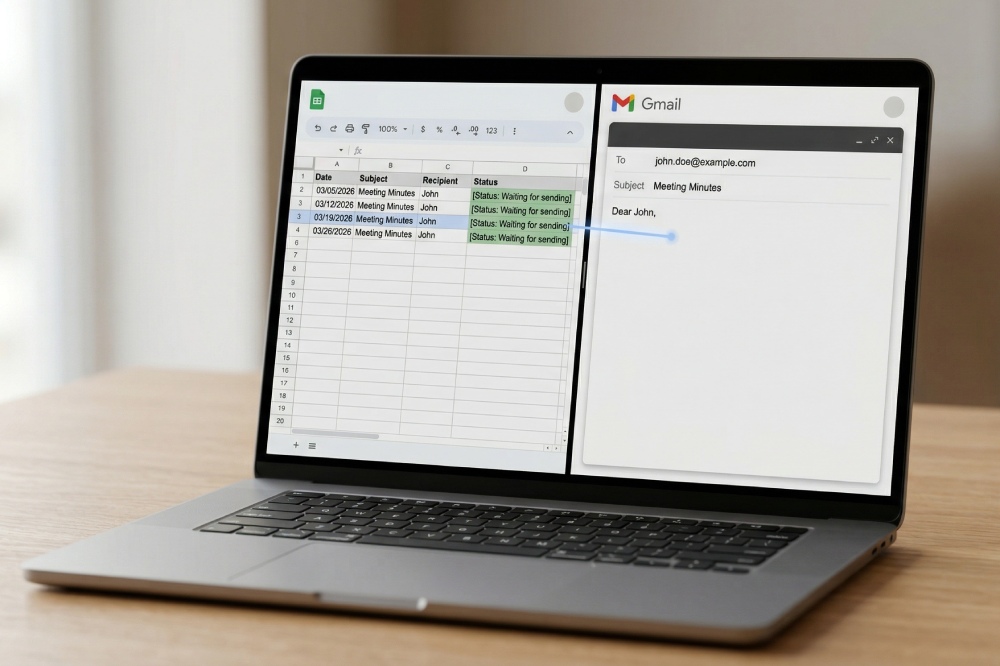
Generated by AI
The Impact
- Eliminate manual email sending. Automate personalized emails directly from your sheet data.
- Prevent duplicate sends. Status updates mark completed rows immediately.
- Standardize data. Auto-format dates and fill missing fields to ensure clean processing.
- Streamline workflows. Combine reading, sending, and status updates into one looped automation.
Who This Is For
- Marketers executing scheduled campaigns with personalized emails.
- CRM Managers automating birthday or renewal reminders.
- Project Leads sending timely internal updates and meeting invites.
- Event Coordinators managing appointment or event reminders.
How It Works
- Read Google Sheet Data
- Retrieve all rows from the specified sheet using authorized Google Sheets credentials.
- Preprocess Data
- Convert raw data to objects, replace empty cells with "N/A", and standardize dates to YYYY-MM-DD format.
- Filter Rows for Sending
- Loop through each row, selecting only those with status "Waiting for sending", today's date, and complete email info.
- Send Emails via Gmail
- Compose personalized emails using row data and send through authorized Gmail credentials.
- Update Send Status
- Calculate the actual sheet row, then update the status cell to "Sent successfully" to avoid repeats.
What You'll Need
Before using this template, make sure you have:
- A Google Sheet with columns: ID (row index starting at 1), Name, Email, Date (YYYY/MM/DD), Status, Subject, Body.
- Google Sheets API credentials authorized for reading and updating the target spreadsheet.
- Gmail API credentials authorized for sending emails from your account.
How to Use
- Step 1. Prepare Your Google Sheet
- Step 2. Configure Identifiers
- Step 3. Authorize Credentials
- Step 4. Run the Workflow
- Step 5. Verify Execution
Create your sheet with the required columns and set rows to "Waiting for sending" status for emails to be sent.
Find the SpreadsheetId from your sheet URL and note the exact SheetName tab.
Set up and authorize Google Sheets credentials in "Get All Rows in Sheet" and "Update Send Status to Sheet" nodes; authorize Gmail credentials in the "Send Mail" node.
Execute the workflow to automatically process today's emails from your sheet.
Check your sheet's Status column updates and confirm emails were sent successfully.


