
Overview
Stop wrestling with calendar interfaces and manual time entry. This workflow provides an intelligent AI agent that understands natural language to manage your schedule. Whether you need to book a meeting or check your availability, the agent processes your intent, asks for missing details, and executes actions directly via the Google Calendar API. It transforms vague requests into structured, accurate calendar events without requiring you to open a single app.
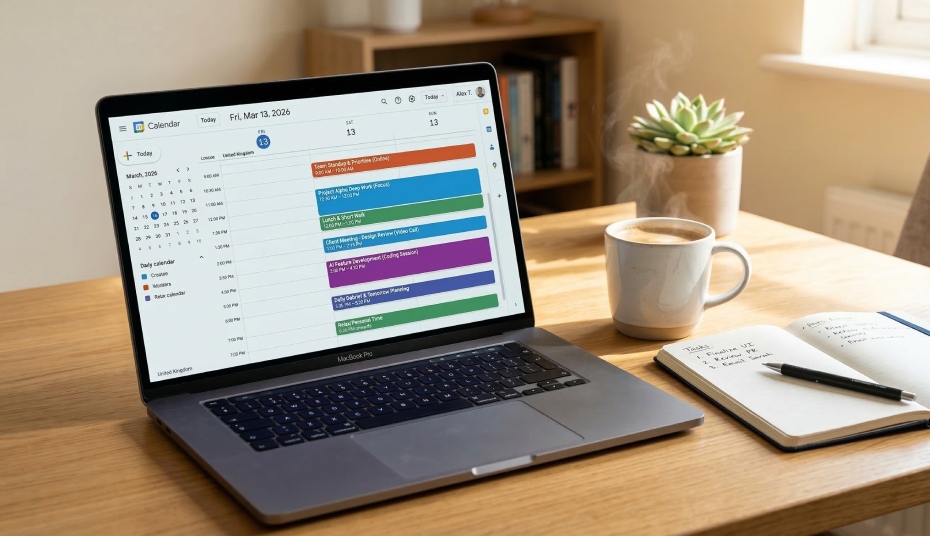
Generated by AI
The Impact
- Hands-free scheduling. Create complex events like "lunch with Alex next Tuesday at 1 PM" using only text or voice.
- Intelligent clarification. The AI proactively identifies missing info, like duration or location and asks you to fill in the gaps.
- Dynamic schedule visibility. Query your entire week instantly to stay on top of your workload without manual searching.
Who This Is For
- Busy Professionals who need to offload administrative scheduling tasks to an automated assistant.
- Project Managers coordinating multiple meetings and time-sensitive milestones across teams.
- Operations Teams building smart front-desk systems for booking client consultations or service calls.
- SaaS Developers looking for a foundation to integrate AI-driven scheduling into their own platforms.
How It Works
- Intent Capture
- The workflow receives your natural language command (e.g., "Check my Friday morning").
- Context Processing
- The AI Agent checks the current date and time to accurately resolve relative terms like "tomorrow" or "next week."
- Parameter Extraction
- The agent identifies if it needs more data (like a meeting title or end time) and engages in dialogue until it has a full data set.
- API Execution
- The Agent triggers the "Create an Event" or "Get Many Events" tool to update or query your Google Calendar in real-time.
- Final Confirmation
- The Answer node displays a clear summary of the action taken or the schedule items retrieved.
What You'll Need
To set up your personal calendar assistant, ensure you have:
- Google Calendar Credentials: Authenticated access within the AI Agent node to act on your behalf.
- Calendar ID: Usually your primary Gmail address, configured in the Start node's
CalendarIdvariable. - Timezone Configuration: A clear instruction within the Agent node to use your specific offset (e.g., UTC+8) to avoid scheduling errors.
How to Use
- Step 1. Configure Credentials
Open the AI Agent node and link your Google Calendar account under the Tools section.
- Step 2. Set Your Calendar ID
Enter your Google email address into the Default Value of the CalendarId field in the Start node.
- Step 3. Test Basic Commands
Run a test with a simple command like "What's on my schedule today?" in the chat interface to verify the connection.
- Step 4. Create an Event
Try a multi-step request, such as "Schedule a 1-hour workout tomorrow at 8 AM," and respond to any clarifying questions.
- Step 5. Verify Results
Check your Google Calendar app to ensure the event has been created with the correct time and details.
FAQs

+08:00) and avoid the Z suffix in timestamps.


